
Cases and the collaboration model
A Case is the container that groups your searches, Bookmarks, and Reports. This page explains what a Case is, how you manage Cases, and how team accounts share Cases and Credits under a team leader.
What a Case is
Section titled “What a Case is”A Case is the active search context. You select the active Case with the Case selector, and you administer all of your Cases in the Case Management modal. A Case can be shared (private or public), can have Forensic Mode enabled per Case, and can carry a Private key and password.
Every account begins with one built-in Default Case. The Default Case cannot be renamed or deleted (see Default Case constraints).
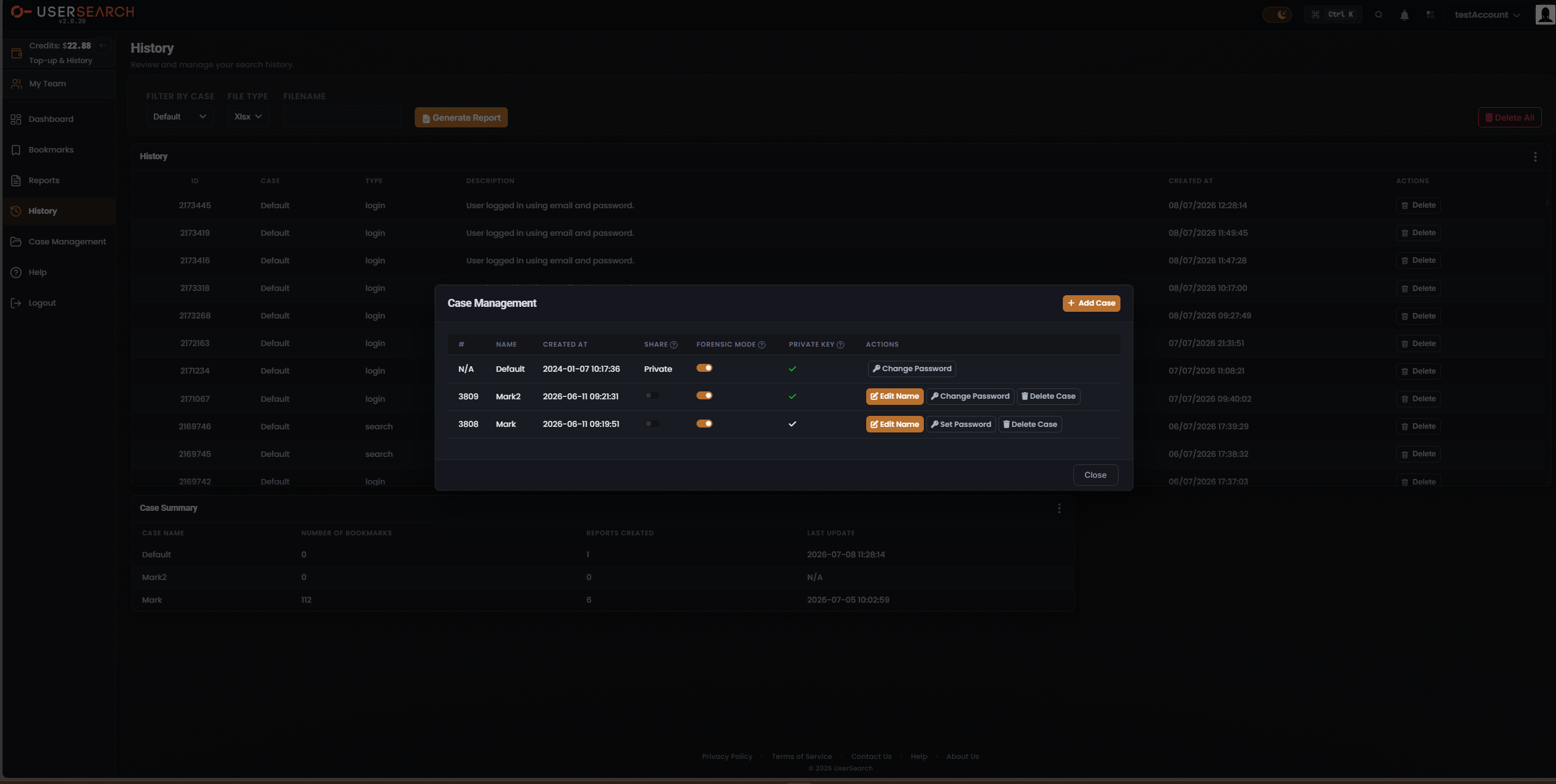
The Case Management modal
Section titled “The Case Management modal”You open Case Management from the left navigation. The modal presents a header row with the modal title and an + Add Case button, a case table, and a Close button. Selecting Close dismisses the modal and returns you to the underlying page.
Add a Case
Section titled “Add a Case”- Open Case Management from the left navigation.
- Select + Add Case.
- Provide the new Case’s details in the creation form.
The case table
Section titled “The case table”The case table lists your Cases with the following columns:
| # | NAME | CREATED AT | SHARE | FORENSIC MODE | PRIVATE KEY | ACTIONS |
|---|
The SHARE, FORENSIC MODE, and PRIVATE KEY headers each carry a ? help indicator. Hovering over one reveals an explanatory tooltip for that column.
The # column holds a numeric case ID for the Cases you create. The built-in Default Case shows N/A instead of a numeric ID.
A representative table looks like this:
| # | NAME | CREATED AT | SHARE | FORENSIC MODE | PRIVATE KEY | ACTIONS |
|---|---|---|---|---|---|---|
| N/A | Default | 2024-01-07 10:17:36 | Private | On | Green check | Change Password |
| 3809 | Mark2 | 2026-06-11 09:21:31 | Off | On | Green check | Edit Name · Change Password · Delete Case |
| 3808 | Mark | 2026-06-11 09:19:51 | Off | On | White check | Edit Name · Set Password · Delete Case |
Sharing a Case: private and public
Section titled “Sharing a Case: private and public”The SHARE column controls a Case’s visibility. A Case is either Private (restricted) or Public (shared).
- For the Default Case, the SHARE state is shown as the fixed text Private rather than as an interactive toggle.
- For a Case you created, SHARE is a toggle. In the off (grey) position the Case is Private; toggling SHARE on makes the Case Public and shareable.
The collaboration model: single and team accounts
Section titled “The collaboration model: single and team accounts”Accounts are either single or team.
- Single accounts do not share. Cases and Credits belong to the one user.
- Team accounts can share Cases among team members and share one common pool of Credits, all controlled by a team leader. Team members draw on the same shared Credit balance and can access the team’s shared Cases.
Case sharing is therefore a team-account capability, controlled by the team leader.
Where team management lives
Section titled “Where team management lives”Seat and team management live on a dedicated Team screen, reached from the My Team item in the left navigation. This is distinct from the Account Credits & Team Licenses page — despite that page’s title, it does not host seat or team management.
Private key and Case password
Section titled “Private key and Case password”The PRIVATE KEY column shows a check indicator per Case, and the ACTIONS column exposes either a Set Password or Change Password control.
A Case password encrypts that Case’s Bookmarks on the UserSearch server, so the saved Bookmarks are stored encrypted rather than in the clear. The Private key is derived from that custom password and is known only to the user — UserSearch holds neither the password nor the key. (per Lee, 2026-07-10)
The ACTIONS column
Section titled “The ACTIONS column”The actions available on a Case row depend on the Case:
- The Default Case exposes only Change Password. It has no Edit Name and no Delete Case.
- A Case that already has a password exposes Edit Name, Change Password, and Delete Case.
- A Case that has no password yet exposes Edit Name, Set Password, and Delete Case.
The pattern is that a Case without a password shows Set Password, while a Case with a password shows Change Password. Edit Name opens a rename control, and Delete Case removes the Case (presumably after a confirmation step).
Default Case constraints
Section titled “Default Case constraints”The Default Case is constrained relative to the Cases you create:
- It cannot be renamed — there is no Edit Name action.
- It cannot be deleted — there is no Delete Case action.
- Its SHARE state is fixed text (Private) rather than an interactive toggle.
- Its # is N/A rather than a numeric case ID.
The Default Case can still have its password changed — Change Password is present.
The Case selector and filtering by Case
Section titled “The Case selector and filtering by Case”You choose the active search context with the Case selector. On the Bookmarks, Reports, and History surfaces, a FILTER BY CASE dropdown lets you scope those views to a single Case. The Cases in that dropdown are expected to match the Cases listed in Case Management.
The Case Summary
Section titled “The Case Summary”The Case Summary is a shared table component that aggregates per-Case totals. It appears on the Bookmarks, Reports, and History pages.
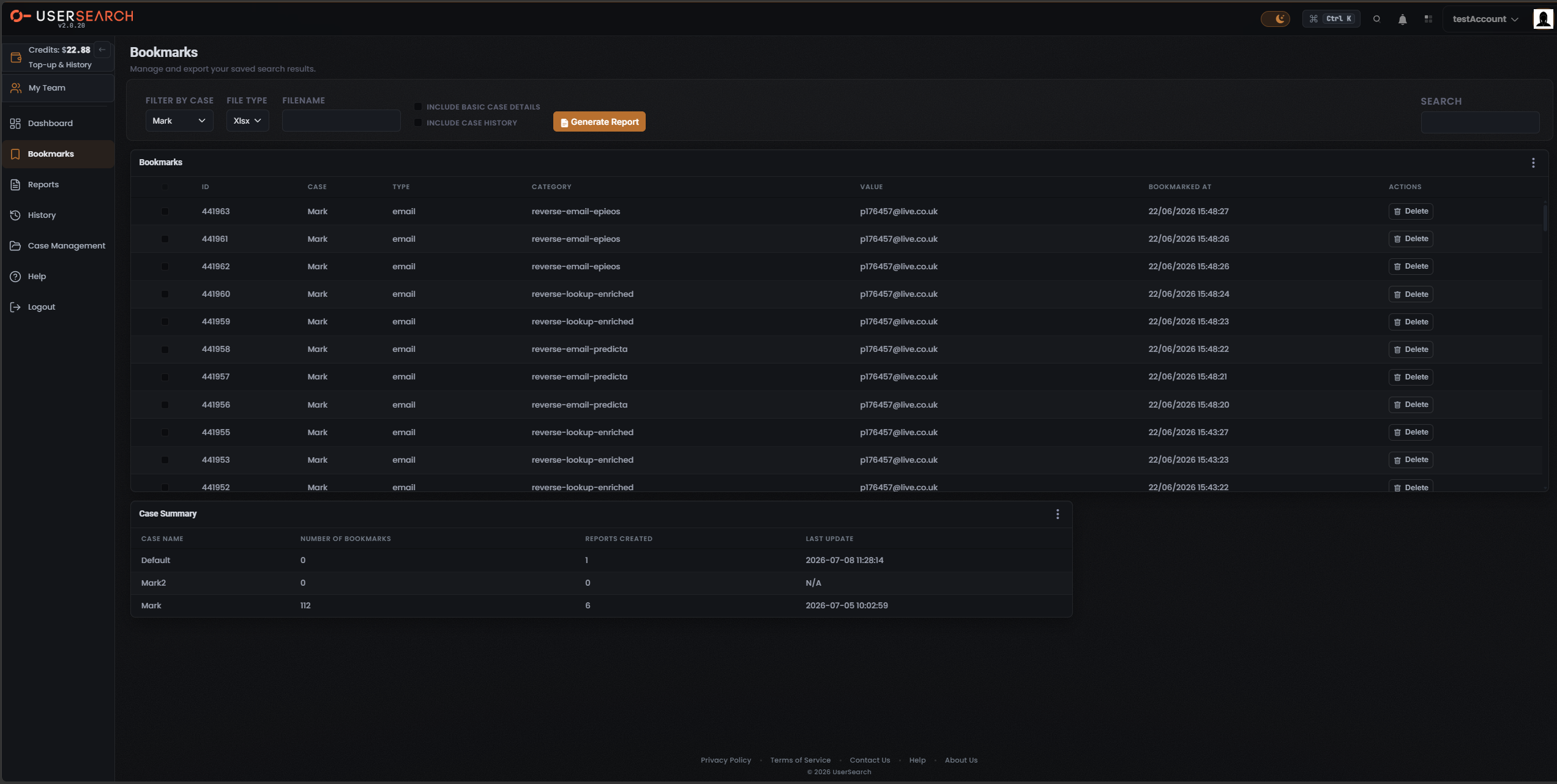
The panel is titled Case Summary and sits below the Bookmarks table, with a three-dot (kebab) overflow menu at its far right. Its columns are:
CASE NAME · NUMBER OF BOOKMARKS · REPORTS CREATED · LAST UPDATE
A representative Case Summary looks like this:
| CASE NAME | NUMBER OF BOOKMARKS | REPORTS CREATED | LAST UPDATE |
|---|---|---|---|
| Default | 0 | 1 | 2026-07-08 11:28:14 |
| Mark2 | 0 | 0 | N/A |
| Mark | 112 | 6 | 2026-07-05 10:02:59 |
Each row aggregates that Case’s totals — its count of Bookmarks and its count of Reports. A LAST UPDATE of N/A indicates the Case has no recorded activity to timestamp.
Related concepts
Section titled “Related concepts”- Forensic Mode — how Forensic Mode governs bookmarking, history, and chain-of-custody per Case.
- Bookmarks and Reports — the saved artefacts that a Case groups.
- History — the search and login record a Forensic-on Case retains.
- Credits, billing, and teams — the shared Credit pool and team-leader control over Case sharing.
Verified against UserSearch v2.0.20