
Share a case privately or publicly
A Case groups your searches, Bookmarks, and Reports. Each Case has a visibility setting — Private or Public — that you control from the Case Management modal. This page explains what sharing does, who can share, and how to change a Case’s visibility.
Who can share a Case
Section titled “Who can share a Case”Case sharing is a team account capability.
- Team accounts can share Cases among team members, draw on one common pool of Credits, and are administered by a team leader, who controls sharing.
- Single accounts do not share Cases.
So sharing is available only on a team account, and it is the team leader who governs it. If you are on a single account, your Cases remain private to you.
Private vs Public
Section titled “Private vs Public”Every Case carries a visibility state in the SHARE column of the case table:
| State | Meaning |
|---|---|
| Private | The Case is restricted / not shared. |
| Public | The Case is shared. |
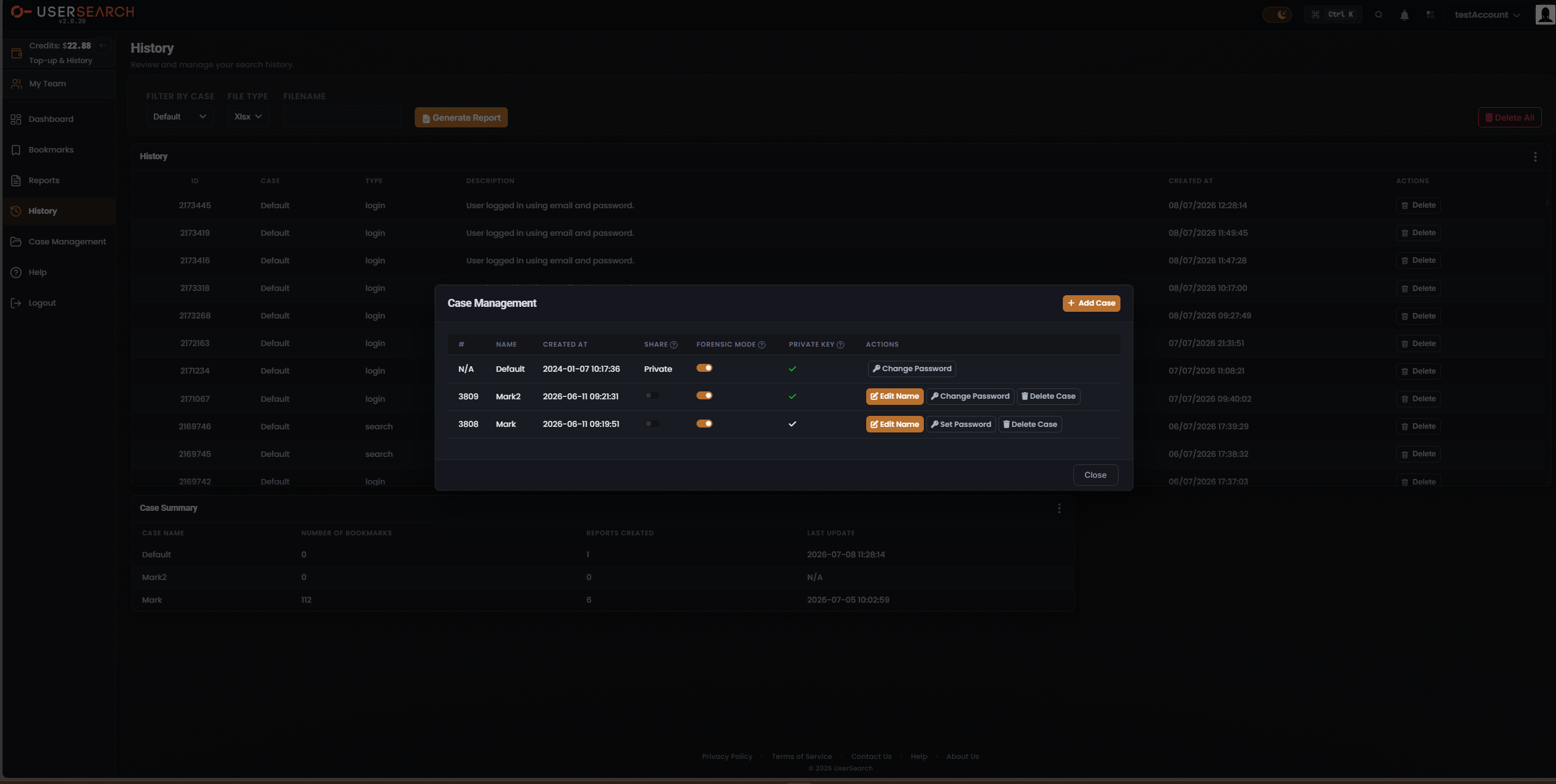
In the captured state, the built-in Default Case shows the fixed text Private rather than a toggle, while user-created Cases show a SHARE toggle in the off (grey) position — that is, Private. Toggling SHARE on makes the Case Public.
Open the Case Management modal
Section titled “Open the Case Management modal”You administer every Case, including its sharing state, from the Case Management modal.
- Open Case Management from the left navigation.
- The modal opens over the current page, showing a header with an + Add Case button, the case table, and a Close button at the bottom right.
The case table has these columns:
| # | NAME | CREATED AT | SHARE | FORENSIC MODE | PRIVATE KEY | ACTIONS |
|---|
The SHARE, FORENSIC MODE, and PRIVATE KEY headers each carry a ? indicator; hover it to reveal that column’s tooltip.
Change a Case’s visibility
Section titled “Change a Case’s visibility”- Open the Case Management modal.
- Find the Case’s row in the case table.
- In the SHARE column, use the toggle to switch the Case between Private (off, grey) and Public (on).
Choose which teammates a case is shared with
Section titled “Choose which teammates a case is shared with”Making a Case Public makes it shareable; a second step decides who on your team can actually open it. That per-teammate choice is made from the My Team screen, not the Case Management modal.
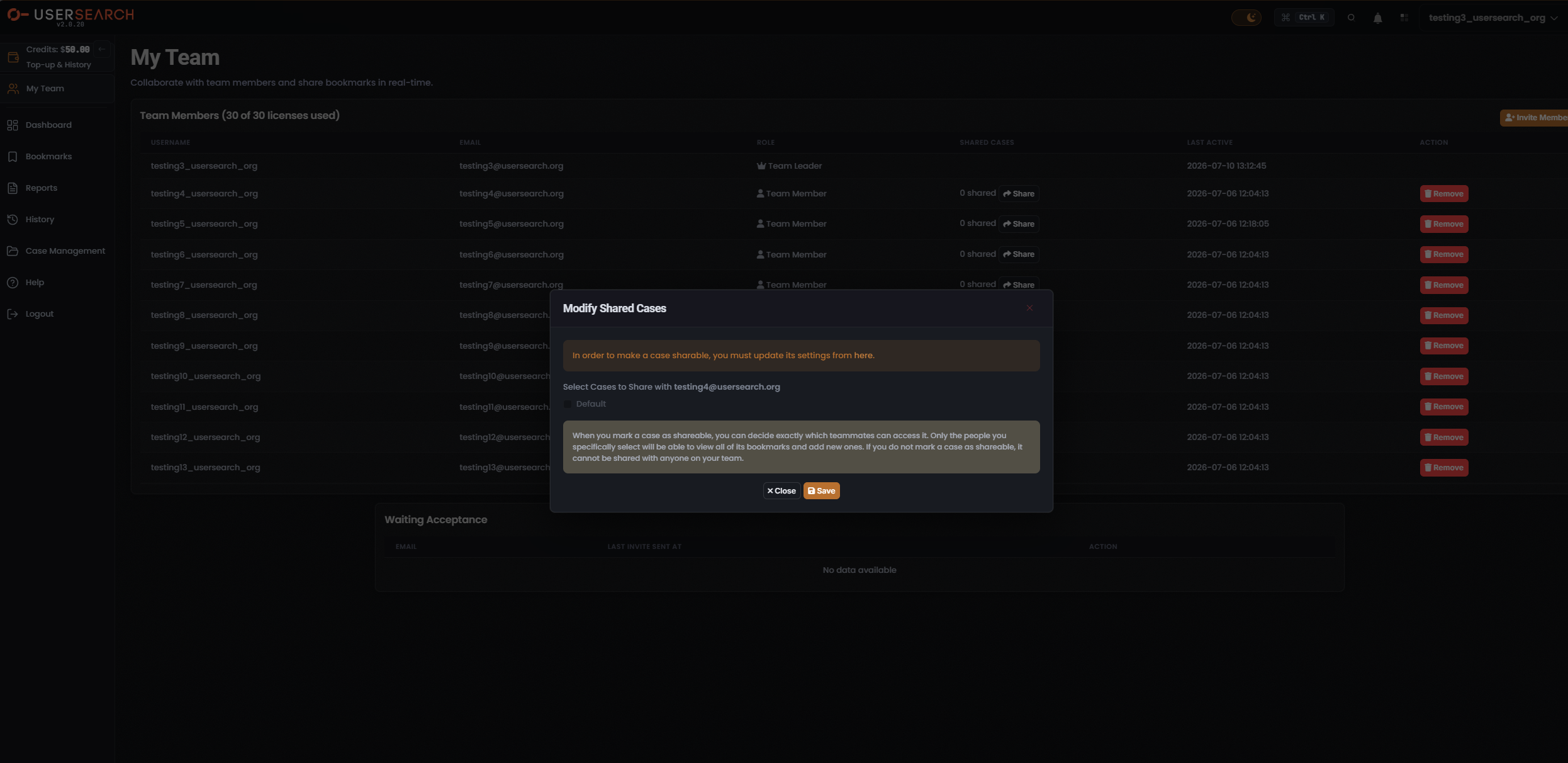
From My Team, each member’s Share button opens the Modify Shared Cases modal, which lists your shareable cases as checkboxes for that one teammate.
The modal states the rule directly:
When you mark a case as shareable, you can decide exactly which teammates can access it. Only the people you specifically select will be able to view all of its bookmarks and add new ones. If you do not mark a case as shareable, it cannot be shared with anyone on your team.
So sharing is two-sided:
- Mark the Case shareable first, from its own settings — the SHARE state in Case Management. A banner in the modal reminds you: “In order to make a case sharable, you must update its settings from here.”
- Select the teammates who may access it, from each member’s Share button in My Team. Only the people you tick can view all of the Case’s Bookmarks and add new ones; a Case you have not marked shareable cannot be shared with anyone.
For managing the team itself — roles, invitations, and the members table — see the Manage your team guide.
Private key and Case password
Section titled “Private key and Case password”Each row also shows a PRIVATE KEY column and, in ACTIONS, either a Set Password or a Change Password control. A Case that has no password yet shows Set Password; a Case that already has one shows Change Password.
Setting a custom password on a Case is what creates that Case’s private key: the encryption key is derived from the password you choose. That password encrypts the Case’s Bookmarks on the UserSearch server, so the saved Bookmarks are stored encrypted rather than in the clear, and UserSearch holds neither the password nor the key. (per Lee, 2026-07-10)
The meaning of the green-versus-white check in the PRIVATE KEY column is not documented beyond the facts above.
How sharing relates to Forensic Mode
Section titled “How sharing relates to Forensic Mode”Sharing (the SHARE column) and Forensic Mode (the FORENSIC MODE column) are separate, per-Case settings.
- Forensic Mode ON — the Case retains bookmarking and history and provides chain-of-custody. This is the evidentiary, audit-trail-preserving mode.
- A Private case with Forensic Mode OFF keeps no bookmarking and no history; it is effectively ephemeral.
A Case’s Private/Public state and its Forensic Mode state are toggled independently, so making a Case Public does not change whether it retains an audit trail.
Verified against UserSearch v2.0.20