
Drive the AI Agent (S.A.R.G.E.)
The AI Agent is a standalone AI workspace that can drive OSINT searches conversationally instead of card-by-card, and can run a full-page entity search builder. It is branded S.A.R.G.E. — Strategic Autonomous Research Gathering Engine — and its in-chat persona is “Sarge, your senior investigator.”
The AI Agent is a documented product feature (per Lee, 2026-07-08), and it is intended to be used and documented despite carrying a Version: 0.3 (experimental) label in the interface.
The feature spans four surfaces you will move between:
| Surface | What it is |
|---|---|
| Entity-tab search builder | Full-page Module multi-select, Case attach, and run |
| AI Investigation Agent chat landing | First entry point: composer, model selector, quick-start buttons |
| Before You Use S.A.R.G.E. consent modal | First-run privacy and responsible-use gate |
| Active chat | A live conversation thread |
First-run consent
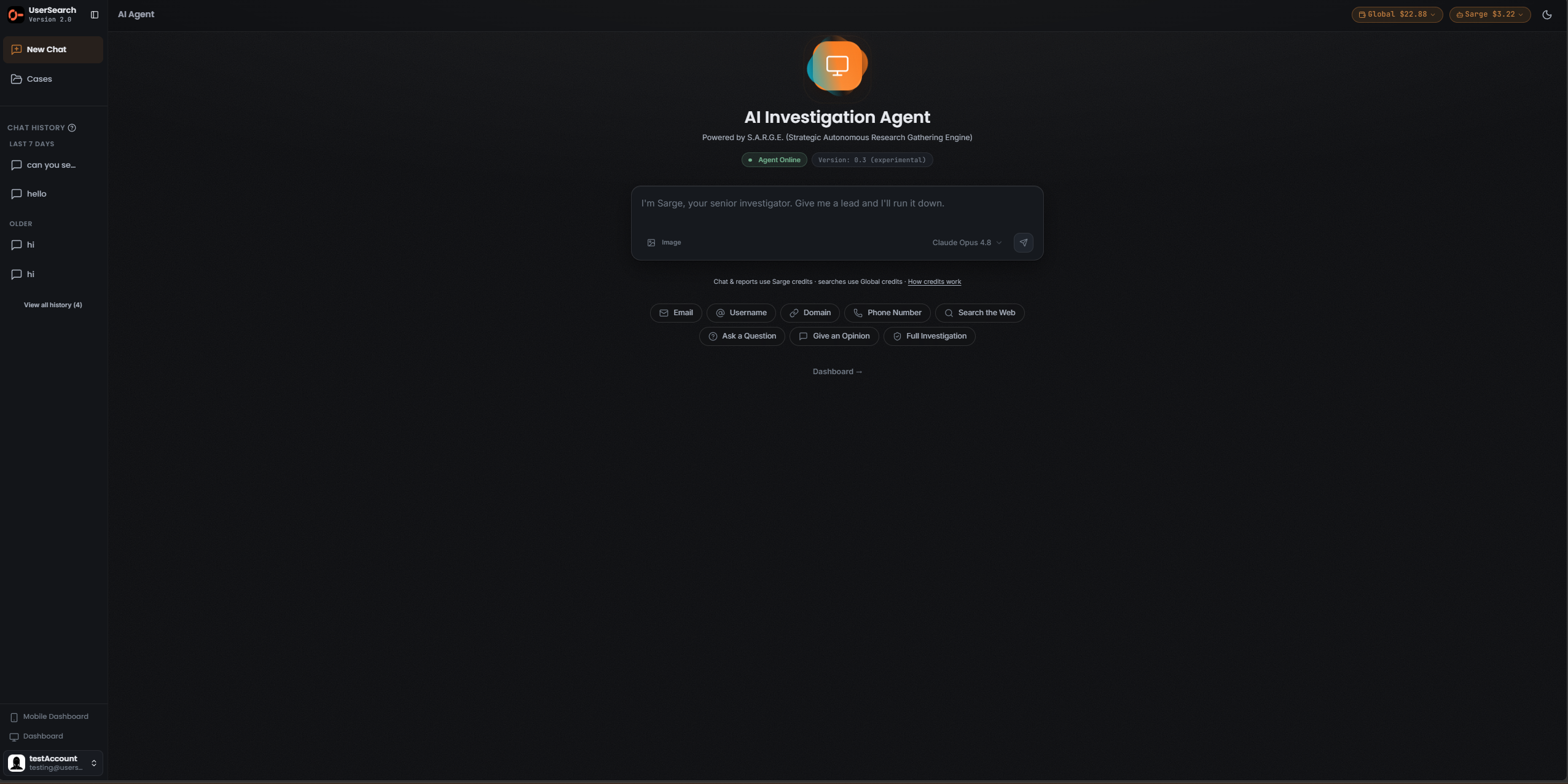
Section titled “First-run consent”Before you can use S.A.R.G.E., a first-run modal titled Before You Use S.A.R.G.E. (sub-label PRIVACY, DATA & RESPONSIBLE USE NOTICE) gates access. It presents five notice sections, then requires two acknowledgements.
The five notices, in order:
- YOUR CONVERSATIONS STAY ON YOUR DEVICE — conversations are not stored on UserSearch servers. Chat history is saved locally on your computer and encrypted. You can delete your conversation history at any time by clearing your browser cache, or directly on this page.
- THIRD-PARTY AI SERVICES — the assistant is powered by third-party AI data sources, and your messages and data are transmitted to these services to generate responses. Do not use the service if you do not want your conversations accessible to third parties.
- AI-POWERED RESPONSES — responses are generated by third-party AI and may contain inaccuracies, outdated information, hallucinations, or errors. You take full responsibility for this.
- VERIFY ALL INFORMATION — search results and agent output should be independently verified. Do not rely solely on AI-generated content for critical decisions.
- RESPONSIBLE USE — the tool is intended for lawful OSINT research only. You are responsible for ensuring your use complies with applicable laws and ethical guidelines.
A REQUIRED ACKNOWLEDGEMENTS panel contains two checkboxes:
- “I understand that AI-generated responses may be inaccurate and I will verify information independently before acting on it.”
- “I confirm I am using this service for lawful purposes only. I accept full responsibility for how I use the information provided and will not hold UserSearch liable for any outcomes resulting from my use of this service.”
A progress counter reads 0 OF 2 CONFIRMED and increments as you check each box. The footer has a Decline button and an Accept & Continue button.
The chat landing
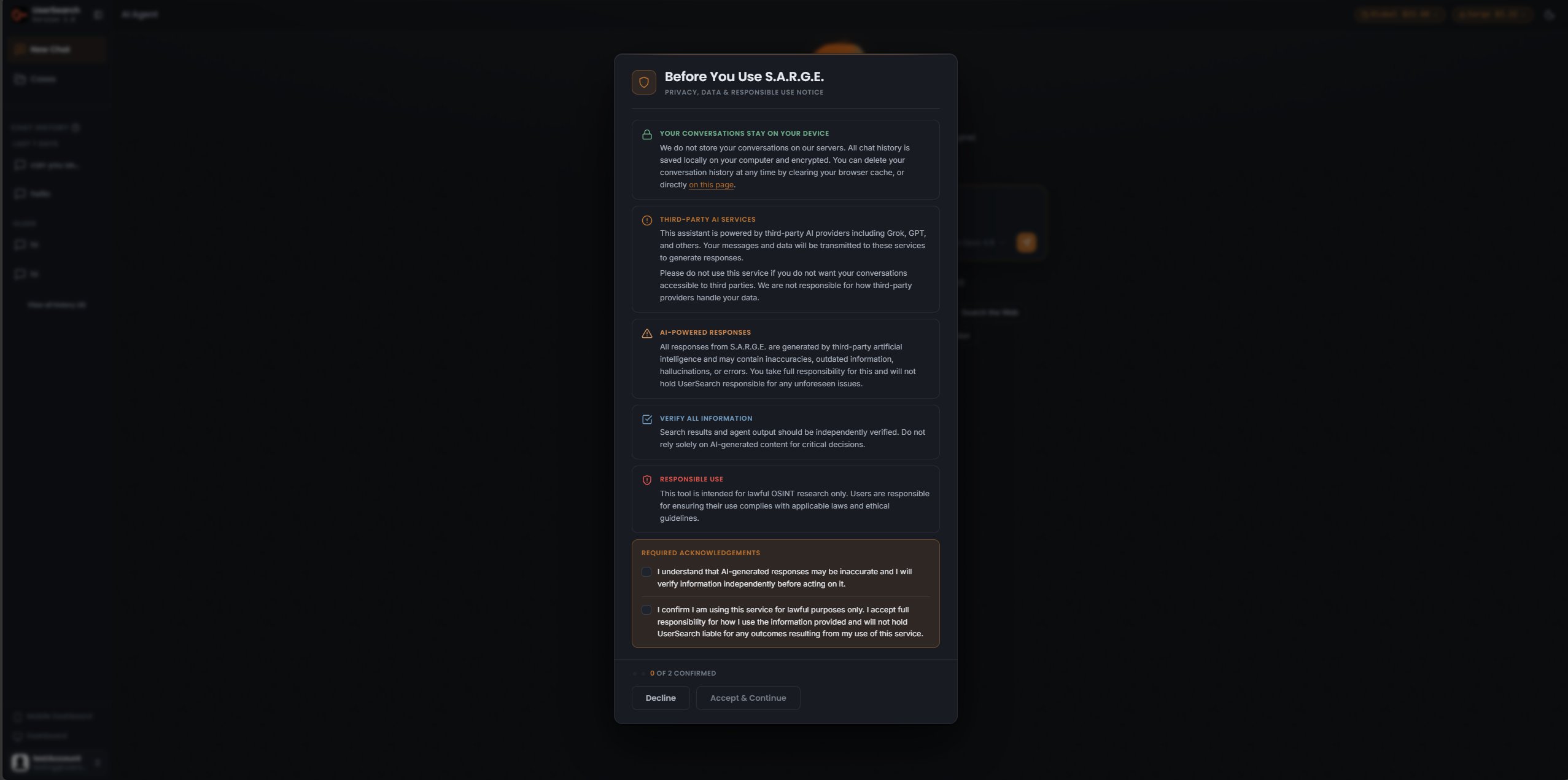
Section titled “The chat landing”The AI Agent chat entry point presents S.A.R.G.E. as an “AI Investigation Agent.”
- The page title is AI Agent.
- The heading is AI Investigation Agent, with the subtitle Powered by S.A.R.G.E. (Strategic Autonomous Research Gathering Engine).
- Two status pills sit side by side: a green Agent Online pill and a Version: 0.3 (experimental) pill.
The composer
Section titled “The composer”The composer is where you give Sarge a lead. It shows:
- Placeholder text: “I’m Sarge, your senior investigator. Give me a lead and I’ll run it down.”
- An Image attachment control (bottom-left).
- A model selector (bottom-right) reading Claude Opus 4.8 with a chevron. Opening it reveals alternative model choices.
- A send button at the far right.
Quick-start buttons
Section titled “Quick-start buttons”Two rows of one-click starters help you launch a search:
- Entity starters: Email, Username, Domain, Phone Number, Search the Web.
- Action starters: Ask a Question, Give an Opinion, Full Search.
A Dashboard → link sits below the starters.
Chat history
Section titled “Chat history”The left sidebar contains a CHAT HISTORY section grouped by recency (for example, TODAY, LAST 7 DAYS, and OLDER), with a View all history link that shows the current count. The global sidebar also carries New Chat and Cases navigation items. When there is no history, the body reads No chat history yet.
Run a conversation
Section titled “Run a conversation”- Open the AI Agent and, on first use, complete the Before You Use S.A.R.G.E. consent modal (check both acknowledgements, then choose Accept & Continue).
- Type a lead into the composer, or select a quick-start button such as Email or Full Search.
- Optionally attach an image with the Image control.
- Confirm the model in the selector (shown as Claude Opus 4.8).
- Send your message.
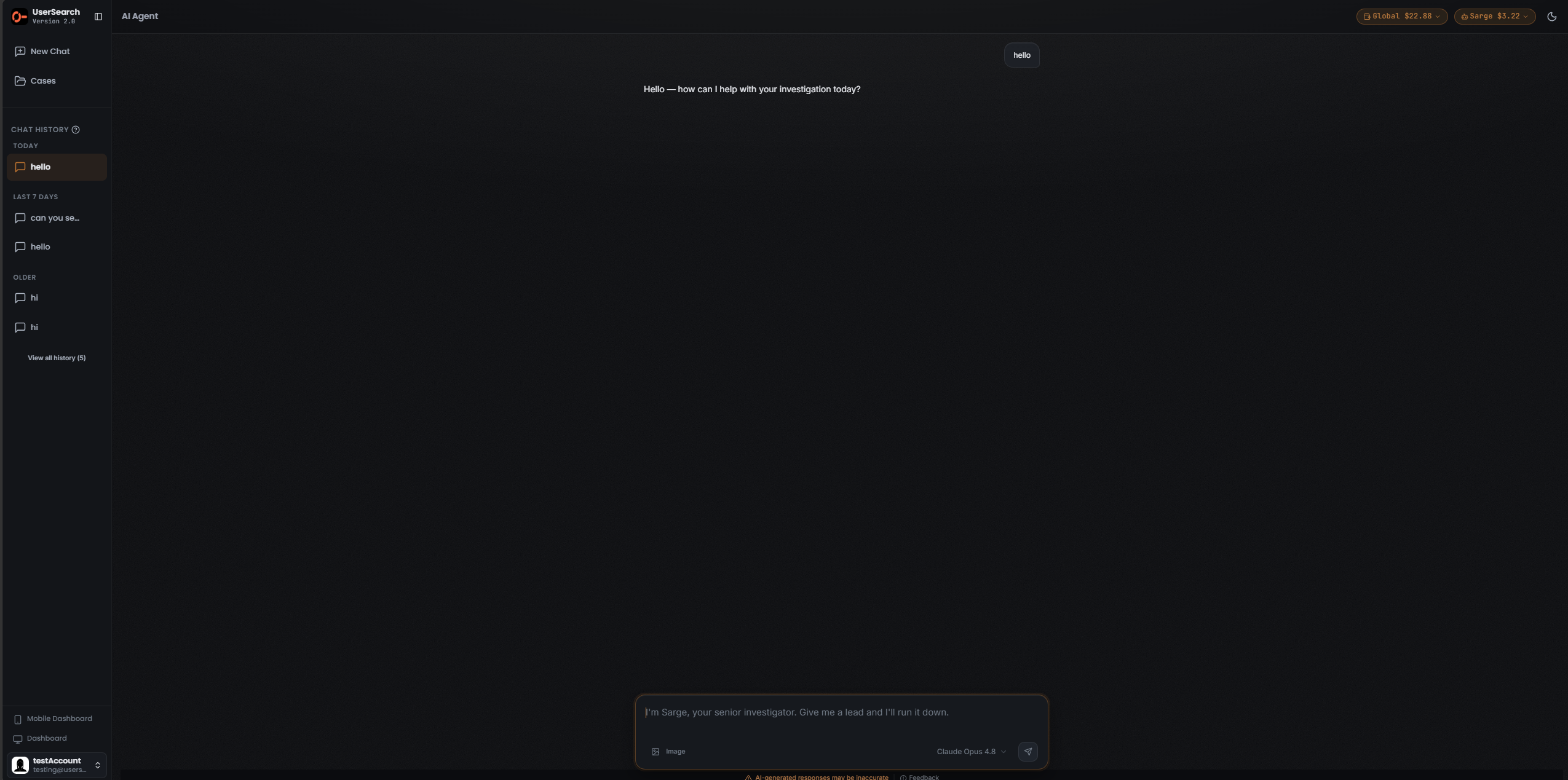
An active thread renders as a conventional chat, with your message on the right and Sarge’s reply on the left. Below the composer you will see the caution line AI-generated responses may be inaccurate and a Feedback link. The CHAT HISTORY sidebar adds the active thread under TODAY, and the View all history count rises as new conversations are created.
The entity search builder
Section titled “The entity search builder”The AI Agent also exposes a full-page search builder that lets you compose a structured search before, or instead of, chatting.
Choose an entity type and search type
Section titled “Choose an entity type and search type”The builder opens with two rows of tabs:
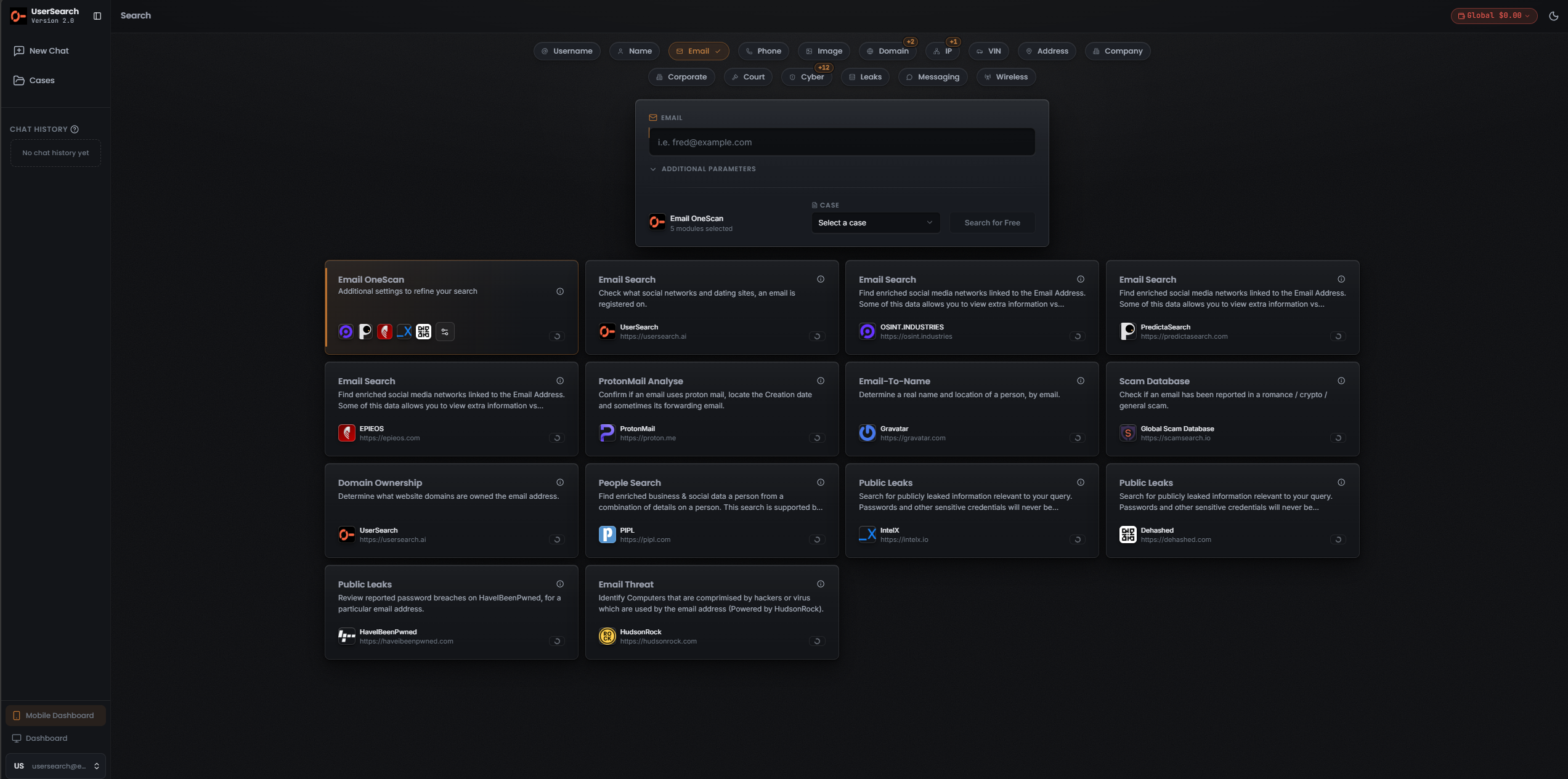
- Row 1 — Entity type: Username, Name, Email, Phone, Image, Domain, IP, VIN, Address, Company. The active Entity is highlighted in the coral accent with a check mark.
- Row 2 — Search type: Corporate, Court, Cyber, Leaks, Messaging, Wireless.
Some tabs carry a numeric “+N” badge — for example Domain shows “+2”, IP shows “+1”, and the Cyber Search type shows “+12” — indicating additional entries grouped under that tab.
Compose the search
Section titled “Compose the search”For an active Email Entity, the builder card contains:
- A header EMAIL with a query input placeholdered “i.e. [email protected]”.
- A collapsible ADDITIONAL PARAMETERS disclosure beneath the input for further query refinement.
- An Email OneScan summary line (for example, 5 modules selected).
- A CASE field with a Select a case dropdown, used to attach the search to an existing Case.
- A Search for Free button beside the Case selector.
The Module grid
Section titled “The Module grid”The builder shows the same Module catalogue you would see in the normal Email Search type. The Email OneScan tile is the recommended multi-source Module; each other tile pairs a Module with its data source. As read from the tiles:
| Module | data source | What it does |
|---|---|---|
| Email Search | UserSearch (usersearch.ai) | Check what social networks and dating sites an email is registered on. |
| Email Search | OSINT.INDUSTRIES (osint.industries) | Find enriched social media networks linked to the email address. |
| Email Search | PredictaSearch (predictasearch.com) | Find enriched social media networks linked to the email address. |
| Email Search | EPIEOS (epieos.com) | Find enriched social media networks linked to the email address. |
| ProtonMail Analyse | ProtonMail (proton.me) | Confirm if an email uses ProtonMail, locate the creation date, and sometimes its forwarding email. |
| Email-To-Name | Gravatar (gravatar.com) | Determine a real name and location of a person, by email. |
| Scam Database | Global Scam Database (scamsearch.io) | Check if an email has been reported in a romance, crypto, or general scam. |
| Domain Ownership | UserSearch (usersearch.ai) | Determine what website domains are owned by the email address. |
| People Search | PIPL (pipl.com) | Find enriched business and social data on a person from a combination of details. |
| Public Leaks | IntelX (intelx.io) | Search for publicly leaked information relevant to your query. |
| Public Leaks | Dehashed (dehashed.com) | Search for publicly leaked information relevant to your query. |
| Public Leaks | HavelBeenPwned (haveibeenpwned.com) | Review reported password breaches on HavelBeenPwned for a particular email address. |
| Email Threat | HudsonRock (hudsonrock.com) | Identify computers that are comprimised by hackers or a virus which are used by the email address (powered by HudsonRock). |
Each Module tile carries an info (i) icon in the top-right; opening it shows details about that Module and data source.
Credits — the separate S.A.R.G.E. pool
Section titled “Credits — the separate S.A.R.G.E. pool”UserSearch maintains two separate credit wallets (per Lee, 2026-07-08): the main Global search-credits pool and the Sarge (AI Agent) pool. They are topped up and spent independently.
The AI Agent surfaces this split directly:
- Two Credits pills sit top-right, for example Global $22.88 and Sarge $3.22.
- A note under the composer reads “Chat & reports use Sarge credits · searches use Global credits”, followed by a How credits work link.
So within the AI Agent, chat turns and generated reports draw from the Sarge pool, while any underlying searches the agent runs draw from the Global pool.
Verified against UserSearch v2.0.20