
How UserSearch works: Search type, Module, data source
Every search in UserSearch is built the same way: you choose a Search type, pick a single Module, optionally configure it, type your query, and run it. This page explains that model — the three core terms Search type, Module and data source, how they relate, and how the Credit cost of a search is determined.
Deeper treatments of pricing, OneScan, Bulk search and results analysis live in their own concept pages; this page is the map that ties them together.
The three core terms
Section titled “The three core terms”- A Search type is the top-level bucket describing what kind of identifier you are investigating (for example, a username or a leaked email address).
- A Module is the card you click. It runs one search — either against a single data source, or, in the case of OneScan, across several data sources at once.
- A data source is the external third party that actually holds the data (for example, Pipl, IntelX, or OSINT Industries).
A Module and its data source are kept distinct even when a single-source Module shares its data source’s name.
The search composer at a glance
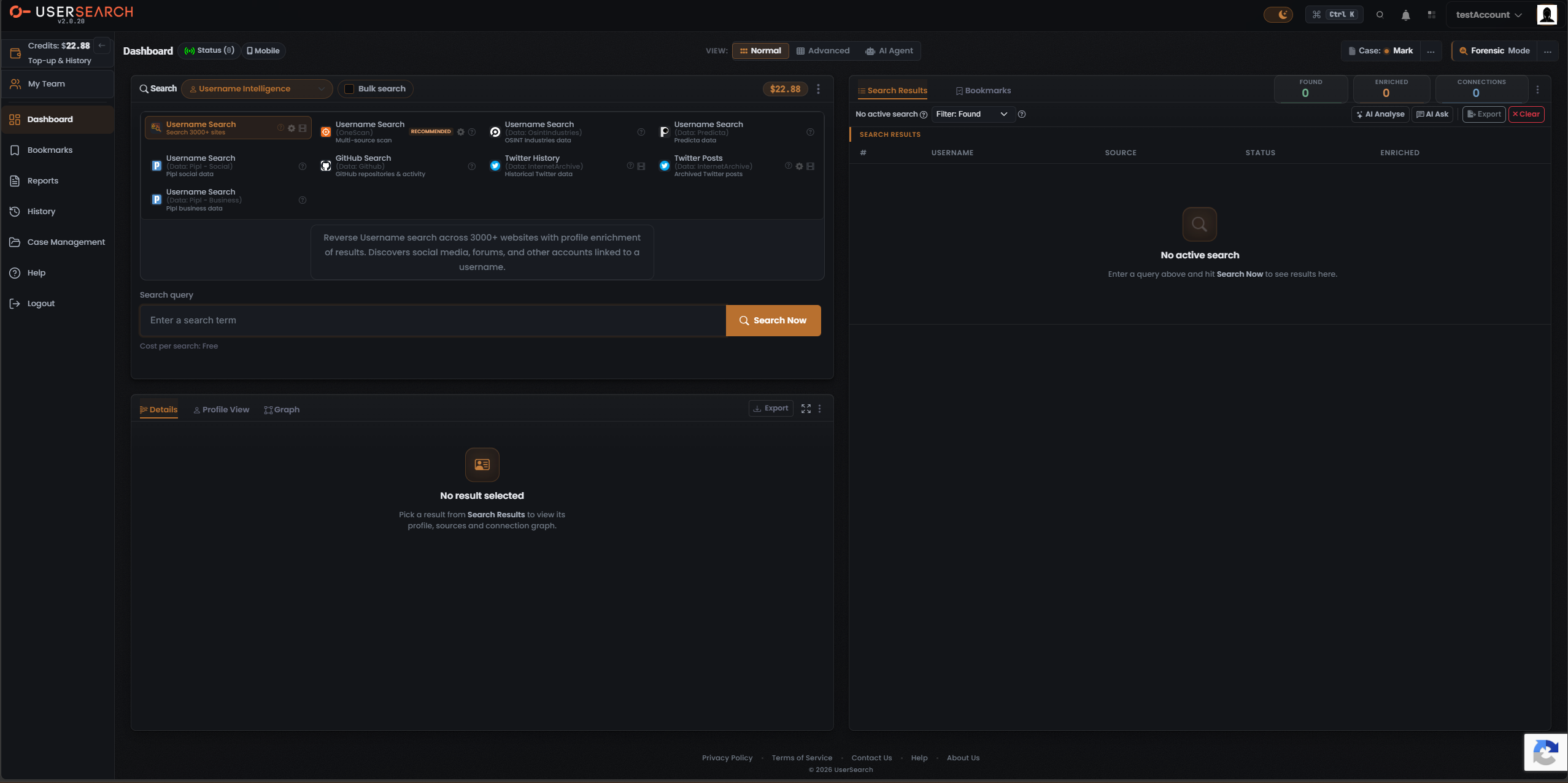
Section titled “The search composer at a glance”The left-hand search composer panel is where every search is built. Its header carries, from left to right:
- A Search title with a magnifier icon.
- The Search type selector — a dropdown showing the active Search type (for example, Username Intelligence with a person icon, or Public Leaks with a magnifier icon) and a chevron to open the list of other search types.
- The Bulk search toggle, a labelled checkbox.
- A coral-orange Credits pill mirroring your account Credits balance.
- A vertical three-dot (kebab) overflow menu at the far right.
Below the header sits the Module grid, then a description panel for the selected Module, then the query input row with the Search Now button, and finally the Cost per search line. Running a search populates the Search Results panel on the right, whose empty state reads “No active search”.
The flow is always the same:
- Choose the Search type.
- Pick one Module.
- Optionally configure it in the Choose Data Source modal.
- Type your query.
- Click Search Now.
Search type — what you’re investigating
Section titled “Search type — what you’re investigating”A Search type is the top-level bucket describing what kind of identifier you’re investigating. Selecting a Search type determines which Modules appear in the grid below it. The active Search type is shown in the composer header dropdown, rendered in the coral-orange accent colour. Switching Search type swaps the entire Module set.
Two search types are documented in detail here:
- Username Intelligence — a large grid of username-oriented Modules.
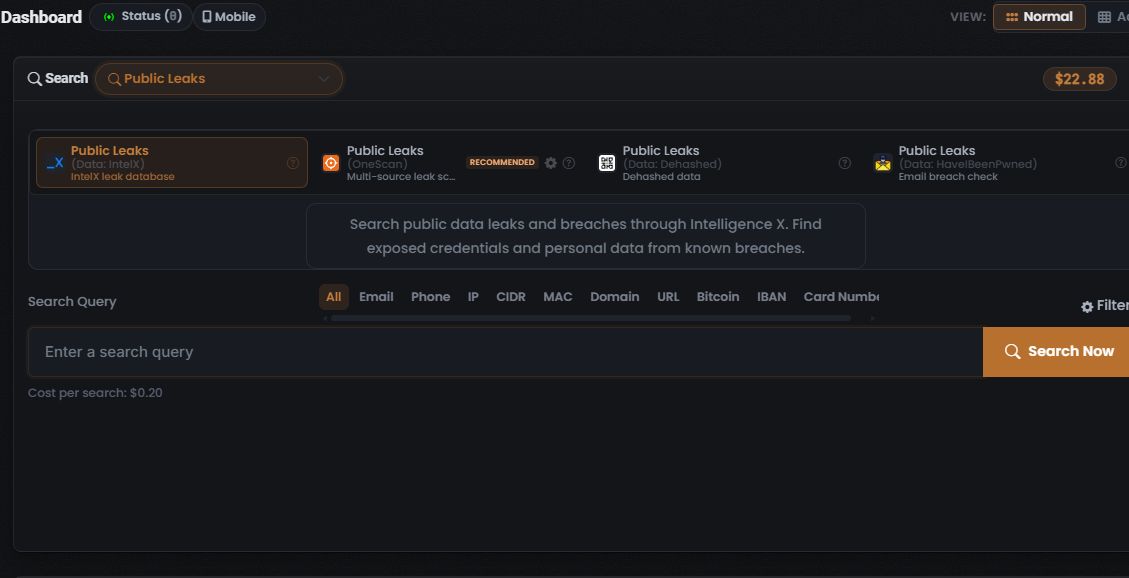
- Public Leaks — a row of breach and leak Modules, which additionally exposes an entity-type tab strip (see Entity-type tabs).
Module — the card you click
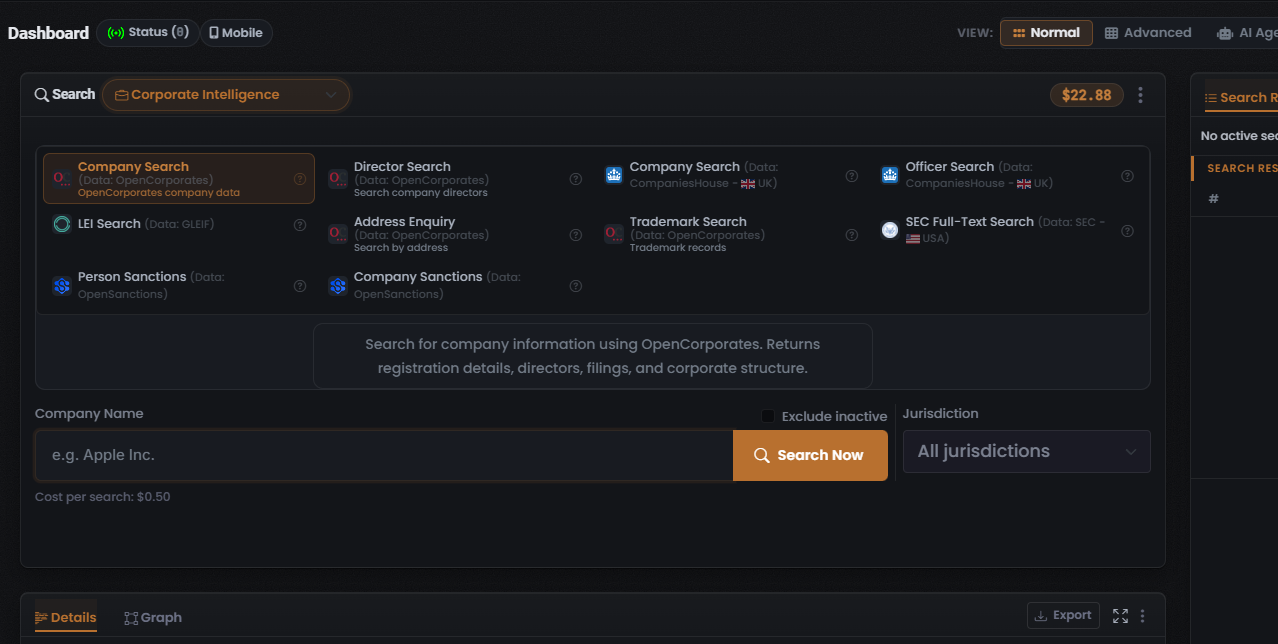
Section titled “Module — the card you click”Each Module is rendered as a selectable card in a multi-column grid (roughly four per row). A Module runs one search against a specific data source — or, for OneScan, across several data sources at once.
Card anatomy
Section titled “Card anatomy”- data source icon — a small square logo at the left edge (for example, the coral OneScan target mark, the blue Pipl “P”, the GitHub octocat, or an envelope for HaveIBeenPwned).
- Title — the Module name in bold, for example Username Search, Public Leaks, or GitHub Search.
- data-source sub-label — greyed, usually in the form “(Data: <data source>)”, for example “(Data: Pipl - Social)” or “(Data: IntelX)”. Some cards use a plain parenthetical instead: the Username Search card shows “Search 3000+ sites”, and the OneScan card shows “(OneScan)”.
- Descriptor — a greyed third line summarising the data, for example “Multi-source scan” or “Email breach check”.
- Some data source sub-labels carry a small country-flag glyph (for example “CompaniesHouse - UK”, “SEC - USA”).
Per-card icons
Section titled “Per-card icons”- A circular ? info icon on every card, opening Module-specific help.
- A gear (settings) icon on a subset of cards, which opens that Module’s Choose Data Source modal (see below). The gear is a property of the Module, not of its selection state — it appears on configurable Modules whether or not they are selected.
- A filmstrip-style icon on the same configurable cards.
Selection is single-select
Section titled “Selection is single-select”- The selected card is drawn with a coral-orange border, a subtly orange-tinted background, and coral-orange title text. Non-selected cards have no border and use white or grey text.
- Only one Module is highlighted at a time — the grid is single-select within a Search type.
- Clicking a card selects that Module and loads its description panel, its Cost per search value, and its query form below the grid.
In every captured search type the leftmost card is pre-selected — the app’s fixed out-of-box default for that Search type, not a persisted last-used choice (per Lee, 2026-07-10).
The RECOMMENDED badge
Section titled “The RECOMMENDED badge”A coral-orange RECOMMENDED badge appears on the OneScan Module, in more than one Search type. OneScan is badged this way because it is a multi-source aggregator that gives broader coverage than a single-source Module.
The description panel and query input
Section titled “The description panel and query input”Below the grid, a bordered, rounded description panel shows the selected Module’s blurb. For example, the Username Search Module reads: “Reverse Username search across 3000+ websites with profile enrichment of results. Discovers social media, forums, and other accounts linked to a username.”
Beneath the description is the query input row:
- The field label changes per Module — for example “Search query” for Username Search, “Username” for OneScan, or “Search Query” for Public Leaks.
- The placeholder reads “Enter a search term” or “Enter a search query” when empty.
- A primary coral-orange Search Now button with a magnifier icon sits at the right of the row.
Clicking Search Now runs the selected Module against the query and populates the Search Results panel. Directly under the query field is the Cost per search line.
OneScan — the recommended multi-source Module
Section titled “OneScan — the recommended multi-source Module”OneScan is a specific multi-source Module offered in most search types and marked RECOMMENDED. A single OneScan search fans out across multiple data sources at once and merges the results, so you get broader coverage than any single-source Module in one run. In the results, the data-source column then shows which data source each row came from.
Which data sources OneScan queries is configured in its Choose Data Source modal, and the set of enabled data sources is exactly what drives its dynamic cost (see The Credit cost model).
The Choose Data Source modal
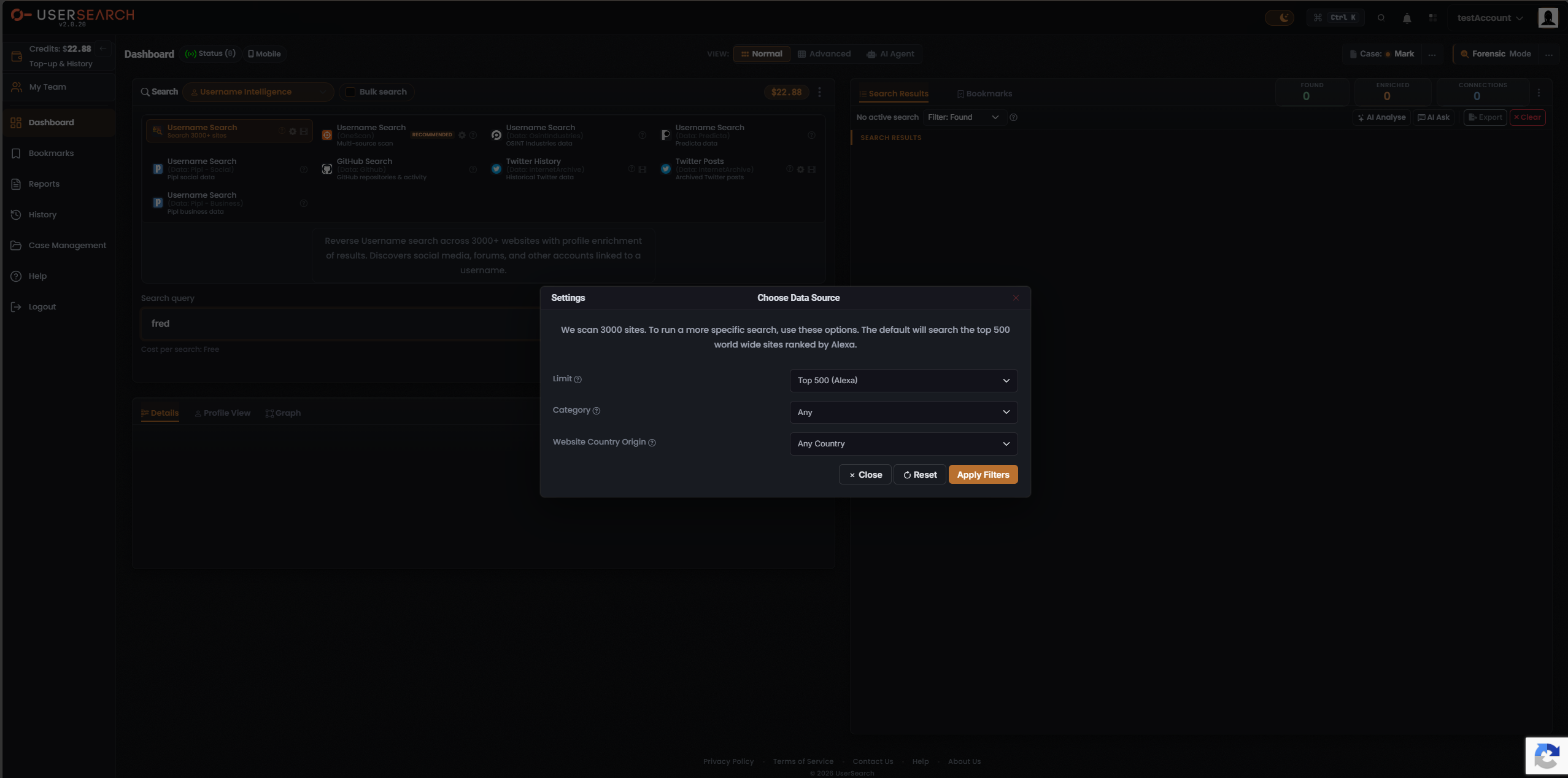
Section titled “The Choose Data Source modal”Clicking a Module’s gear icon opens a modal headed Choose Data Source (with a secondary “Settings” label top-left and a red close control top-right). Two structurally different variants exist, matching the two kinds of configurable Module.
Filter variant — Username Search
Section titled “Filter variant — Username Search”For the site-scanning Username Search Module, the modal narrows which sites are searched. Its intro text reads: “We scan 3000 sites. To run a more specific search, use these options. The default will search the top 500 world wide sites ranked by Alexa.”
It offers three dropdowns, each with a ? info icon:
| Control | Default value |
|---|---|
| Limit | Top 500 (Alexa) |
| Search type | Any |
| Website Country Origin | Any Country |
The footer has three buttons: Close, Reset (restores defaults), and a primary coral-orange Apply Filters (commits the chosen options to the pending search).
data source-toggle variant — OneScan
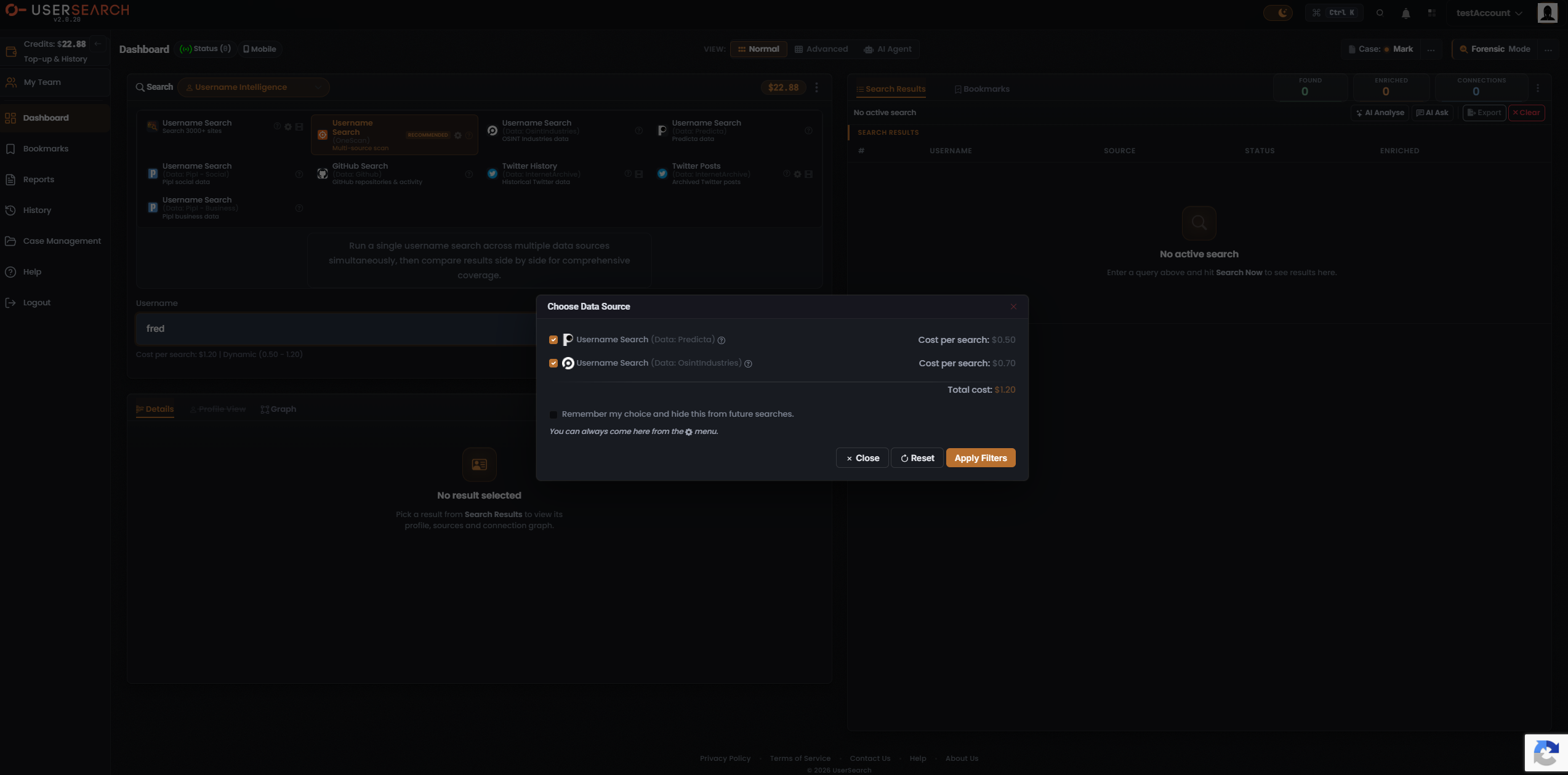
Section titled “data source-toggle variant — OneScan”For OneScan, the modal lists the individual data sources it can query, each with a checkbox toggle and its own per-search cost. In the captured example:
| data source row | State | Cost per search |
|---|---|---|
| Username Search (Data: Predicta) | Checked | $0.50 |
| Username Search (Data: OsintIndustries) | Checked | $0.70 |
| Total cost | $1.20 |
The Total cost line sums the enabled data sources ($0.50 + $0.70 = $1.20) and matches the composer’s OneScan cost line. Toggling a data source off removes its cost from the total and narrows which data sources OneScan queries. Each data source row carries its own ? info icon.
Below the list is a Remember my choice and hide this from future searches checkbox, with helper text: “You can always come here from the [gear] menu.” The footer has the same Close, Reset and Apply Filters buttons.
Entity-type tabs (Public Leaks)
Section titled “Entity-type tabs (Public Leaks)”In the Public Leaks search type, the composer adds a horizontal entity-type tab strip above the query input, listing: All, Email, Phone, IP, CIDR, MAC, Domain, URL, Bitcoin, IBAN and “Card Numbe…” (Card Number, truncated). The strip scrolls horizontally, so more tabs exist beyond the right edge. All is selected by default. Selecting a tab filters the search to that entity type. A Filter control with a gear icon appears at the right end of the tab row.
The Credit cost model
Section titled “The Credit cost model”Every Module shows its price on a Cost per search line beneath the query input, and the value updates to match whichever Module is selected. Costs are denominated in Credits and debited from your balance when a paid search is run.
There are three cost tiers:
| Tier | Meaning | Example |
|---|---|---|
| Free | 0 Credits. | Username Search reads “Cost per search: Free”. |
| Fixed | A single, unchanging per-search amount. | Public Leaks (IntelX) at $0.20; Company Search at $0.50. Whole search types such as Vehicle are fixed-price. |
| Dynamic | A variable amount shown as a range. | OneScan reads “Cost per search: $1.20 | Dynamic (0.50 - 1.20)”. |
A dynamic charge is the sum of the data sources left toggled on in the Choose Data Source modal, so the total moves as you enable or disable data sources. OneScan is the canonical dynamic-cost Module: its price is literally the running sum of its enabled data sources. In the captured example, the ceiling ($1.20) is Predicta ($0.50) plus OsintIndustries ($0.70) with both on, and the floor ($0.50) is the cheapest single data source left on. Reducing the enabled set lowers the cost — that is the lever you pull to trade coverage against spend.
Two separate credit pools
Section titled “Two separate credit pools”The costs above draw from the main global search-credits pool. The AI Agent feature (S.A.R.G.E.) has its own separate pool; the two wallets are topped up and spent independently (per Lee, 2026-07-08). Team accounts share one common pool of Credits controlled by a team leader; single accounts do not share (per Lee, 2026-07-08).
Bulk search
Section titled “Bulk search”Bulk search is a per-search toggle in the composer header that runs the chosen Module over many input values at once instead of a single value. It is capped at 5 queries per search (per Lee, 2026-07-08). Enabling it switches the query input to accept a list of terms. Bulk search is orthogonal to OneScan — many inputs versus many data sources — and the two can be combined.
Running a search, step by step
Section titled “Running a search, step by step”- Choose the Search type in the composer header dropdown.
- Click one Module card — its description, cost line and query form load below.
- Optionally open Choose Data Source (the gear icon) to filter sites or toggle data sources, then click Apply Filters.
- Optionally enable Bulk search for up to 5 inputs, and — in search types that show one — pick an entity-type tab.
- Type your query and confirm the Cost per search you expect to pay.
- Click Search Now. The Search Results panel populates.
Results, the Found / Enriched / Connections counters, pivoting and AI analysis are covered in the results concept page.
Verified against UserSearch v2.0.20