
Review search and login history
The History page records your account’s past searches and logins so you can audit what was searched, when, and under which Case. It also lets you export that log as a report and delete entries you no longer need.
History is a per-activity audit log. It is not your billing Transaction history — those are separate.
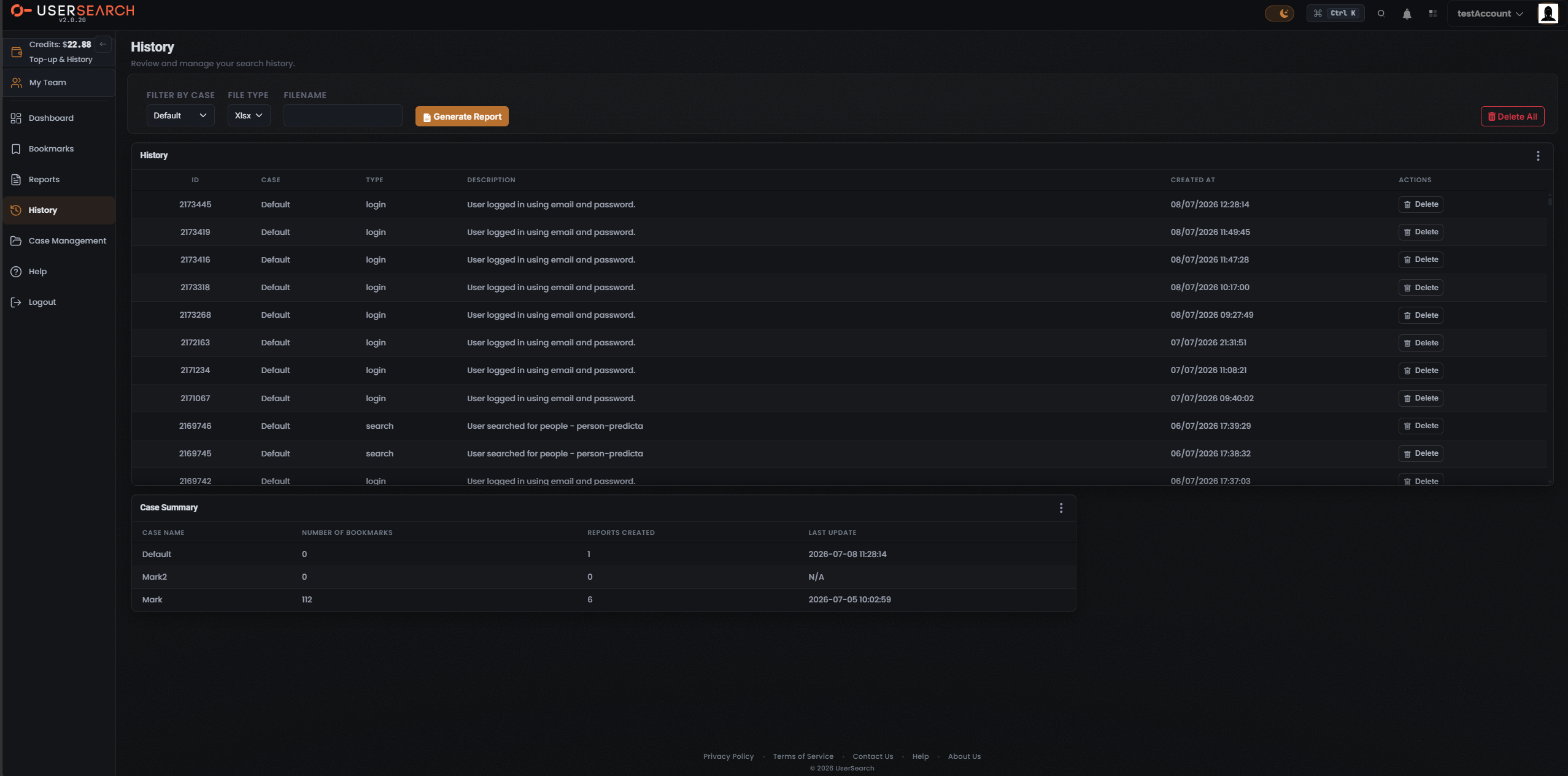
Open the History page
Section titled “Open the History page”- Open the left navigation.
- Select History. The active item is highlighted with the coral accent.
The page subtitle reads “Review and manage your search history.”
What history records
Section titled “What history records”Each entry is a single logged action, tied to a Case. The table has these columns:
| Column | Meaning |
|---|---|
| ID | The entry’s identifier. |
| CASE | The Case the action belongs to. |
| TYPE | Either login or search. |
| DESCRIPTION | A plain-language summary of the action. |
| CREATED AT | When the action occurred, as DD/MM/YYYY HH:MM:SS. |
| ACTIONS | Row controls (see Delete a single entry). |
The TYPE column distinguishes the two kinds of logged activity:
- login entries describe a sign-in, for example “User logged in using email and password.”
- search entries describe a lookup, for example “User searched for people - person-predicta.”
The table is vertically scrollable, so more entries may exist below the visible set.
Filter and export history
Section titled “Filter and export history”The controls above the table let you narrow the log and generate a report from it:
| Control | Label | Function |
|---|---|---|
| Case filter | FILTER BY CASE | Restricts the history entries to a single Case. |
| Format | FILE TYPE | Sets the export file format (Xlsx in the captured state). |
| Filename | FILENAME | Names the generated report file. |
| Export | Generate Report | Produces a downloadable report from the current filter, file type, and filename. |
| Bulk delete | Delete All | Removes every history entry (see below). |
To export your history:
- Choose a Case in FILTER BY CASE.
- Set the FILE TYPE.
- Optionally type a FILENAME.
- Select Generate Report.
Delete a single entry
Section titled “Delete a single entry”Each row’s ACTIONS column has a Delete button (trash icon) that removes that one history entry.
- Find the entry in the History table.
- Select the Delete (trash) button in its ACTIONS column.
Delete all history
Section titled “Delete all history”The red Delete All button at the top-right of the page removes all history entries.
- Confirm you have exported any history you want to keep first (Delete All is a bulk removal).
- Select Delete All.
Case Summary panel
Section titled “Case Summary panel”At the bottom of the History page (and shared with the Bookmarks and Reports pages) is a Case Summary panel that aggregates per-Case totals.
| Column | Meaning |
|---|---|
| CASE NAME | The Case. |
| NUMBER OF BOOKMARKS | Count of bookmarks saved to that Case. |
| REPORTS CREATED | Count of reports generated for that Case. |
| LAST UPDATE | The Case’s most recent activity timestamp; N/A means no recorded activity. |
Verified against UserSearch v2.0.20