
Case Management reference
A Case is the container that groups your searches, Bookmarks, and Reports. You choose the active Case with the Case selector, and you administer every Case from the Case Management modal. A Case can be shared, can have Forensic Mode enabled per-case, and can be secured with a custom password from which its Private key is derived.
Every account begins with one built-in Default Case that cannot be renamed or deleted.
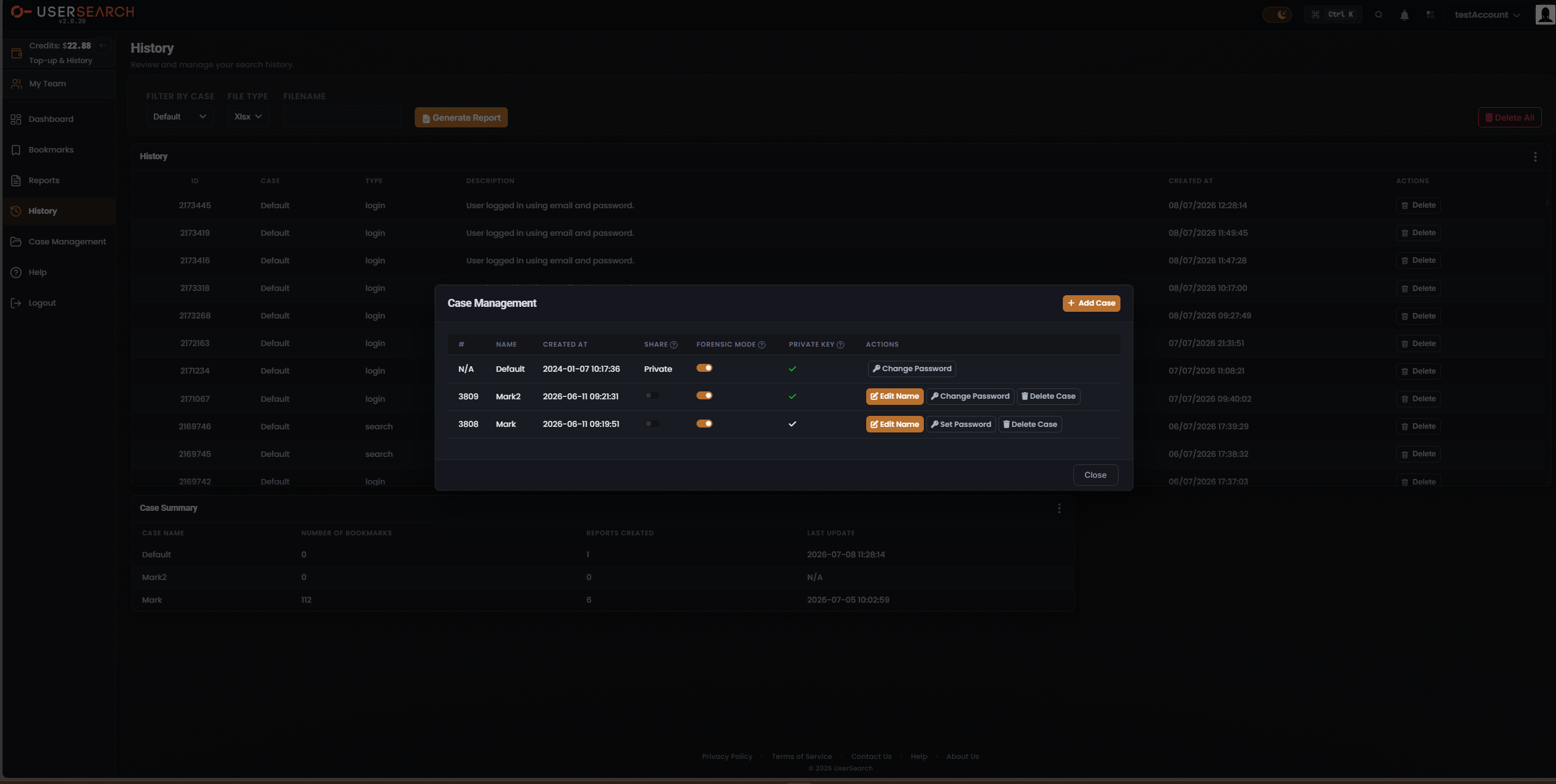
Forensic Mode
Section titled “Forensic Mode”Forensic Mode is the property that determines whether a Case keeps a durable record of the search. It is set individually for each Case (per-Case) using the FORENSIC MODE switch in the case table.
- Forensic Mode ON — the Case retains bookmarking and history and provides chain-of-custody. This is the evidentiary, audit-trail-preserving mode. (per Lee, 2026-07-08)
- Forensic Mode OFF (a private, ephemeral case) — the Case keeps no bookmarking and no history. It records nothing. (per Lee, 2026-07-08)
The practical trade-off is audit-trail retention plus chain-of-custody (Forensic Mode ON) versus an ephemeral private case that records nothing (Forensic Mode OFF).
The Case Management modal
Section titled “The Case Management modal”You open the Case Management modal from the left navigation. It overlays whichever page you are on.
The modal has a header row carrying the title and an + Add Case button (top-right), the case table, and a Close button at the bottom right. Clicking Close dismisses the modal and returns you to the underlying page.
Add a Case
Section titled “Add a Case”- Open Case Management.
- Click + Add Case at the top right.
- Name the new Case.
The case table
Section titled “The case table”The case table has these columns:
| # | NAME | CREATED AT | SHARE | FORENSIC MODE | PRIVATE KEY | ACTIONS |
|---|
The SHARE, FORENSIC MODE, and PRIVATE KEY headers each carry a ? help indicator; hovering it reveals an explanatory tooltip for that column.
The # column holds a numeric case ID for the Cases you create (for example, 3809). The Default Case shows N/A instead, consistent with it being a built-in system Case.
Share modes — Private and Public
Section titled “Share modes — Private and Public”The SHARE column controls a Case’s visibility: Private (restricted) or Public (shared).
- The off (grey) toggle position corresponds to Private — the Case is not shared.
- Toggling SHARE on makes the Case Public / shareable.
The Default Case shows the fixed text Private rather than an interactive toggle, so its share state cannot be changed.
Sharing, teams, and credits
Section titled “Sharing, teams, and credits”Accounts are either single or team. (per Lee, 2026-07-08)
- Team accounts can share Cases among team members, share one common pool of Credits, and everything is controlled by a team leader.
- Single accounts do not share Cases.
Case sharing is therefore a team-account capability, controlled by the team leader.
Private key and Case password
Section titled “Private key and Case password”A Case’s Case password and private key are two parts of one mechanism. Setting a custom password on the Case is what creates its private key: the encryption key is derived from the password you choose. That password encrypts that Case’s Bookmarks on the UserSearch server, so the saved Bookmarks are stored encrypted rather than in the clear, and UserSearch holds neither the password nor the derived key. (per Lee, 2026-07-10)
In the PRIVATE KEY column, each Case shows a check indicator. A green check appears to mark a Case that has a password configured, and a white check a Case whose action is still Set Password. (inferred, not confirmed)
The ACTIONS column
Section titled “The ACTIONS column”The actions available on a row depend on the Case:
- Set Password appears on a Case that has no password yet; Change Password appears on a Case that already has one.
- Edit Name opens a rename control for the Case.
- Delete Case removes the Case, after a confirmation step.
Default case constraints
Section titled “Default case constraints”The Default Case is constrained relative to the Cases you create:
- It cannot be renamed — there is no Edit Name action.
- It cannot be deleted — there is no Delete Case action.
- Its SHARE state is fixed text (Private) rather than an interactive toggle.
- Its # is N/A rather than a numeric case ID.
It can still have its password changed — Change Password is present.
Choosing the active Case
Section titled “Choosing the active Case”You choose the active search context with the Case selector. A FILTER BY CASE dropdown appears on the Bookmarks, Reports, and History surfaces to scope those views to a single Case.
Case Summary
Section titled “Case Summary”The Case Summary is a shared table that aggregates per-Case totals. It appears on the Bookmarks, Reports, and History pages, sitting below the main table, with a three-dot (kebab) overflow menu at its far right.
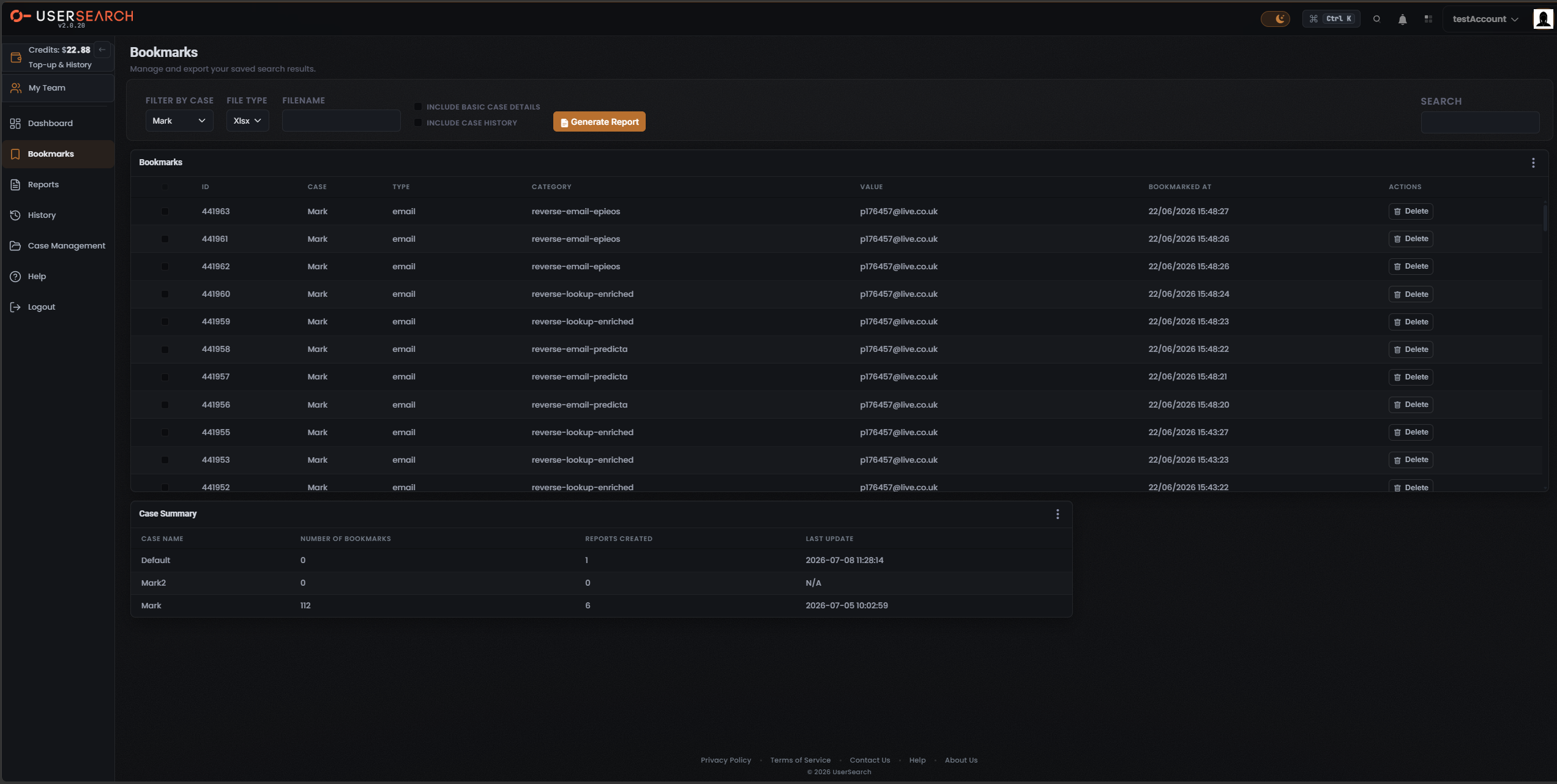
Its columns, left to right, are:
| CASE NAME | NUMBER OF BOOKMARKS | REPORTS CREATED | LAST UPDATE |
|---|
Each row aggregates that Case’s totals: the count of Bookmarks and the count of Reports created for it. A LAST UPDATE of N/A indicates the Case has no recorded activity to timestamp.
Related
Section titled “Related”- Bookmarks and Reports are the saved artefacts that Cases group. Their retention depends on Forensic Mode.
- History — the search and login record that a Forensic-ON Case retains.
- Account, team & billing — single versus team accounts, the shared Credits pool, and team-leader control over Case sharing.
Verified against UserSearch v2.0.20