
Court records search: overview
The Court Records search type takes a free-text query — any phrase, name, email, username, phone number or address — and searches court-record data sources across several countries for matching records. Reach for it when your lead is a name or phrase you want to check against court and legal filings rather than a username, email, phone number, or other identifier.
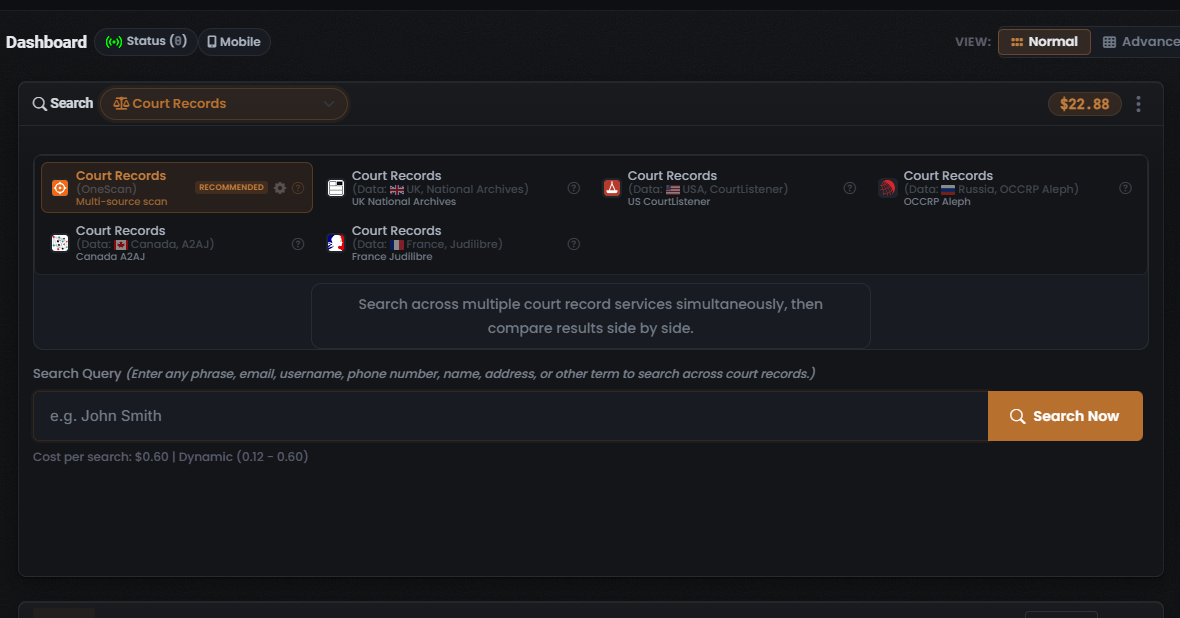
Court Records is the one search type whose default Module is a OneScan Module: it opens with Court Records (OneScan) already selected, so it runs one query across several country data sources at once from the moment you open it.
When to use it
Section titled “When to use it”Reach for Court Records when you hold a name or phrase and want to:
- Sweep several countries’ court records at once and compare them side by side — the default Court Records (OneScan) Module, which runs across multiple court-record services simultaneously.
- Query one country’s court-record source directly — the UK National Archives, CourtListener (USA), OCCRP Aleph (Russia), A2AJ (Canada), or Judilibre (France) — via the single-country Modules.
This search type exposes six Modules. For the full breakdown of each — its data source, cost, and what it returns — see Court records modules & options.
The end-to-end flow
Section titled “The end-to-end flow”Court Records follows the same search composer flow as every other search in UserSearch — see How UserSearch works for the general model.
- In the composer header, open the Search type selector (the dropdown with a chevron) and choose Court Records (shown with a scales / justice icon). The active search type is drawn in the coral-orange accent colour.
- Pick a Module from the grid. The grid is single-select: the chosen tile is drawn with a coral-orange border, and selecting one deselects the others. Court Records (OneScan) is selected by default and badged RECOMMENDED — leave it selected for the broadest coverage, or pick a single-country Module.
- (Optional) choose your countries. The Court Records (OneScan) tile carries a gear icon that opens a Choose Data Source modal, where you add or remove the country data sources OneScan queries. The Cost per search updates as you toggle data sources on and off. See Court records modules & options.
- Enter your query in the Search Query field. Its helper text reads “Enter any phrase, email, username, phone number, name, address, or other term to search across court records,” and the placeholder is “e.g. John Smith.”
- Confirm the Cost per search line beneath the input, then select Search Now (the coral-orange button with a magnifier icon).
What it costs
Section titled “What it costs”The selected Module shows its price on a Cost per search line, denominated in Credits drawn from your main (Global) search-credits pool. With the default Court Records (OneScan) Module selected, the captured line reads “Cost per search: $0.60 | Dynamic (0.12 - 0.60)”:
- OneScan is dynamic — the charge is the sum of the country data sources left toggled on in its Choose Data Source modal (per Lee, 2026-07-08). The captured ceiling is $0.60 (all sources on); the floor of the range is $0.12 (the cheapest single source left on).
- The five single-country Modules are fixed-priced (single-source Modules are fixed under the cost model), but their individual amounts were not captured — confirm the Cost per search line on the tile before running one.
See Credits & pricing for the full cost model.
What you get back
Section titled “What you get back”Running a search populates the Search Results panel on the right, with the standard header counters — Found (green), Enriched (orange), and Connections (white) — over a results table whose columns adapt to the Module you ran, plus a Details panel for the selected row. Because a OneScan run merges several countries, expect each row to be attributed to the data source (the country court-record service) that returned it.
For how to read and verify those results, see Reading Court records results and the general concept Found, Enriched & Connections.
Related: Court records modules & options · Reading Court records results · OneScan · Credits & pricing
Verified against UserSearch v2.0.20