
Wireless device search: overview
The Wireless Device search type takes a wireless identifier — a network ID (BSSID/MAC), an SSID (network name), or a ZIP (area) — and looks it up against WiGLE, the crowdsourced wardriving database of WiFi and Bluetooth networks and their observed geolocations. Reach for it when your lead is a piece of wireless hardware or a network name rather than a username, email, phone number, or image.
Unlike most search types, Wireless Device is single-data-source: every Module runs against one data source — WiGLE. Your choice here is therefore which lookup — which lens on the same WiGLE data — not which data source. See WiGLE for the data source itself.
When to use it
Section titled “When to use it”Reach for Wireless Device when you hold a wireless identifier and want to:
- Look up a device by its network ID — retrieve a Bluetooth device’s details and recorded location, or a WiFi network’s details, from its BSSID/MAC (the Bluetooth by BSSID Module, the lead Module, or WiFi by BSSID).
- Search by network name — find the Bluetooth devices or WiFi networks matching a given SSID (the Bluetooth by SSID and WiFi by SSID Modules).
- Sweep an area — list the Bluetooth devices or WiFi networks WiGLE has recorded in a ZIP (the Bluetooth by ZIP and WiFi by ZIP Modules).
This search type exposes six Modules, all backed by WiGLE. For the full breakdown of each — what it searches, its input, and its cost — see Wireless device modules & options.
The end-to-end flow
Section titled “The end-to-end flow”Wireless Device follows the same search composer flow as every other search in UserSearch — see How UserSearch works for the general model.
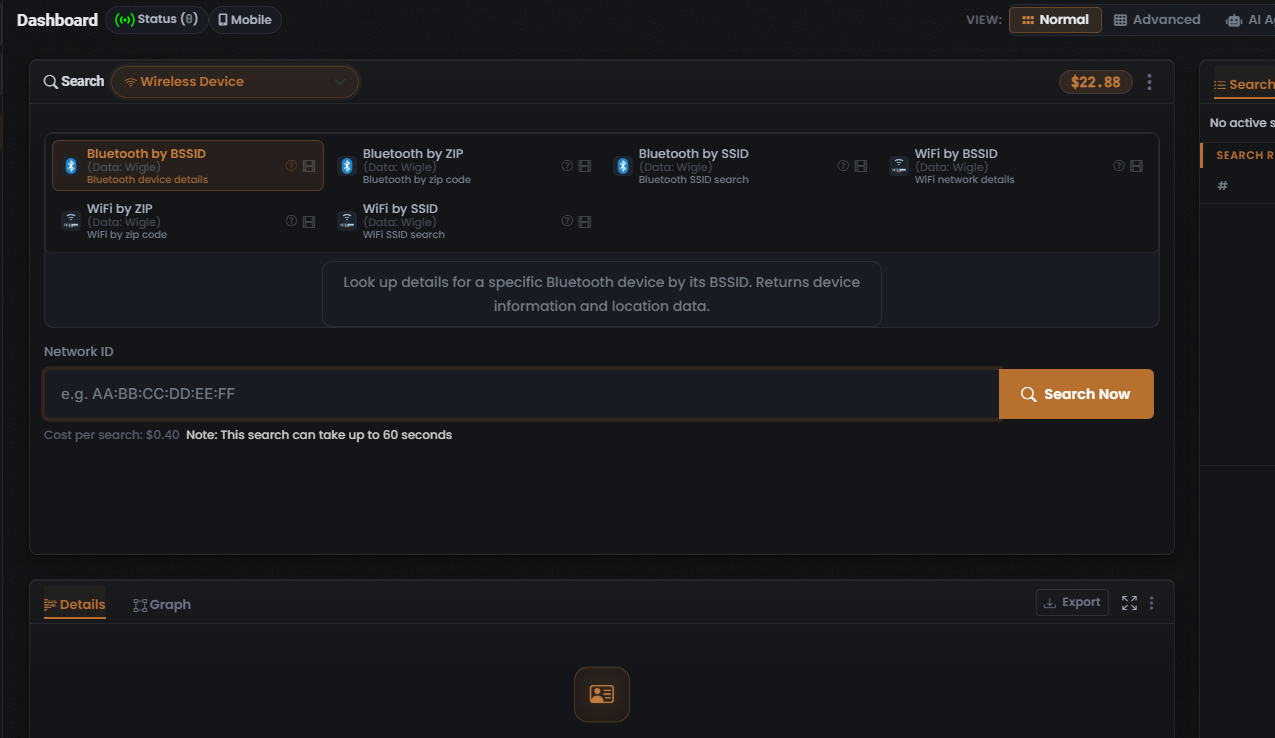
- In the composer header, open the Search type selector and choose Wireless Device. The active search type is drawn in the coral-orange accent colour.
- Pick a Module from the grid. The grid is single-select: the chosen tile is drawn with a coral-orange border, and selecting one deselects the others. Selecting a tile loads its description, its Cost per search line, and its query form. Bluetooth by BSSID is the default (lead) Module.
- Enter your identifier in the query field. For the default Module this is a network ID in BSSID/MAC format; switching Modules changes the expected input to an SSID (network name) or a ZIP (area).
- Confirm the Cost per search line beneath the input. With Bluetooth by BSSID selected it reads $0.40.
- Select Search Now (the coral-orange button with a magnifier icon) to run the query.
What it costs
Section titled “What it costs”Every Module shows its price on a Cost per search line, denominated in Credits and drawn from your main (Global) search-credits pool. Because each Module runs against a single data source, the pricing class here is fixed — there is no dynamic OneScan cost in this search type.
- Bluetooth by BSSID — $0.40 (fixed). This is the one observed cost data point for the search type.
- The other five Modules — cost not captured. Do not assume they also cost $0.40; always read the Cost per search line shown on the tile before you run.
See Credits & pricing for the full cost model.
What you get back
Section titled “What you get back”Running a search populates the Search Results panel on the right, with the standard header counters — Found (green), Enriched (orange), and Connections (white) — over a results table whose columns adapt to the Module you ran, plus a Details panel for the selected row. Because every Module runs against WiGLE, the results table’s Data Source column reads WiGLE for whatever you run here.
For how to read and verify those results, see Reading Wireless device results and the general concept Found, Enriched & Connections.
Related: Wireless device modules & options · Reading Wireless device results · WiGLE · Credits & pricing
Verified against UserSearch v2.0.20