
Troubleshooting & FAQ
This page collects the problems you are most likely to hit while searching in UserSearch and the steps to resolve them, followed by short answers to frequently asked questions. Each entry is written to get you to a next action quickly.
Troubleshooting
Section titled “Troubleshooting”A search returned nothing (“not found”)
Section titled “A search returned nothing (“not found”)”A Found count of zero is a normal, expected result — it means the selected Module queried its data source and no records matched your input, not that anything is broken. Work through these steps before concluding the identifier has no footprint:
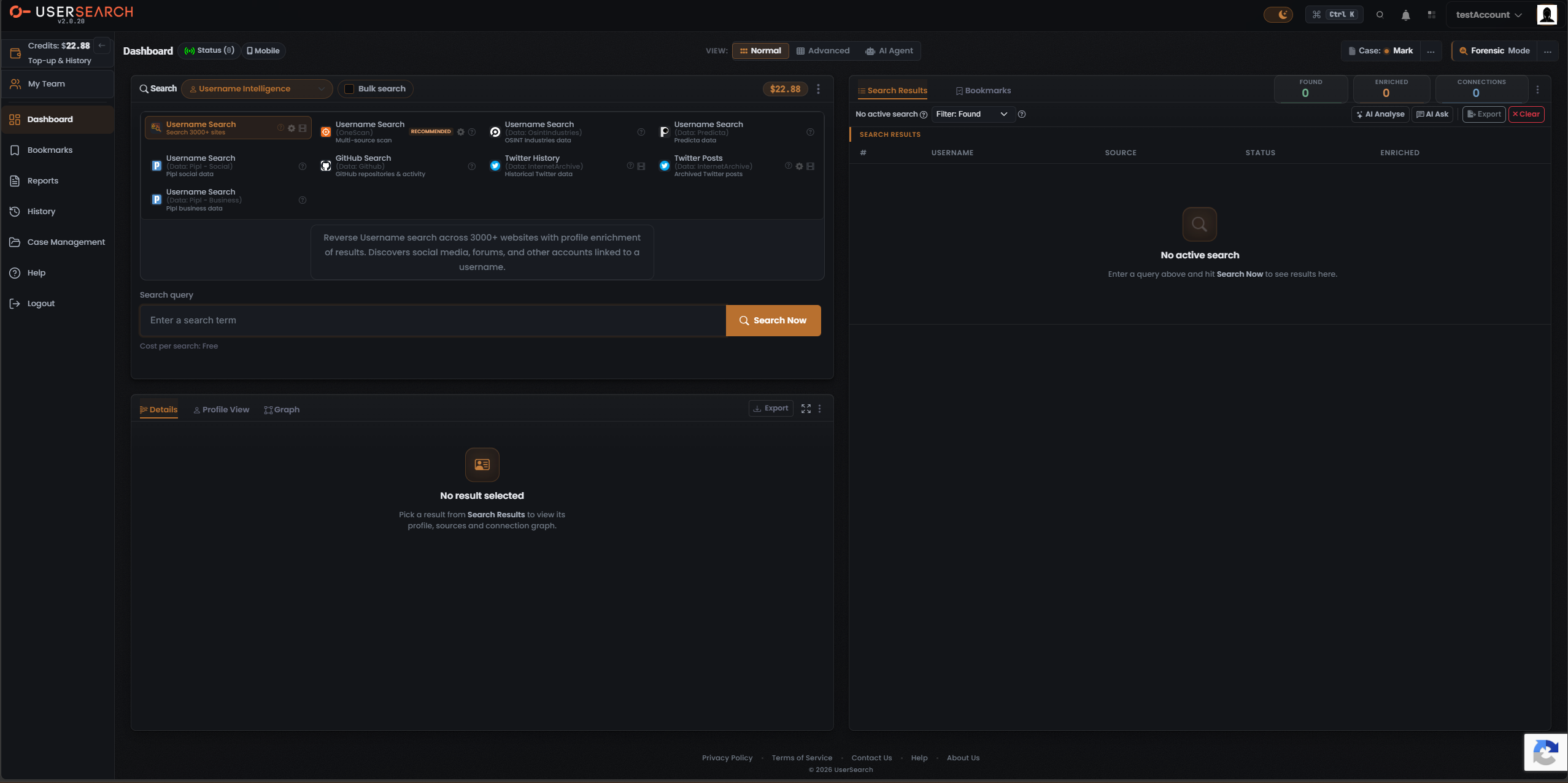
- Check the input. Confirm you typed the identifier into the field whose label matches the Module (for example Username for OneScan, Search query for the Username Search 3000+ Module). Remove stray spaces, and make sure you are not including a full URL when a bare username or email is expected.
- Confirm the Search type. The Search type you pick determines which Modules appear. If you are searching an email or phone number, use a Search type whose Modules accept that identifier rather than a username-only Search type.
- Widen the sources with OneScan. A single-data source Module only checks one data source. Switching to the OneScan Module (marked RECOMMENDED) fans one input out across multiple data sources at once and merges the results, so it gives broader coverage in a single run.
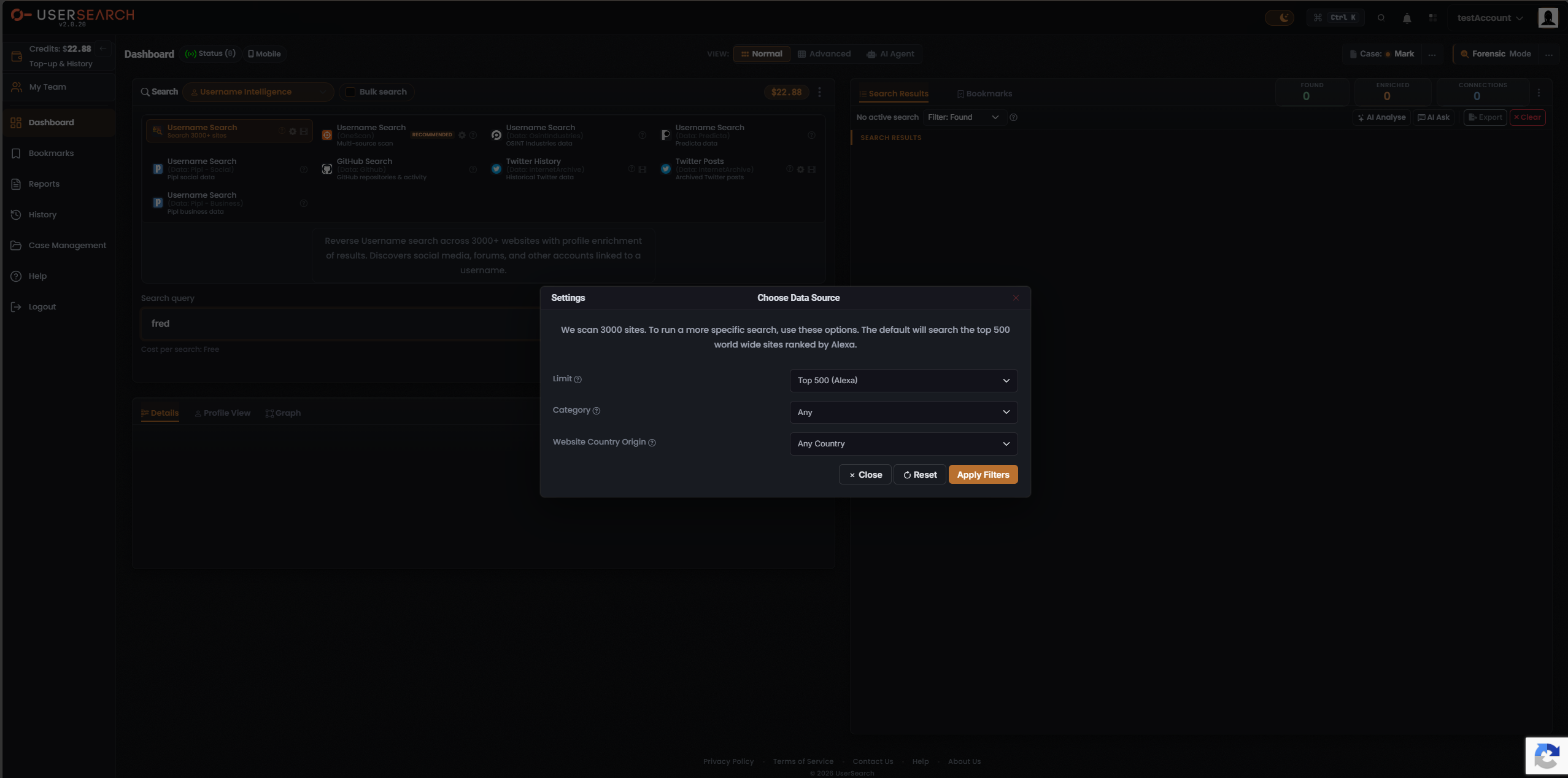
- Loosen any narrowing filters. If you configured the Username Search Module in the Choose Data Source modal, its defaults are Limit set to Top 500 (Alexa), Search type set to Any, and Website Country Origin set to Any Country. A tighter Limit or a specific country narrows which sites are scanned; use Reset in the modal, then Apply Filters, to search more broadly.
- In Public Leaks, check the entity-type tab. The Public Leaks Search type shows an entity-type tab strip (All, Email, Phone, IP, CIDR, MAC, Domain, URL, Bitcoin, IBAN, and more). Selecting a specific tab filters the search to that entity type. Return to the All tab if you are not sure which type your input is.
You do not have enough Credits
Section titled “You do not have enough Credits”Searches are paid from your Credits balance, shown as a coral-orange pill in the composer header (for example $22.88) and mirrored in the top bar. If your balance is lower than a Module’s Cost per search, top up before running the search:
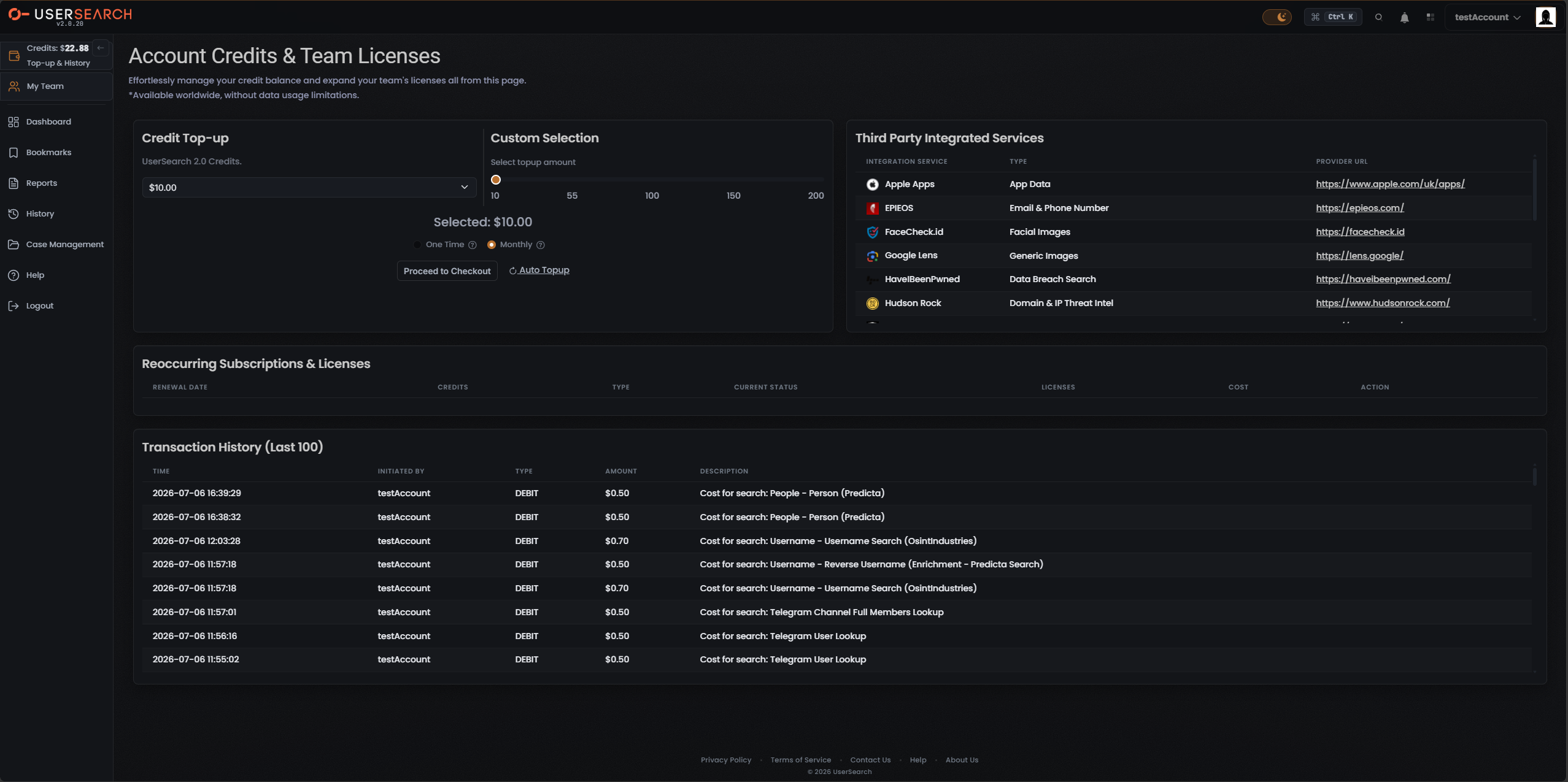
- Open the Account Credits & Team Licenses page from the My Team left-nav entry point (this is where the top-up controls live).
- In the Credit Top-up panel choose a preset amount, or use the Custom Selection slider (range 10–200) to set a custom amount.
- Choose One Time for a single purchase or Monthly for a recurring amount, then select Proceed to Checkout.
A search seems stuck
Section titled “A search seems stuck”If a search does not return and the Search Results panel does not populate:
- Confirm you selected a Module and pressed Search Now. A Module must be highlighted (coral-orange border) and you must click the coral-orange Search Now button with the magnifier icon. Before any run, the results panel shows the empty state No active search.
- Check the input and Cost per search. Make sure the query field is filled and that the Cost per search line beneath it shows the amount you expect to pay.
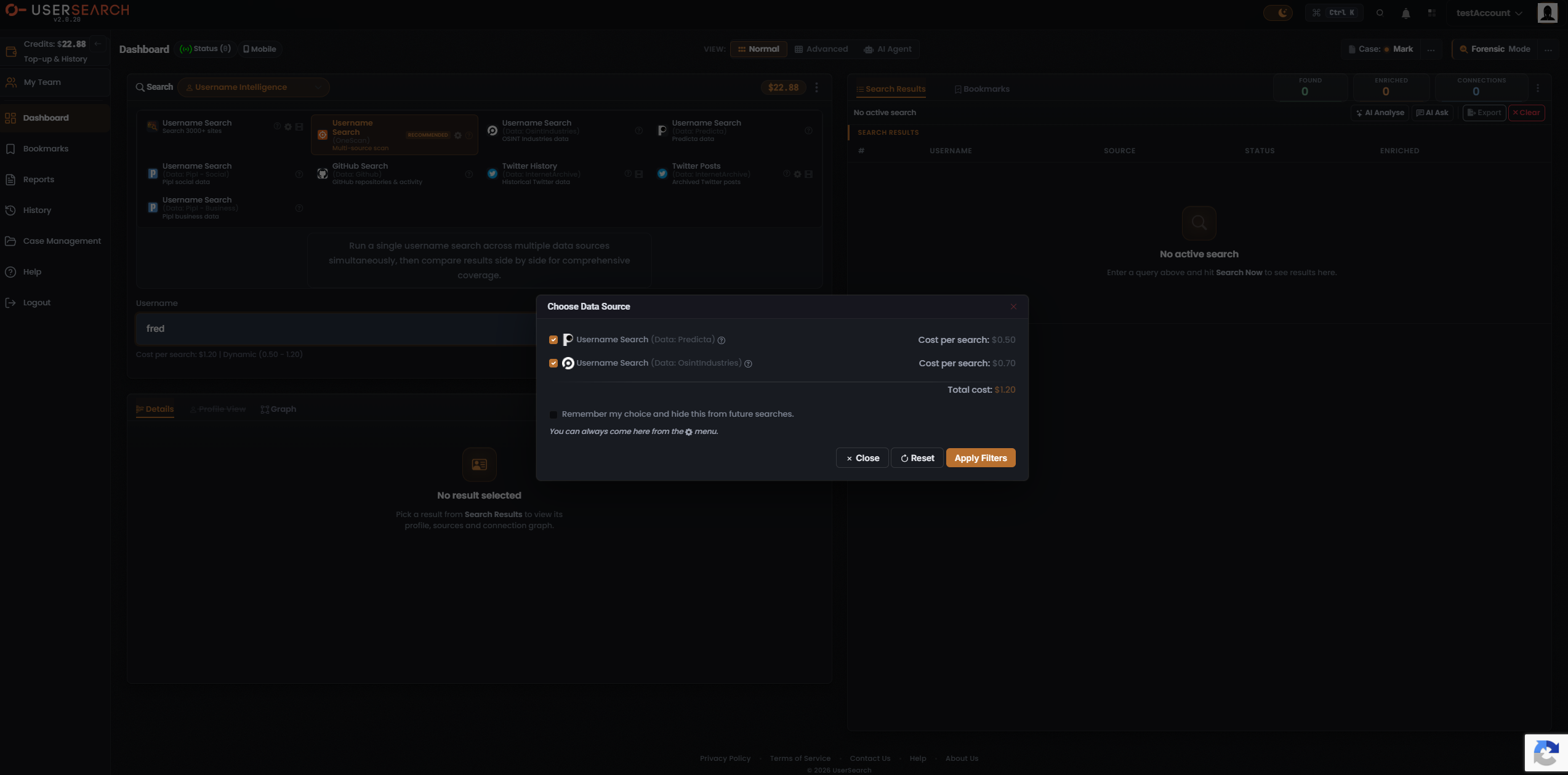
- Reduce the scope of a broad search. A OneScan search queries every data source left toggled on in its Choose Data Source modal, and each added data source does more work. Turning some data sources off narrows the run. A wide site scan (a higher Limit than Top 500 (Alexa)) is likewise heavier.
- Re-run the search. If it still does not complete, try again, then contact support via the Help or Contact Us links if the problem persists.
A data source appears to be down
Section titled “A data source appears to be down”Because a Module queries an external data source (the third party that actually holds the data), an individual data source can be unavailable even when UserSearch itself is working. If one Module consistently returns nothing or fails while others work:
- Check the Status pill. The Status pill in the header is a live, minute-by-minute status of all UserSearch integrations and data sets; a faulty data set is flagged there (per Lee, 2026-07-10). If the source you are using is flagged, the fault is upstream, not with your search.
- Switch to OneScan. Because OneScan spreads one input across several data sources and merges what comes back, results from the healthy data sources still appear even if one source is unavailable. In the results, the Data Source column shows which data source each row came from.
- In OneScan, disable the affected data source. Open the Choose Data Source modal (gear icon), toggle off the data source you suspect is unavailable, and Apply Filters. This also removes that data source’s cost from the Total cost.
- Pick a different single-source Module in the same Search type to reach the same kind of data through another source.
You see an unexpected charge
Section titled “You see an unexpected charge”Every search deducts Credits from the Global pool by the amount shown on its Cost per search line, and each charge is recorded in Transaction history. To reconcile a charge you did not expect:
- Open Transaction history. On the Account Credits & Team Licenses page, the Transaction History (Last 100) section lists each charge with Time, Initiated by, Type, Amount, and Description. Every row is a DEBIT search charge, and the description names the Module and data source (for example “Cost for search: Username - Username Search (OsintIndustries)”).
- Understand dynamic pricing. A OneScan search costs the sum of all the data sources left selected in its Choose Data Source modal (per Lee, 2026-07-08). Its cost line shows a range such as Dynamic (0.50 - 1.20) — enabling more data sources raises the charge. Check which data sources were toggled on when the search ran.
- Check who initiated it. On a team account the shared Global pool is spent by every member, so a charge you did not run may have been initiated by a teammate (the Initiated by column identifies the account).
- Confirm the cost type. Some Modules are free (0 Credits), some are fixed (a set amount — whole search types such as Vehicle are fixed-price, per Lee, 2026-07-08), and OneScan is dynamic. Reading the Cost per search line before you press Search Now tells you exactly what a search will cost.
Frequently asked questions
Section titled “Frequently asked questions”What does “not found” mean — did something go wrong?
Section titled “What does “not found” mean — did something go wrong?”No. A Found count of zero means the Module queried its data source and matched no records for your input. It is an expected outcome. Try OneScan to widen sources, re-check the input, or switch Search type. See A search returned nothing above.
What does the “Status (N)” pill in the header mean?
Section titled “What does the “Status (N)” pill in the header mean?”The Status pill is a live, minute-by-minute status of all UserSearch integrations and data sets (per Lee, 2026-07-10). If an integration or data set is faulty, it is flagged there — so it is a quick way to tell whether a failing or empty search is down to an unavailable data source rather than your input. The number shown in the pill is its own live count; exactly what that numeral enumerates is not specified here.
How much does a search cost?
Section titled “How much does a search cost?”It depends on the Module. There are three cost types: free (0 Credits), fixed (a set per-search amount, for example Public Leaks via IntelX at $0.20), and dynamic (a range). The Cost per search line beneath the query field always shows the price for the currently selected Module, so confirm it before pressing Search Now.
Why does OneScan’s price change?
Section titled “Why does OneScan’s price change?”Because OneScan is the dynamic-cost Module: its price is the running sum of the data sources left toggled on in the Choose Data Source modal (per Lee, 2026-07-08). Turning data sources off lowers the cost and narrows coverage; turning them on does the reverse. Its line shows the current total and the range, e.g. $1.20 | Dynamic (0.50 - 1.20).
What is the difference between OneScan and Bulk search?
Section titled “What is the difference between OneScan and Bulk search?”They are independent and can be combined. OneScan runs one input across many data sources. Bulk search — the toggle in the composer header — runs many inputs through one Module, and is capped at 5 queries per search (per Lee, 2026-07-08).
Do my Global credits and S.A.R.G.E. credits come from the same balance?
Section titled “Do my Global credits and S.A.R.G.E. credits come from the same balance?”No. The Global search-credits pool and the S.A.R.G.E. (AI Agent) pool are separate wallets, topped up and spent independently (per Lee, 2026-07-08).
On a team account, whose credits do searches use?
Section titled “On a team account, whose credits do searches use?”A team account shares one common pool of Credits, controlled by a team leader, and can share Cases (per Lee, 2026-07-08). Every member’s searches draw down the same shared Global balance. Single accounts do not share.
Where do I add more credits?
Section titled “Where do I add more credits?”On the Account Credits & Team Licenses page (reached via the My Team left-nav entry point). Use the Credit Top-up preset dropdown or the Custom Selection slider (10–200), choose One Time or Monthly, then Proceed to Checkout. An Auto-topup control can trigger recurring top-ups when your balance runs low.
Where do I manage or cancel my subscription?
Section titled “Where do I manage or cancel my subscription?”Under Settings › Billing. The Premium Membership card shows your plan status and dates, with a Cancel Subscription button. Note that deleting your account is blocked while an active premium subscription exists — cancel the subscription first.
Can I limit which sites a username search scans?
Section titled “Can I limit which sites a username search scans?”Yes. Open the Username Search Module’s Choose Data Source modal (gear icon). It defaults to Limit: Top 500 (Alexa), Search type: Any, and Website Country Origin: Any Country. Adjust these, then Apply Filters; use Reset to restore the defaults.
Verified against UserSearch v2.0.20