
Module card and Choose Data Source modal
Every search in UserSearch is built by clicking one Module card and, for configurable Modules, tuning it in the Choose Data Source modal. This page documents the anatomy of a Module card and both variants of that modal. For the wider search flow — Search types, the query input, and how to run a search — see the search composer reference.
Module card anatomy
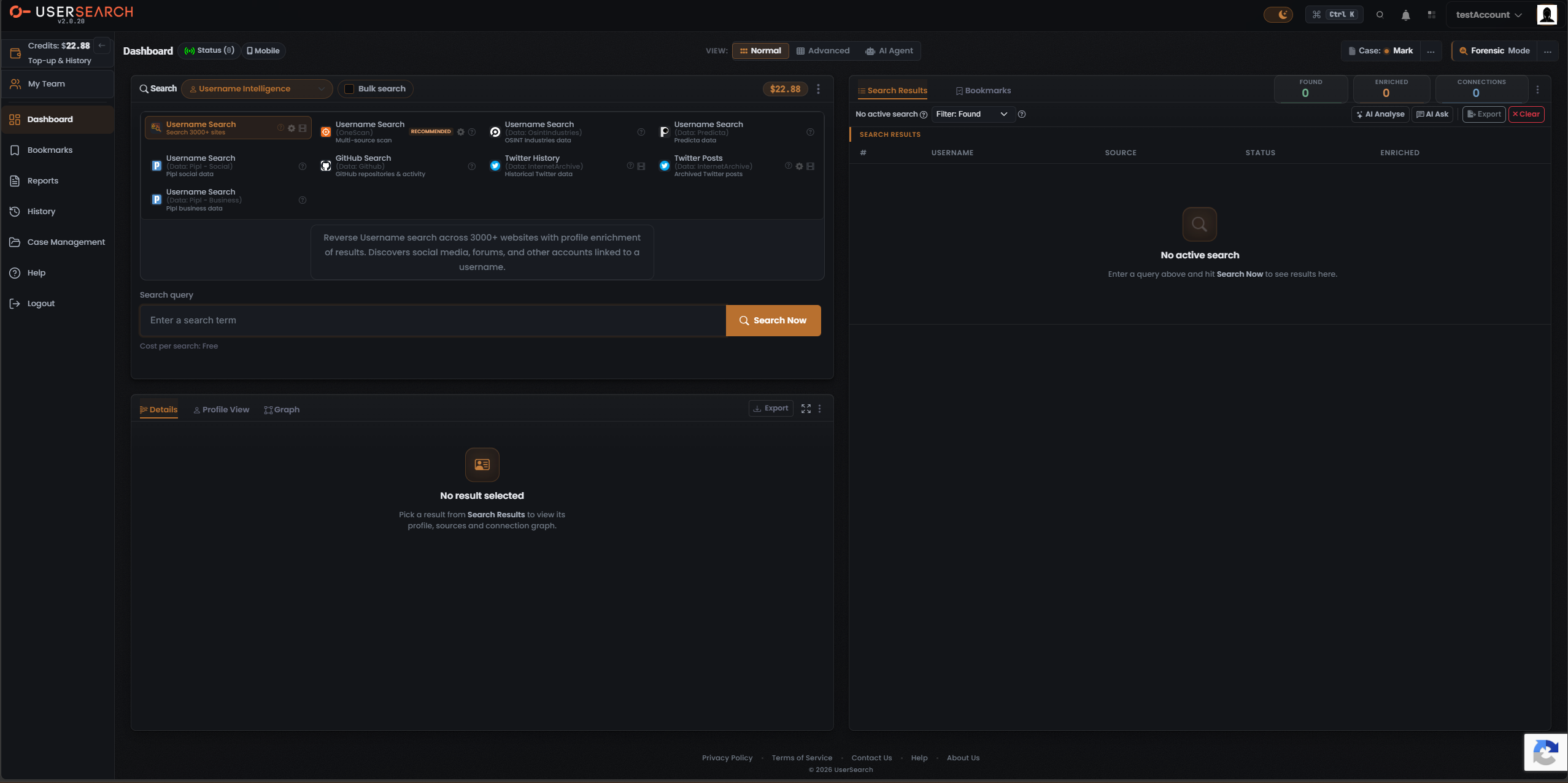
Section titled “Module card anatomy”Each Module is a selectable card in a multi-column grid (roughly four per row). A single Module runs one search against a specific data source — or, for OneScan, across several data sources at once.
A card carries, top to bottom:
- data source icon — a small square logo at the card’s left edge (for example the coral OneScan target mark, the blue Pipl “P”, the GitHub octocat, a Twitter bird, the IntelX “X”, or an envelope for HaveIBeenPwned).
- Title — the Module name in bold on the first line, such as Username Search, Public Leaks, GitHub Search, or Twitter History.
- data-source sub-label — greyed, usually written as “(Data: <data source>)”, for example “(Data: Pipl - Social)”, “(Data: OsintIndustries)”, “(Data: IntelX)”, or “(Data: Dehashed)”. Some cards use a plain parenthetical instead: the Username Search card shows “Search 3000+ sites”, and the OneScan card shows “(OneScan)”.
- Descriptor — a short greyed data summary on the third line, such as “OSINT Industries data”, “Multi-source scan” / “Multi-source leak scan”, “GitHub repositories & activity”, or “Email breach check”.
Some data source sub-labels also carry a small country flag glyph — for example “CompaniesHouse - UK” or “SEC - USA” in Corporate Intelligence.
Per-card icons
Section titled “Per-card icons”- A circular ”?” info icon appears on every card and opens Module-specific help.
- A gear (settings) icon appears on a subset of cards. It opens that Module’s Choose Data Source modal (below). The gear is a property of the Module, not of selection — it is present on configurable Modules whether or not they are selected (for example on the selected Username Search card and on OneScan, and absent from the selected IntelX card).
- A filmstrip-style icon appears on the same gear-bearing cards.
- Icon order is not fixed across cards — the selected Username Search card shows ”?”, gear, then filmstrip, while the OneScan card shows the gear then ”?” after its badge.
Selection is single-select
Section titled “Selection is single-select”- The selected card is drawn with a coral-orange border, a subtly orange-tinted background, and coral-orange title text. Non-selected cards have no border and use white/grey text.
- Only one Module is highlighted at a time — the grid is single-select within a Search type.
- Clicking a card selects that Module and loads its description panel, its Cost per search value, and its query form below the grid.
The RECOMMENDED badge
Section titled “The RECOMMENDED badge”A coral-orange RECOMMENDED badge appears on the OneScan Module, and OneScan carries it in more than one Search type. OneScan is badged RECOMMENDED because it is a multi-source aggregator that gives broader coverage than a single-source Module.
The Choose Data Source modal
Section titled “The Choose Data Source modal”Clicking a Module’s gear icon opens a modal headed Choose Data Source — with a secondary “Settings” label at the top-left and a red ”×” close control at the top-right. Two structurally different variants are captured, matching the two kinds of configurable Module.
Filter variant — Username Search (3000+ sites)
Section titled “Filter variant — Username Search (3000+ sites)”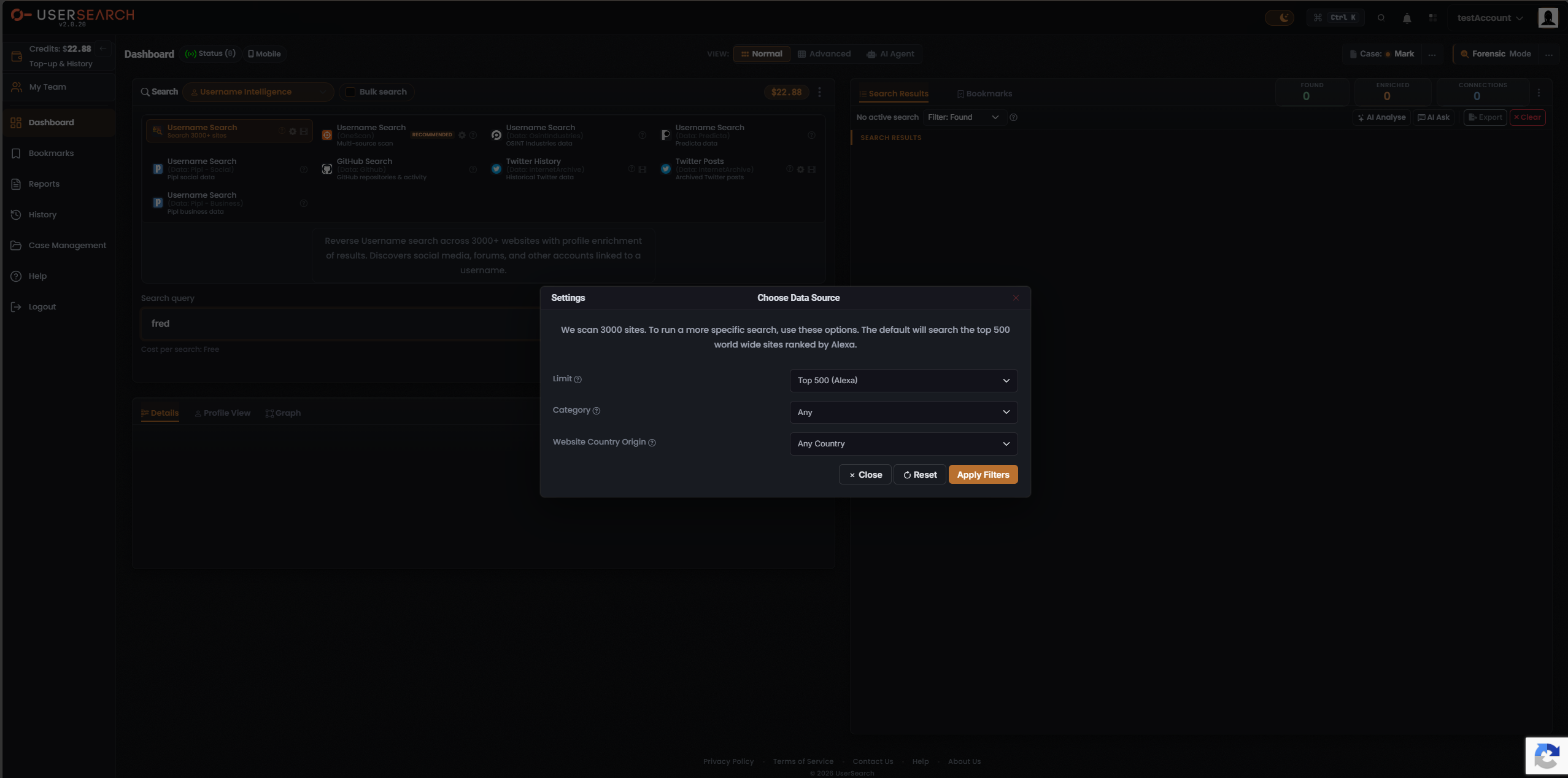
For the site-scanning Module, the modal narrows which sites are searched. Its intro text reads: “We scan 3000 sites. To run a more specific search, use these options. The default will search the top 500 world wide sites ranked by Alexa.”
It offers three dropdowns, each with a ”?” info icon:
| Control | Captured value |
|---|---|
| Limit | Top 500 (Alexa) |
| Search type | Any |
| Website Country Origin | Any Country |
The footer carries three buttons:
- × Close — dismisses the modal without committing changes.
- ↻ Reset — restores the defaults.
- Apply Filters (primary, coral-orange) — commits the chosen options to the pending search.
data source-toggle variant — OneScan
Section titled “data source-toggle variant — OneScan”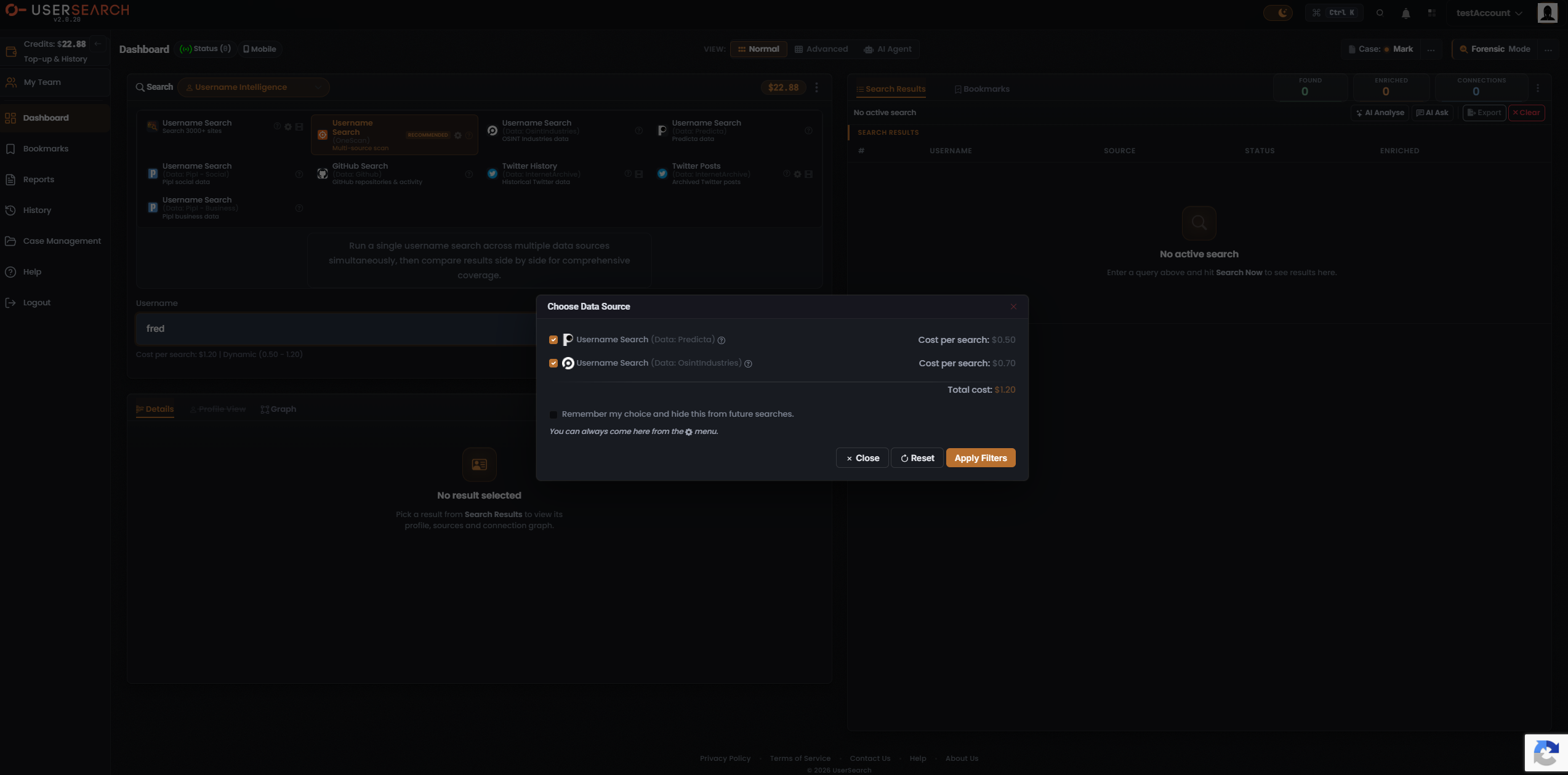
For OneScan the modal lists the individual data sources it can query, each as a checkbox toggle with its own per-search cost. The captured state shows:
| data source row | State | Cost per search |
|---|---|---|
| Username Search (Data: Predicta) | Checked | $0.50 |
| Username Search (Data: OsintIndustries) | Checked | $0.70 |
| Total cost | $1.20 |
Each data source row carries its own ”?” info icon. The Total cost line sums the enabled data sources ($0.50 + $0.70 = $1.20) and matches the composer’s OneScan cost line. Toggling a data source off removes its cost from the total and narrows which data sources OneScan queries — this is the lever you pull to trade coverage against spend.
Below the data source list sits a Remember my choice and hide this from future searches checkbox (unchecked in the captured frame), with helper text: “You can always come here from the [gear] menu.” Enabling it is understood to persist your data source selection and suppress the modal on later OneScan searches.
The footer carries the same × Close / ↻ Reset / Apply Filters buttons as the filter variant.
How the modal drives cost
Section titled “How the modal drives cost”The Choose Data Source modal is where a Module’s dynamic cost is set. OneScan is the canonical dynamic-cost Module: its Cost per search is literally the running sum of its enabled data sources. The captured composer line reads “Cost per search: $1.20 | Dynamic (0.50 - 1.20)” — the ceiling ($1.20) is Predicta ($0.50) plus OsintIndustries ($0.70) with both on, and the floor ($0.50) is the cheapest single data source left on.
By contrast, the filter variant (Username Search 3000+ sites) narrows which sites are searched but the Module itself is free — its cost line reads “Cost per search: Free”. Costs are denominated in Credits and debited from your balance when a paid search runs. For the full three-tier cost model (free / fixed / dynamic), see the credits reference.
Verified against UserSearch v2.0.20