This glossary fixes the canonical term for every core UserSearch concept, control, and screen. Throughout the documentation, these words are used exactly as written here — one concept, one term. Where a control has a specific on-screen label, that label is bolded exactly as it appears in the product.
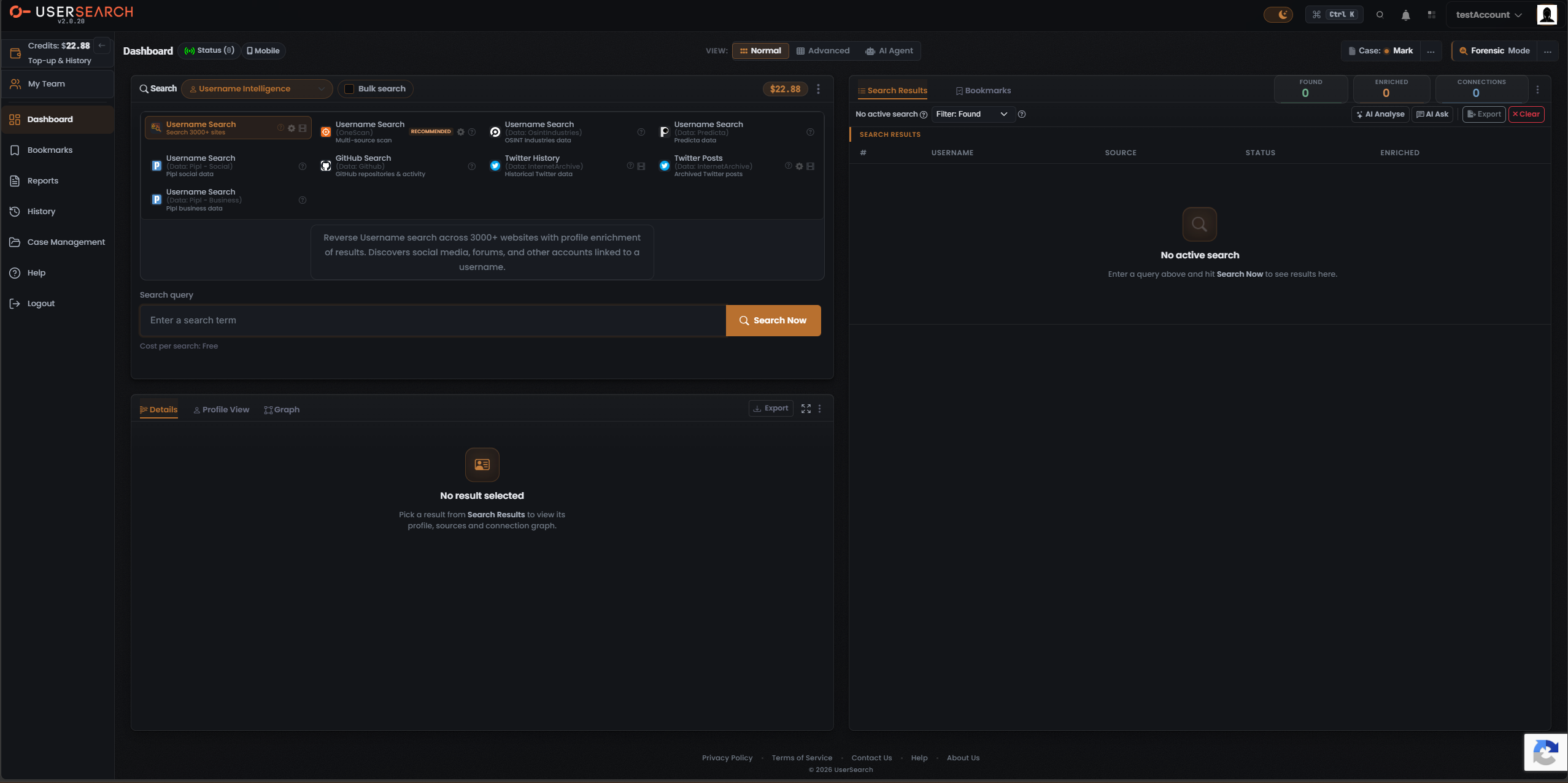
Dashboard, default view, showing global chrome, left nav, and a Search type of Modules
An intelligence search type — the top-level bucket of what kind of identifier you are investigating (for example Username, Email, Phone, People, Corporate, Cyber, Picture, Cryptocurrency, Vehicle, Website Forensics, Public Leaks, Court Records). At v2.0.20 there are 17 Search types. Selecting a Search type reveals its Modules.
Module
A single selectable search card shown inside a Search type. Each Module runs one search against a specific data source — or, for OneScan, several data sources at once. A Module’s card title is usually the name of the data source behind it, which is why Module and data source are easy to confuse; they are kept distinct throughout. The catalogue holds roughly 80+ Modules across the 17 Search types.
data source
The third-party data source that actually holds and returns the data a Module queries (for example EPIEOS, PredictaSearch, OSINT.Industries, IntelX, Dehashed, HaveIBeenPwned, Shodan, CompaniesHouse, OpenSanctions, FaceCheck.id, TinEye). The same data source can surface as a Module card title, as the Data Source column in the results table, and as an item in the third-party services list on the billing page. In prose the canonical term is data source; Data Source is used only when quoting that specific column.
OneScan
A multi-source Module offered in most Search types and marked RECOMMENDED. A single OneScan search fans out across multiple data sources at once and merges the results; the Data Source column then shows which data source each row came from. Treated as a proper noun.
Bulk search
A per-search toggle that runs the chosen Module over many input values at once (a list of usernames, emails, and so on) instead of a single value. OneScan is one input, many data sources; Bulk search is many inputs, one Module. The two are independent and can combine.
Search
The act of running a Module against an input to produce results. The run control is labelled Search Now; the reset control is Clear.
The platform’s prepaid usage currency. Every search costs zero or more Credits; the running balance appears in the global chrome and is topped up on the billing page.
Credit cost
The price of a single search, shown on the Module before you run it. There are three cost types, named exactly: free (0 credits), fixed (a set number of credits), and dynamic (a variable amount shown as a range).
Top-up
Adding Credits to the balance. The billing page offers a Top-up dropdown and a slider (10–200), as a one-time purchase or a recurring monthly amount.
Auto-topup
A billing setting that automatically tops up Credits when the balance runs low.
Subscription
A recurring paid plan managed in Settings, distinct from a one-time Top-up and from Auto-topup.
The tabular output of a search. Its columns are Found On, Data Source, Status, and Enriched. Above it sit three counters — Found, Enriched, Connections — along with the Details / Profile View / Graph tabs and the AI Analyse, AI Ask, Export, and Clear controls.
Found On (column)
The results-table column identifying where a record was located — the platform or site the identifier appears on.
Found
The results counter for the number of records or matches located by the search.
Enriched
Both (a) the results counter for how many Found records were expanded via Enrichment, and (b) the results-table Enriched column flagging whether a given row was enriched.
Connections
The results counter for the number of relationships or links surfaced between entities; these populate the Connections graph. A search that finds no links reads CONNECTIONS 0.
Enrichment
The process of expanding a Found record with additional data (for example turning an email into associated names, avatars, or breach appearances). The record then becomes Enriched.
Match Accuracy
A confidence indicator that a result or connection refers to the same real-world entity as your input, shown alongside Connections and results.
Result-detail tabs
The three tabs for inspecting a selected result: Details, Profile View, and Graph.
Connections graph
The node-link visualisation of entities and their Connections, reached via the Graph tab. Its empty state reads CONNECTIONS 0.
Export
Downloading the raw results of a search (for example as a spreadsheet). Distinct from a Report: Export is an ad-hoc download of the current results, whereas a Report is a generated artefact saved to a Case.
A single identifier or object a search is about — a username, email, phone, person, domain, wallet address, and so on. In the AI Agent these are chosen from 16 entity pills (the selectable chips). “Pill” refers only to that UI control, never to the concept itself.
Pivot
To move from one Entity to a related one by following a Connection — for example from an email to a username discovered during Enrichment. The investigative core loop is search → enrich → pivot.
A one-click action that produces an AI-written summary or analysis of the current results. Spelled AI Analyse (UK spelling, with an s).
AI Ask
An AI question-and-answer interaction scoped to the current results — you ask a natural-language question and the AI answers from what the search returned.
AI Agent
A standalone AI workspace (also one of the three View modes) with a full-page interface: 16 entity pills, a Module multi-select, and a chat. It can drive searches conversationally rather than card-by-card. AI Ask answers questions about results you already have; the AI Agent can run searches itself.
The container that groups your searches, Bookmarks, and Reports. It is chosen with a Case selector and managed in the Case Management modal. A Case can be shared (private or public), can have Forensic Mode enabled per-case, and can be secured with a custom password from which its Private key is derived.
Case sharing
The visibility setting of a Case, set in Case Management: private (restricted) or public (shared).
Forensic Mode
A cross-cutting evidentiary mode that can be enabled globally and/or per-Case, intended to preserve results and searches in a chain-of-custody-friendly way.
Private key
A per-Case encryption key that is derived from the Case’s custom password — setting that password (the Use custom password option) is what creates the key. UserSearch holds neither the password nor the key, so if the password is lost the encrypted data cannot be recovered (per Lee, 2026-07-10). The Case password and Private key are two parts of one mechanism, not separate secrets.
Case password
The custom password set on a Case. It encrypts that Case’s Bookmarks on the UserSearch server, and the Case’s Private key is derived from it (per Lee, 2026-07-10). Distinct from the account login password.
A saved individual result, kept for later and associable with a Case. The left-nav Bookmarks section lists them. Distinct from a Report (a generated file) and from an Export (an ad-hoc download).
Report
A generated output artefact (observed format: .xlsx) built from saved results and associated with a Case. The left-nav Reports section lists them. A Report is a saved, generated artefact in a Case; an Export is an ad-hoc download of the current results.
The persistent top bar present across the app: the logo and version, the Theme toggle, the Command palette (Ctrl+K), Notifications, the Apps grid, and the Account menu.
Left nav
The primary side navigation: Credits/Top-up, My Team, Dashboard, Bookmarks, Reports, History, Case Management, Help, and Logout.
Dashboard
The app’s main working surface where searches are run, and the host of the three View modes.
Command palette
The Ctrl+K quick-command and search overlay in the global chrome.
Theme toggle
The dark/light appearance switch. The documented default and all published screenshots are the dark theme.
Notifications
The notifications control and panel in the global chrome.
Apps grid
The grid or launcher of related apps and products in the global chrome.
Account menu
The account and profile menu in the global chrome (access to settings, billing, and logout).
My Team
The team-management area (members, and roles or seats).
History
The record of the account’s past searches and logins (search history and login history). Distinct from Transaction history.
Help
The left-nav help entry (support and documentation access).
One of the three ways the Dashboard can be presented: Normal, Advanced, and AI Agent. This is a presentation switch, independent of Forensic Mode and of the selected Case.