
Bookmarks, Reports and History reference
This page covers how a search result becomes persisted evidence in UserSearch and how that evidence is exported and audited. Three left-nav destinations work together:
- Bookmarks — individual saved results, filtered per Case, and the place where Reports are generated.
- Reports — the list of already-generated Report artefacts, for download or deletion.
- History — the account’s search-and-login activity log, with its own report export and delete controls.
All three pages share the Case Summary panel and the standard global navigation.
Bookmarking a result
Section titled “Bookmarking a result”A Bookmark is a single saved result, associated with a Case, kept for later review and export. A Bookmark is distinct from an Export (an ad-hoc download of the current results) and from a Report (a generated artefact saved to a Case). You bookmark a result from the results surface, and it then appears on the Bookmarks page.
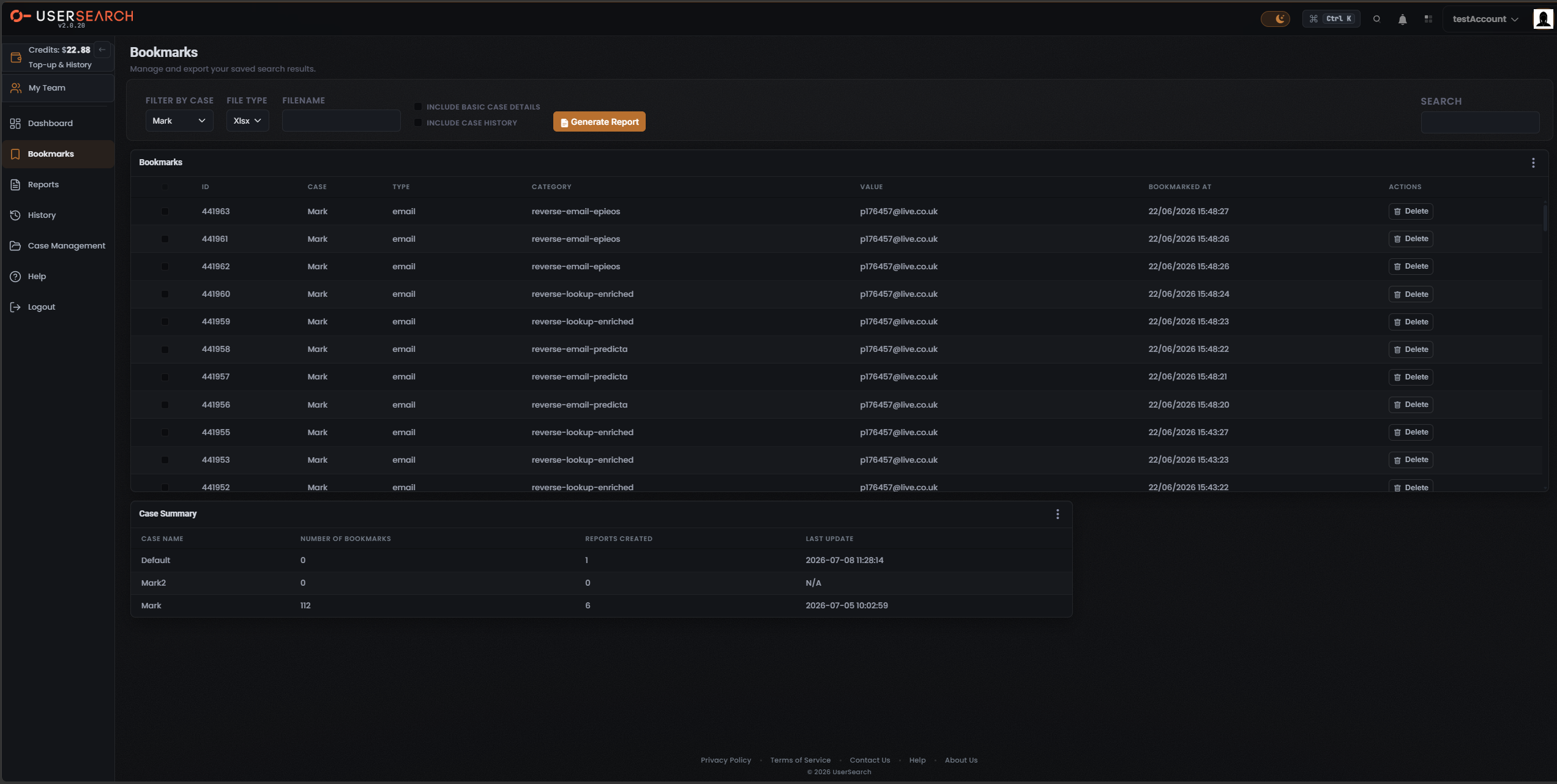
Each bookmark row records the Search type it came from — the underlying data source or enrichment source behind the saved result. The captured data shows search types such as reverse-email-epieos, reverse-email-predicta, and reverse-lookup-enriched.
The Bookmarks page
Section titled “The Bookmarks page”The page subtitle reads “Manage and export your saved search results.” The Bookmarks left-nav entry is active.
The page stacks two working areas vertically — the report-generation panel at the top and the Bookmarks table below it — followed by the shared Case Summary panel.
Generating a Report
Section titled “Generating a Report”Reports are generated from the Bookmarks page. (The Reports page itself only lists and downloads them — see below.) The panel lays its controls out left to right:
| Control | Label | Function |
|---|---|---|
| Case filter | FILTER BY CASE | Restricts the report (and the bookmarks table) to a single Case. |
| Format | FILE TYPE | Chooses the export file format. |
| Filename | FILENAME | Names the generated Report file. |
| Toggle | INCLUDE BASIC CASE DETAILS | Embeds basic case details into the Report. |
| Toggle | INCLUDE CASE HISTORY | Embeds the case history into the Report. |
| Action | Generate Report | Coral button with a document icon; produces the Report artefact from the current selections. |
| Search | SEARCH | Text filter over the bookmarks table. |
To generate a report:
- Choose the Case in FILTER BY CASE.
- Set the FILE TYPE.
- Enter a FILENAME.
- Optionally enable INCLUDE BASIC CASE DETAILS and INCLUDE CASE HISTORY.
- Select Generate Report.
The generated artefact then appears on the Reports page.
The Bookmarks table
Section titled “The Bookmarks table”A card titled Bookmarks holds the table. Its columns are:
- select-checkbox
- ID
- CASE
- TYPE
- CATEGORY
- VALUE
- BOOKMARKED AT
- ACTIONS
Each row’s ACTIONS column has a Delete button (trash icon) that removes that single bookmark. The table is vertically scrollable, so more rows can exist below the visible set.
The CATEGORY value names the underlying data source or enrichment source behind each bookmarked result — for example EPIEOS, PredictaSearch, and an enriched reverse lookup for the captured email results.
The Reports page
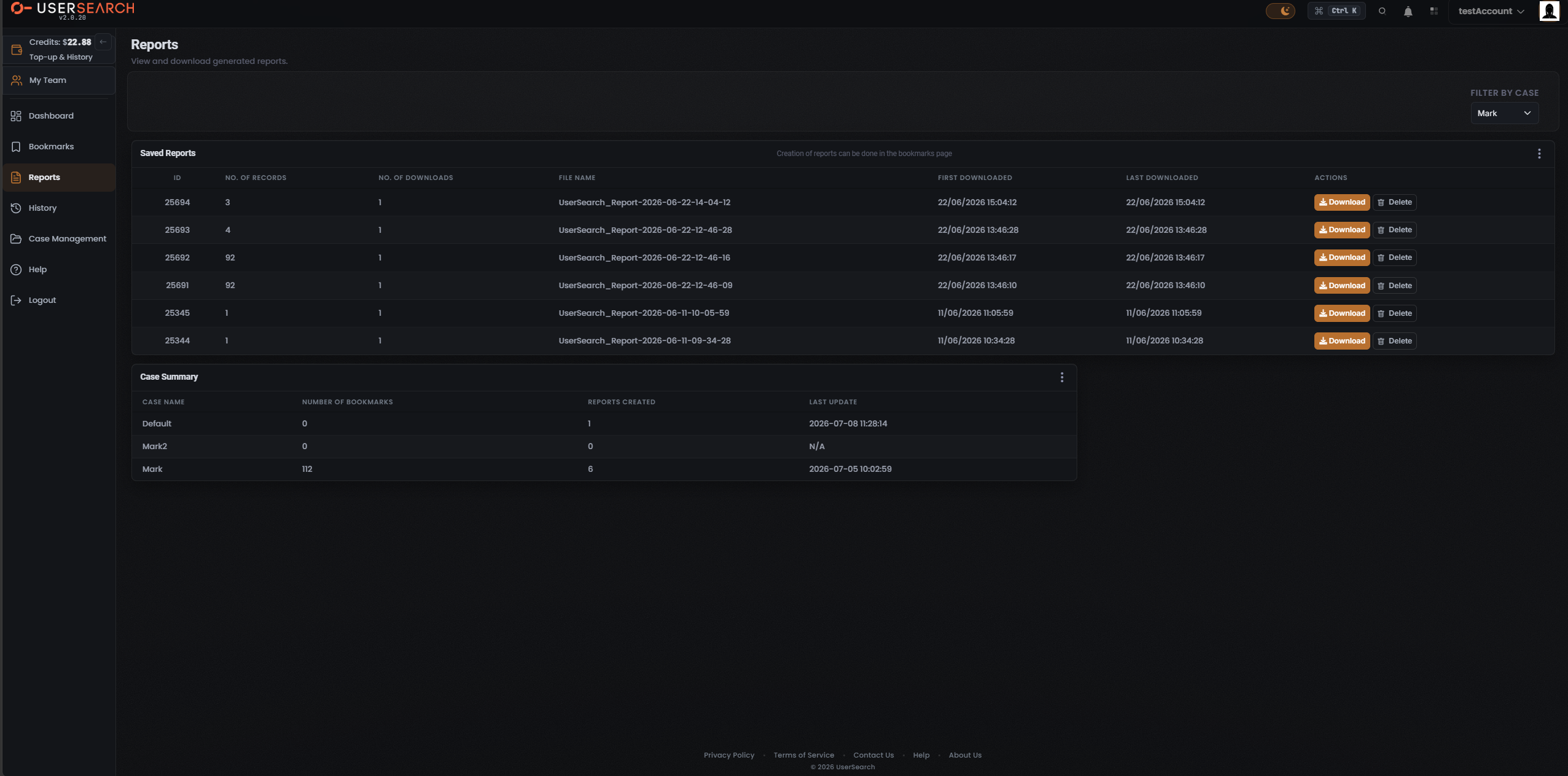
Section titled “The Reports page”The page subtitle reads “View and download generated reports.” The Reports left-nav item is active.
The Saved Reports panel carries an explicit note — “Creation of reports can be done in the bookmarks page” — confirming that Reports are generated on the Bookmarks page and only listed, downloaded, and deleted here.
A FILTER BY CASE dropdown at the top-right of the content area filters the Saved Reports table to the selected Case.
The Saved Reports columns are:
- ID
- NO. OF RECORDS
- NO. OF DOWNLOADS
- FILE NAME
- FIRST DOWNLOADED
- LAST DOWNLOADED
- ACTIONS
Row actions
Section titled “Row actions”- Download — orange button; downloads that report’s file. Downloading is inferred to increment the row’s NO. OF DOWNLOADS.
- Delete — trash-icon button; removes the report from the list.
The report’s FILE NAME carries a timestamp (for example UserSearch_Report-2026-06-22-14-04-12). That embedded timestamp can differ from the FIRST DOWNLOADED and LAST DOWNLOADED columns, which suggests the name records the report’s creation time while the columns record download time (inferred).
The History page
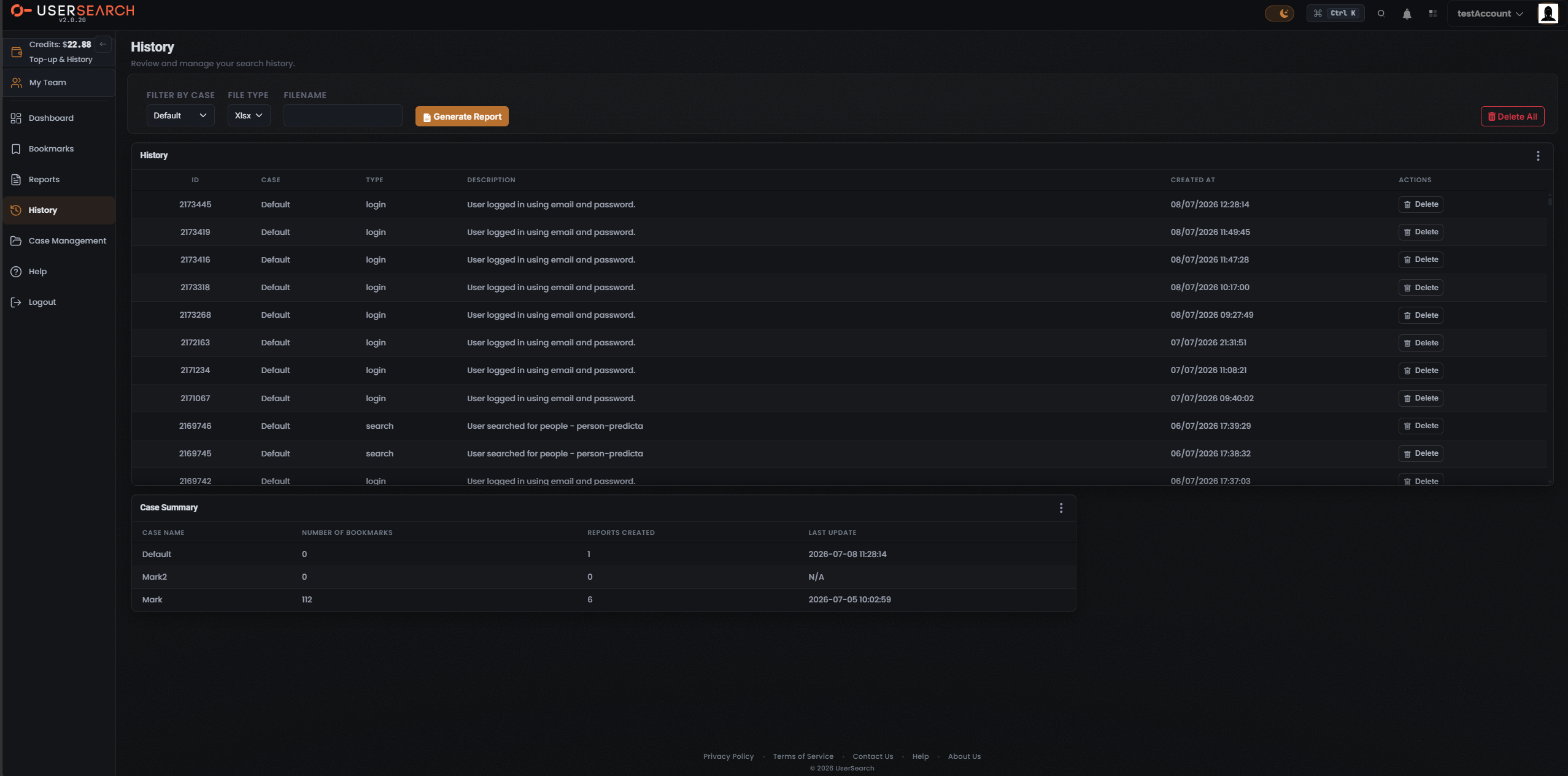
Section titled “The History page”The page subtitle reads “Review and manage your search history.” The History left-nav item is active.
History records the account’s past searches and logins. It is not the billing Transaction history. History is retained for cases with Forensic Mode on and is not kept for Private cases (per Lee, 2026-07-08).
Filter and report controls
Section titled “Filter and report controls”The History page carries its own report-generation controls plus a bulk-delete:
| Control | Label | Function |
|---|---|---|
| Case filter | FILTER BY CASE | Filters history entries by Case. |
| Format | FILE TYPE | Export format for the generated report. |
| Filename | FILENAME | Names the generated report file. |
| Action | Generate Report | Orange button; produces a downloadable report from the case, file type, and filename. |
| Action | Delete All | Red button (top-right); removes all history entries. |
The History table
Section titled “The History table”A panel titled History holds the table. Its columns are:
- ID
- CASE
- TYPE
- DESCRIPTION
- CREATED AT
- ACTIONS
The TYPE column takes the values login and search:
- login rows read “User logged in using email and password.”
- search rows read “User searched for people - person-predicta.”
CREATED AT is formatted DD/MM/YYYY HH:MM:SS. Each row’s ACTIONS column has a Delete button (trash icon) that removes that individual history entry. The table is vertically scrollable.
Shared component — Case Summary
Section titled “Shared component — Case Summary”A Case Summary panel appears at the bottom of the Bookmarks, Reports, and History pages. Its columns are:
- CASE NAME
- NUMBER OF BOOKMARKS
- REPORTS CREATED
- LAST UPDATE
Each row aggregates per-Case totals — the count of Bookmarks and the count of Reports generated for that Case (inferred). A LAST UPDATE of N/A indicates the Case has no recorded activity to timestamp (inferred). The listed cases correspond to the account’s active Cases — the same ones offered in the FILTER BY CASE dropdown (inferred).
How Bookmark, Export, and Report differ
Section titled “How Bookmark, Export, and Report differ”- A Bookmark is a single saved result inside a Case.
- An Export is an ad-hoc download of the current results table.
- A Report is a generated artefact (recorded in the glossary as .xlsx) built from saved results and stored in a Case.
Do not conflate the three. Bookmarks and History are only retained for audited cases (Forensic Mode on), and the Case Summary panel ties the three pages together by surfacing per-Case bookmark and report counts.
Verified against UserSearch v2.0.20