
Reading Company results
After you run a Corporate Intelligence search (see Company search: overview), results populate the Search Results panel on the right. This page explains how to read and verify them. The Corporate Intelligence results screen uses the same results component as every other search type, so the general model in Found, Enriched & Connections and the Results table reference applies directly.
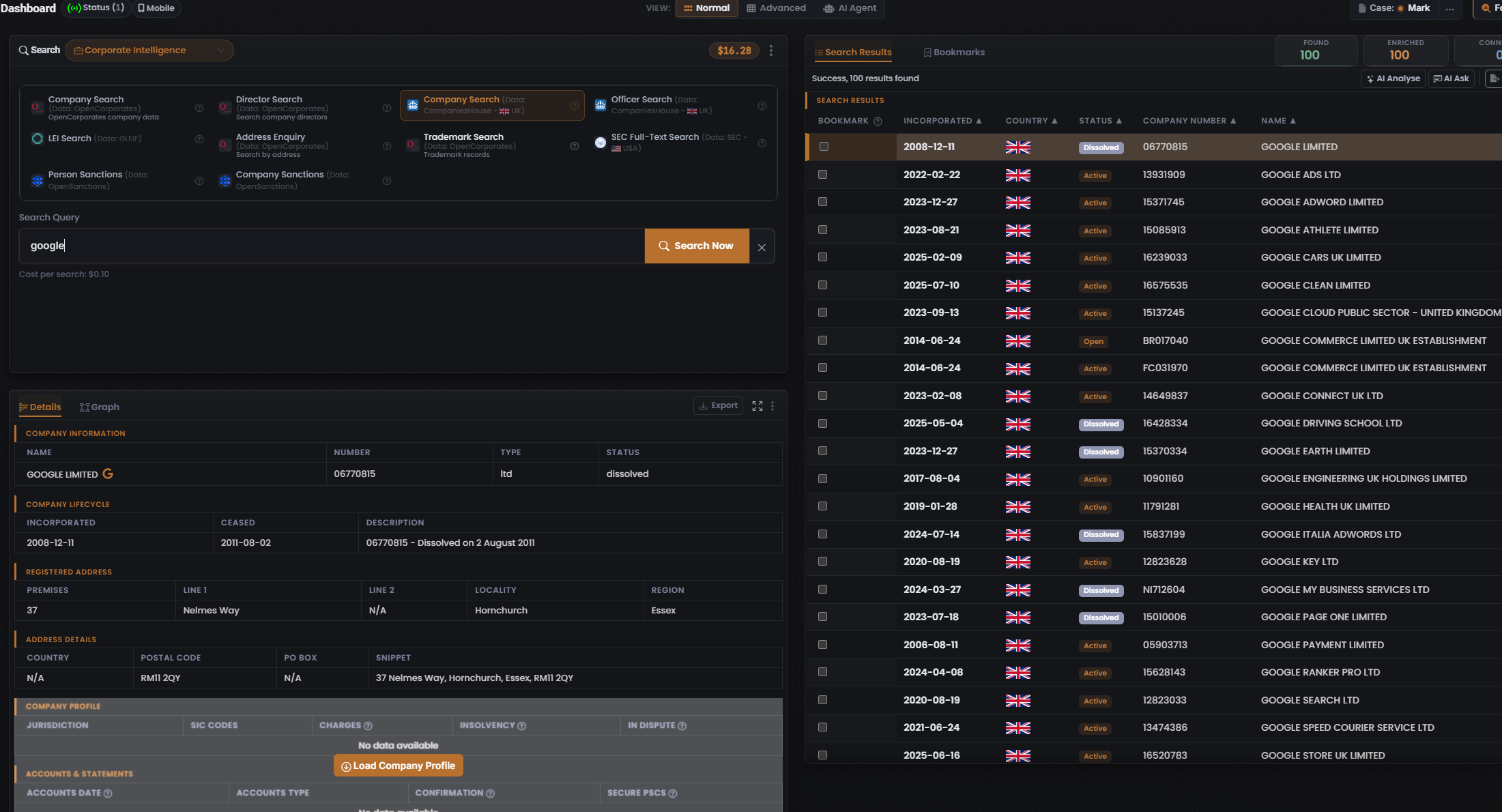
This page’s observed detail comes from one captured run: the Company Search (Data: CompaniesHouse - UK) Module (Cost per search: $0.10), searching google, which returned Found 100 / Enriched 100 (“Success, 100 results found”).
The three counters
Section titled “The three counters”Every populated results header carries the same trio of counters, in this order. They count three different things and must never be used interchangeably (colour coding: Found is green, Enriched is orange, Connections is white):
- Found — the identifier was located in a data source (a matching record exists there). For a company search, this reflects what the underlying register holds for the entity, person, or identifier you queried.
- Enriched — UserSearch holds further metadata on a found record. Enriched is a strict subset of Found — only found records can be enriched. Enrichment coverage is Module- and data-source-dependent.
- Connections — relationships and links surfaced between entities (linked clusters rather than raw hits). These are intended to populate the Graph tab.
In the captured Company Search (Data: CompaniesHouse - UK) run the header read Found 100 / Enriched 100 — every returned company was also enriched (Enriched equals Found). The Connections counter sat at the far edge of the captured frame and was not legible.
The results table
Section titled “The results table”The results panel has Search Results and Bookmarks tabs. Above the table, a status line (“Success, 100 results found”) sits over the action buttons; AI Analyse and AI Ask are visible in the captured header, with the Export and Clear controls off the frame’s right edge:
- AI Analyse / AI Ask run AI over the result set — see AI Analyse & AI Ask.
- Export downloads the current results — see Export & reports.
- Clear (styled red/coral) empties the current results set.
The results table adapts its columns to the Module that produced them. Unlike the site-style sweeps of Username or People searches, the captured Company Search (Data: CompaniesHouse - UK) run shows a company-specific column set — Bookmark · Incorporated · Country · Status · Company number · Name:
- Bookmark — a per-row checkbox that saves the result to the Bookmarks tab.
- Incorporated — the incorporation date (for example 2008-12-11).
- Country — the register’s jurisdiction, shown as a flag (every captured row carried a UK flag).
- Status — a registration-status badge; observed values are Active, Dissolved, and Open.
- Company number — the register’s company number (for example 06770815, with format variants such as BR017040, FC031970, and NI712604).
- Name — the registered company name (for example GOOGLE LIMITED, GOOGLE ADS LTD).
Each column header carries a sort control. This Module’s table has no Enriched, Connection, or Profile URL columns — those belong to the site-style layouts of the Username and People search types.
The Details panel
Section titled “The Details panel”Selecting a row drives the lower-left Details panel, which renders the structured detail of that company across Details and Graph tabs, with an Export control, an expand icon, and a three-dot overflow menu. For the selected GOOGLE LIMITED row the Details tab organised the record into labelled sub-sections:
- Company information — Name (GOOGLE LIMITED, carrying a Google “G” pivot icon) · Number (06770815) · Type (ltd) · Status (dissolved).
- Company lifecycle — Incorporated (2008-12-11) · Ceased (2011-08-02) · Description (“06770815 - Dissolved on 2 August 2011”).
- Registered address — Premises (37) · Line 1 (Nelmes Way) · Line 2 (N/A) · Locality (Hornchurch) · Region (Essex).
- Address details — Country (N/A) · Postal code (RM11 2QY) · PO Box (N/A) · Snippet (“37 Nelmes Way, Hornchurch, Essex, RM11 2QY”).
- Company profile — Jurisdiction · SIC codes · Charges · Insolvency · In dispute. In the capture this read “No data available” and offered a Load Company Profile button, so this deeper profile is fetched on demand rather than returned with the initial results.
- Accounts & statements — Accounts date · Accounts type · Confirmation · Secure PSCs, also showing “No data available” in the capture.
Where a Module surfaces connection tables, the Match Accuracy column is set by the third-party data source, not computed by UserSearch. For the general anatomy of the Details panel see Found, Enriched & Connections.
Pivoting from a result
Section titled “Pivoting from a result”Small icons sit beside certain returned values, implementing the investigative pivot loop (search → enrich → pivot). In the captured Details panel the company Name carried a “G” icon:
- Google “G” icon — a Google-dork pivot: clicking it opens Google with a preset dork for that value (per Lee, 2026-07-08).
- Magnifier icon — also a Google-dork pivot: like the “G”, it opens a Google dork query for the value (per Lee, 2026-07-10). It appears beside the “G” on values that support it (observed in the People capture beside a username).
See The pivot.
Verifying a result
Section titled “Verifying a result”- Cross-check the Found and Enriched counters against the rows shown — Enriched should never exceed Found.
- Treat Match Accuracy, where present, as the data source’s own confidence, not a UserSearch computation — this matters especially for Person Sanctions and Company Sanctions matches, where a name match is not a confirmed identity.
- Use the Google “G” or magnifier pivot — both open a Google dork for the value — to corroborate a hit against an independent search before you rely on it.
See also: Company search: overview and Company modules & options.
Verified against UserSearch v2.0.20