
Manage your team and seats
UserSearch accounts are either single or team. A team account lets several people work together under one team leader, sharing their Cases and drawing on one shared pool of Credits. This page explains what a team account does and where you manage it.
Single vs. team accounts
Section titled “Single vs. team accounts”The two account models differ in what is shared:
| Single account | Team account | |
|---|---|---|
| Cases | Belong to the one user; not shared | Shared across the team |
| Credits | One user’s balance | One common pool, shared by all members |
| Control | The account owner | The team leader |
- Single accounts do not share. Your Cases and your Credits belong to you alone.
- Team accounts share Cases and share one common pool of Credits, all controlled by a team leader. Every team member draws on the same shared Credit balance and can access the team’s shared Cases.
The shared credit pool
Section titled “The shared credit pool”Team members spend from a single shared Credit balance rather than from individual wallets. When any member runs a search, the cost is deducted from the team’s common pool.
Sharing Cases across the team
Section titled “Sharing Cases across the team”Case sharing is a team capability: a team’s Cases are visible to its members rather than locked to a single user. How much a shared Case retains depends on Forensic Mode:
- With Forensic Mode ON, a Case keeps its bookmarking, history, and chain of custody.
- When a Case is Private (Forensic Mode off), there is no bookmarking and no history.
For the full behaviour of Cases and Forensic Mode, see their dedicated guides.
The My Team screen
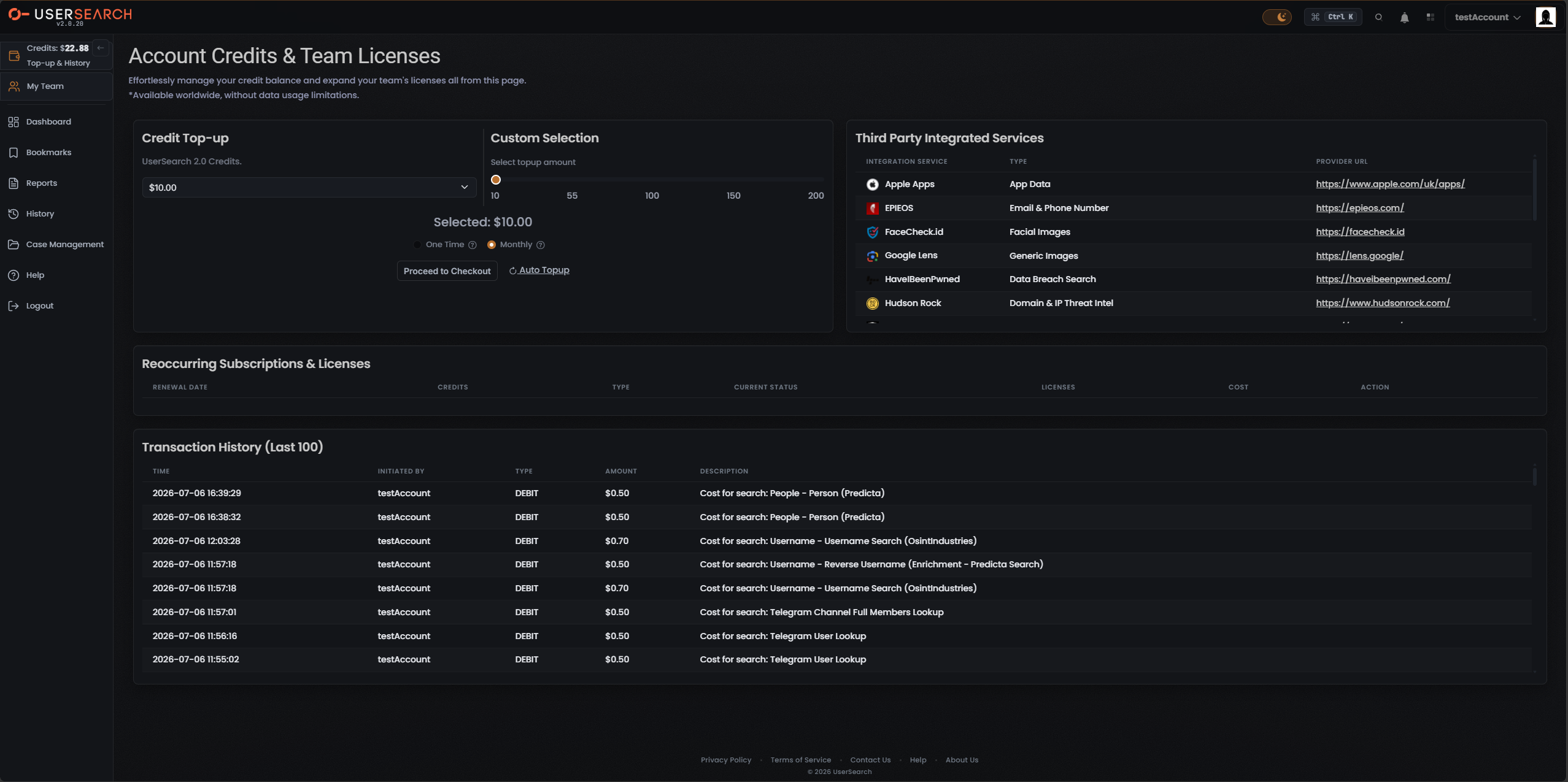
Section titled “The My Team screen”The entry point to your team is the My Team item in the left navigation. It opens a dedicated My Team screen — a separate surface from the Account Credits & Team Licenses page, which handles credit top-ups and subscriptions rather than seats.
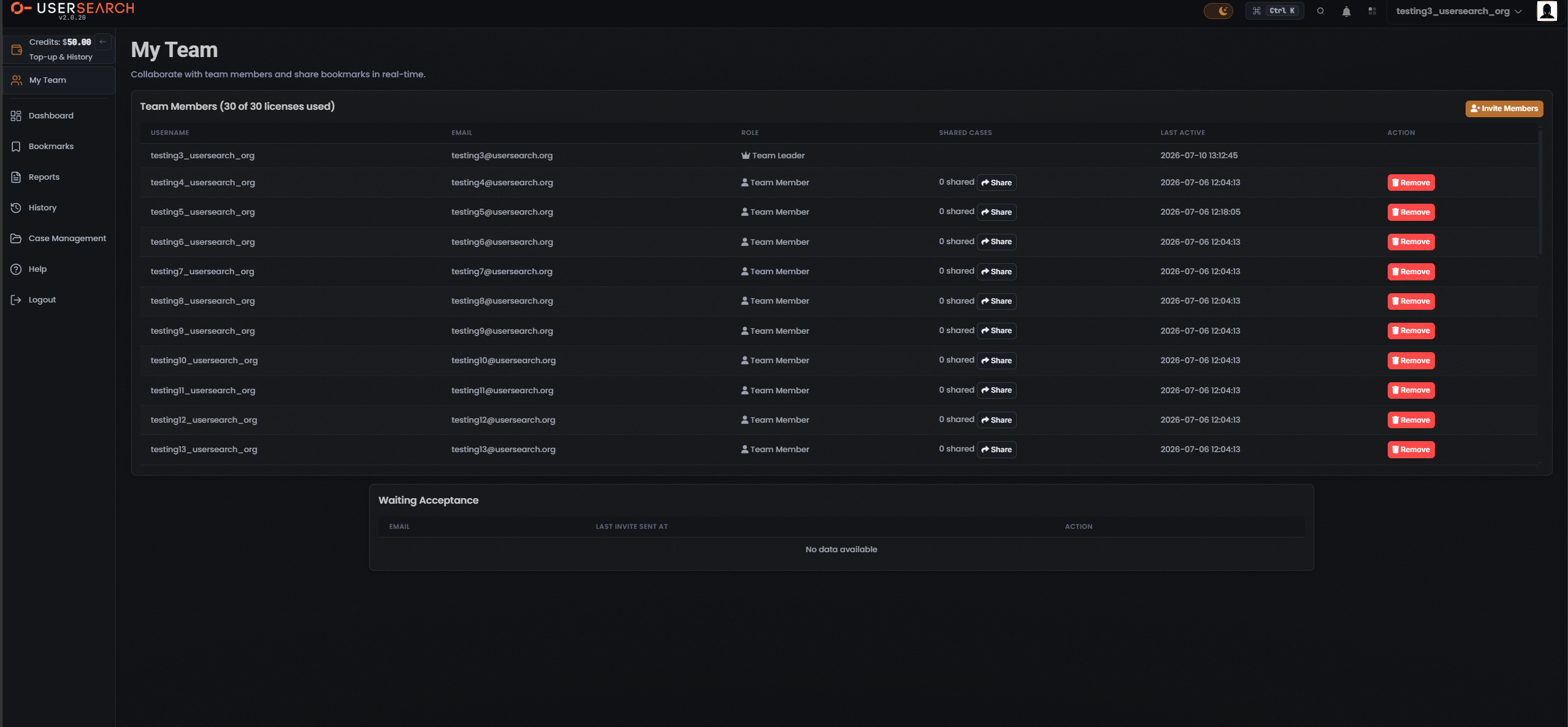
The screen is headed My Team, with the strapline “Collaborate with team members and share bookmarks in real-time.” It has two parts: the Team Members table, and a Waiting Acceptance list of invitations that have not yet been accepted.
Licenses and the members table
Section titled “Licenses and the members table”The members section is headed Team Members, followed by a live licence count — in the captured account, 30 of 30 licenses used. A seat is a licence, so this reads as every licence in the plan being taken.
The table has one row per member across these columns:
| Column | What it shows |
|---|---|
| USERNAME | The member’s username. |
| The member’s email address. | |
| ROLE | Either Team Leader (crown icon) or Team Member (person icon). |
| SHARED CASES | How many of your cases are shared with that member — for example 0 shared — beside a per-member Share button. |
| LAST ACTIVE | The member’s last-active timestamp. |
| ACTION | A red Remove button that takes the member off the team. |
The account owner appears as the Team Leader (crown), and everyone else as a Team Member (person). In the captured screen the Team Leader’s own row has no Share or Remove control — those actions apply to the other members, not to yourself.
Invite members and Waiting Acceptance
Section titled “Invite members and Waiting Acceptance”An orange Invite Members button sits at the top-right of the members table. Invitations you have sent that have not yet been accepted appear in the Waiting Acceptance section, which lists each pending invite by EMAIL, LAST INVITE SENT AT, and an ACTION column. When there are no pending invites — as in the captured screen — it shows No data available.
Share cases with a member
Section titled “Share cases with a member”Each member row’s Share button opens the Modify Shared Cases modal for that person.
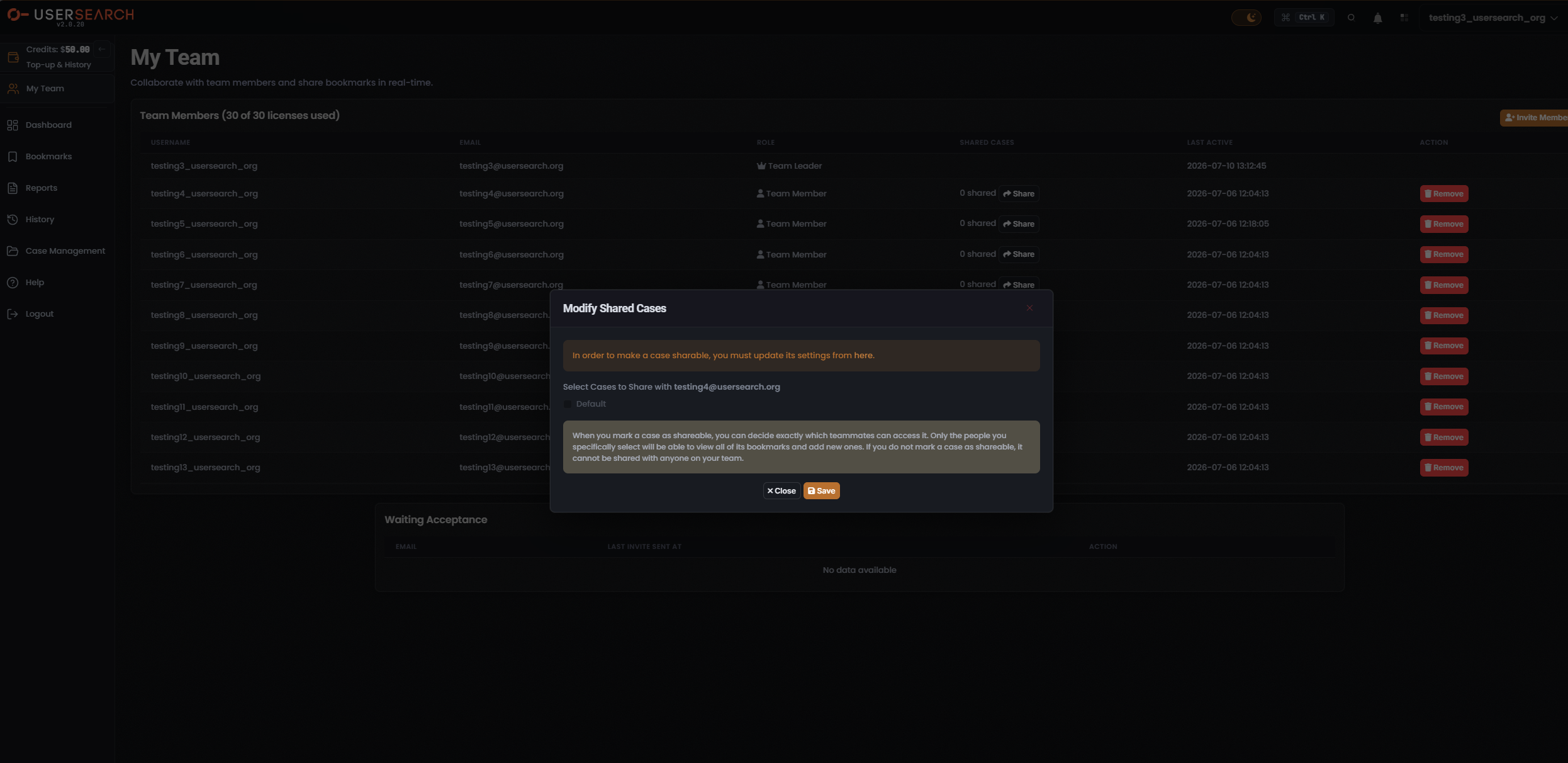
The modal is headed Select Cases to Share with the member’s email, and lists your account’s cases as checkboxes (only the Default case in the captured account). A banner reads “In order to make a case sharable, you must update its settings from here.” The modal states the rule directly:
When you mark a case as shareable, you can decide exactly which teammates can access it. Only the people you specifically select will be able to view all of its bookmarks and add new ones. If you do not mark a case as shareable, it cannot be shared with anyone on your team.
Tick the cases to share with that teammate and choose Save, or Close to dismiss without saving. For the case-side of sharing — marking a case shareable in its own settings first — see the Share a case guide.
Remove a member
Section titled “Remove a member”The red Remove button in a member’s ACTION column takes that person off the team.
Verified against UserSearch v2.0.20