
Email search: overview
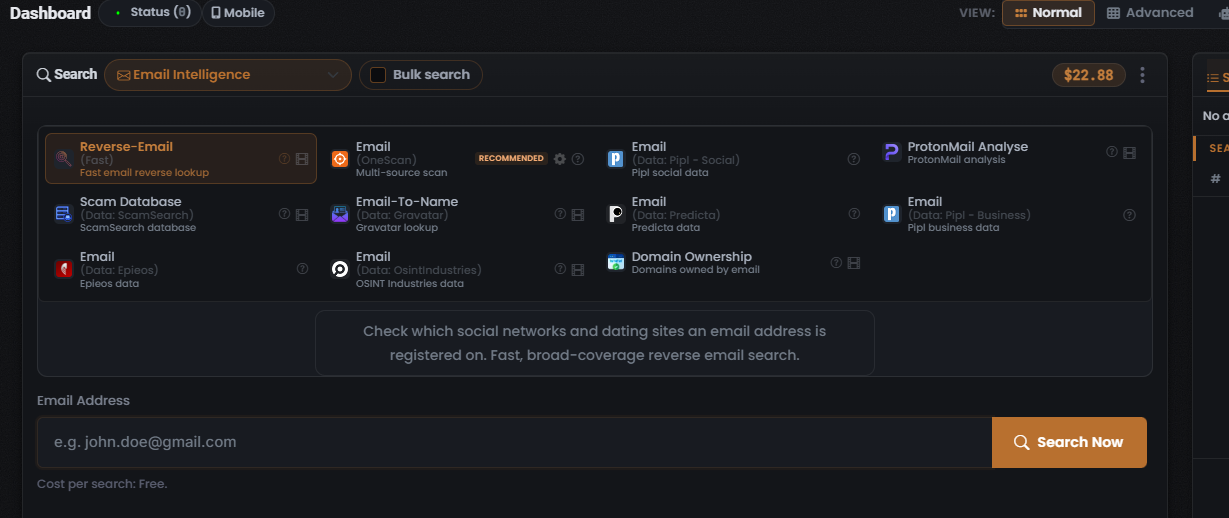
The Email Intelligence search type takes a single email address and fans it out across the identity-enrichment, scam-report and account-footprint data sources UserSearch integrates — resolving the address to linked accounts, public profiles, and other identity records where a data source holds them. It is the natural starting point when your lead is an email address rather than a username, phone number, image, or other identifier.
When to use it
Section titled “When to use it”Reach for Email Intelligence when you hold an email address and want to:
- Run a fast, broad reverse-email sweep over social and dating registrations (the Reverse-Email (Fast) Module).
- Fan one address across several data sources at once and compare the results side by side (the Email (OneScan) Module — the recommended starting point).
- Query a specific data source directly — Pipl, Predicta, Epieos, OSINT Industries, Gravatar, ProtonMail, or a scam database (the single-source Modules).
This search type exposes eleven Modules. For the full breakdown of each — its data source, cost, and what it returns — see Email modules & options.
The end-to-end flow
Section titled “The end-to-end flow”Email Intelligence follows the same search composer flow as every other search in UserSearch — see How UserSearch works for the general model.
- In the composer header, open the Search type selector (the dropdown with a chevron) and choose Email (its Module grid swaps to the email-oriented Modules). The active search type is drawn in the coral-orange accent colour.
- Pick a Module from the grid. The grid is single-select: the chosen tile is drawn with a coral-orange border and title, and selecting one deselects the others. Selecting a tile loads its description, its Cost per search line, and its query form. Email (OneScan) is badged RECOMMENDED — start there for the broadest coverage.
- (Optional) configure the data source. The OneScan Module carries a gear icon that opens a Choose Data Source modal, where you toggle which data sources run (and set the dynamic cost). See Email modules & options.
- (Optional) enable Bulk search in the header to run the Module over several addresses in one pass — capped at 5 queries per search. See Bulk search.
- Enter the email address in the query field, then confirm the Cost per search line beneath the input.
- Select Search Now (the coral-orange button with a magnifier icon). The Search Results panel populates on the right; before you run anything its empty state reads No active search.
What it costs
Section titled “What it costs”Every Module shows its price on a Cost per search line, denominated in Credits, drawn from your main (Global) search-credits pool. Costs fall into three tiers:
- Free — Reverse-Email (Fast) is free (0 Credits).
- Fixed — a single set amount per run (the single-source Modules — Pipl, Predicta, Epieos, OSINT Industries, and others — are fixed-price).
- Dynamic — a range whose charge is the sum of the data sources left toggled on. Email (OneScan) is dynamic.
What you get back
Section titled “What you get back”Running a search populates the Search Results panel on the right, with the standard header counters — Found (green), Enriched (orange), and Connections (white) — over a results table whose columns adapt to the Module you ran, plus a Details panel for the selected row.
For how to read and verify those results, see Reading Email results and the general concept Found, Enriched & Connections.
Related: Email modules & options · Reading Email results · OneScan · Credits & pricing
Verified against UserSearch v2.0.20