
Reading Email results
After you run an Email search (see Email search: overview), results populate the Search Results panel on the right. The Email results screen uses the same results component as every other search type, so the general model in Found, Enriched & Connections and the Results table reference applies directly.
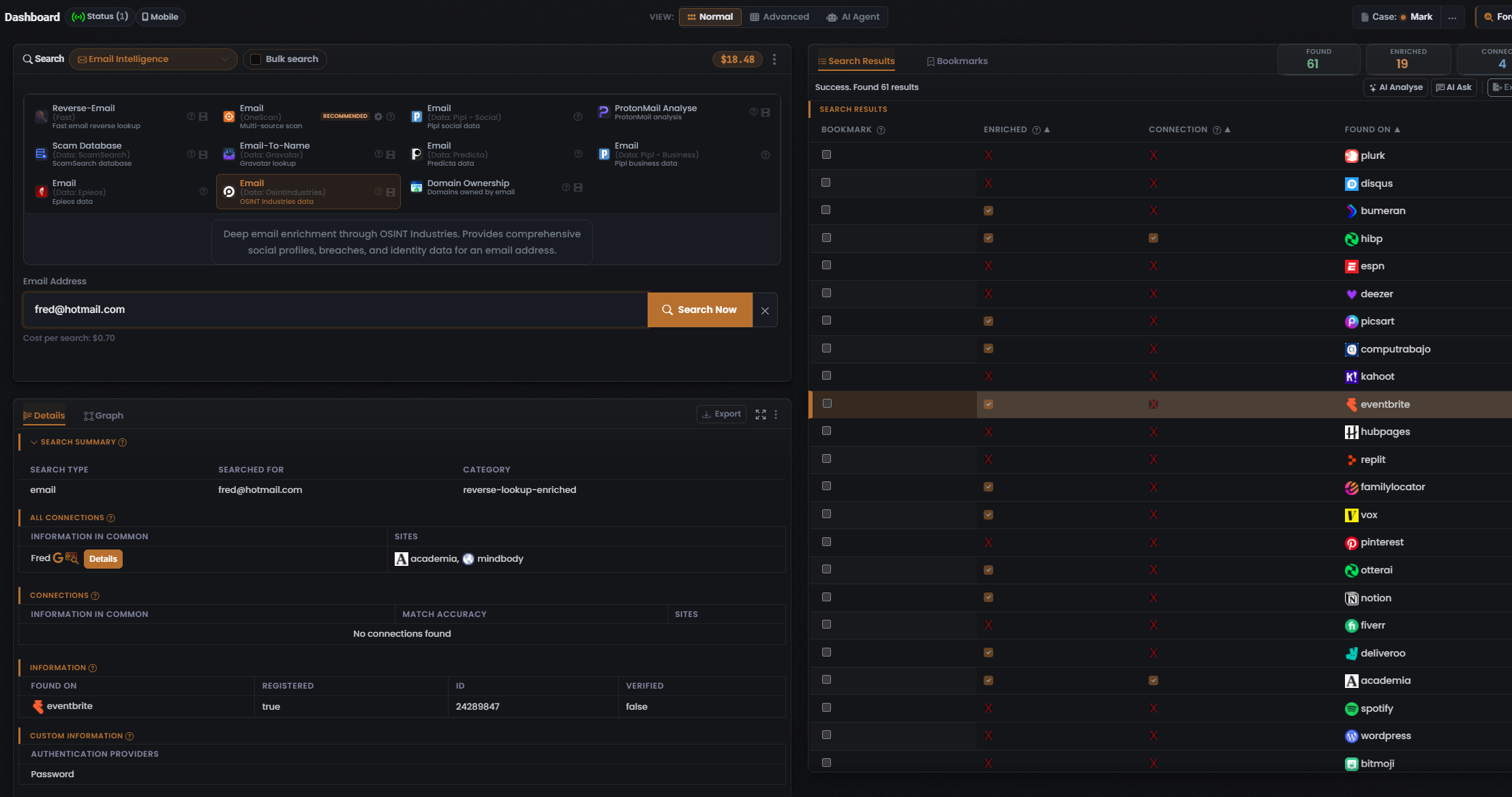
A populated Email result has now been captured for one Module — Email (Data: OsintIndustries) (the “OSINT Industries data” card, whose description reads “Deep email enrichment through OSINT Industries. Provides comprehensive social profiles, breaches, and identity data for an email address”; Cost per search: $0.70). The reading below is grounded in that capture. Because the table adapts its columns to the Module that produced them, another Email Module — an identity-enrichment, Gravatar, or scam-database run — may show a different column set, so treat the specifics below as observed for this Module rather than a fixed Email layout.
The three counters
Section titled “The three counters”Every populated results header carries the same trio of counters, in this order — and they count three different things, so never swap the words (colour coding: Found is green, Enriched orange, Connections white):
- Found (green) — the email was located on a site / in a data source; a matching account or record exists there.
- Enriched (orange) — UserSearch holds further metadata on that found record (profile-level detail such as possible names or linked emails). Enriched is a strict subset of Found — only found records can be enriched — and coverage is module / data-source-dependent.
- Connections (white) — relationships / links surfaced between entities (linked clusters rather than raw hits). These are intended to populate the Graph tab.
Definitions per Lee, 2026-07-08. In the captured Email (Data: OsintIndustries) run the header read Found 61 · Enriched 19 · Connections 4 (status line “Success. Found 61 results”): 19 of the 61 found records were enriched, and the Connections counter read 4.
The results table
Section titled “The results table”Results appear in the right-hand panel under a Search Results tab, with a sibling Bookmarks tab. Above the table, the header carries the Found / Enriched / Connections counter tiles and a row of action buttons — AI Analyse, AI Ask and Export are visible in the capture, and the general results model also documents a Clear control (styled red/coral) and an optional Filter:
- AI Analyse / AI Ask run AI over the result set — see AI Analyse & AI Ask.
- Export downloads the current results — see Export & reports.
- Clear empties the current results set.
For the captured Email (Data: OsintIndustries) run the table columns are Bookmark · Enriched · Connection · Found On:
- Bookmark — a per-row checkbox that bookmarks the result.
- Enriched — a per-row status flag, a check or a red X: whether UserSearch holds further metadata on that hit.
- Connection — a per-row status flag, a check or a red X, read independently of Enriched.
- Found On — the platform the match sits on, shown as a favicon plus name. Observed values include plurk, disqus, hibp, eventbrite, academia, notion, pinterest, spotify and wordpress.
Read the two flags on their own: a row can be Enriched with no Connection (for example eventbrite), or carry a check in both (for example hibp and academia).
The Details panel
Section titled “The Details panel”Selecting a row drives the lower-left Details panel, which organises the selected result into tabs (Details and Graph) and, within Details, labelled sub-sections. For the captured run — with an eventbrite row selected — the sub-sections were:
- Search Summary — Search type email, Searched for [email protected], Category reverse-lookup-enriched.
- All Connections — a single Fred entry under Information in Common (with a Google “G” icon, a magnifier icon and a Details button beside it) and Sites academia and mindbody. This sub-section was populated in the capture.
- Connections — the same sub-section adds a Match Accuracy column, but read No connections found.
- Information — the enrichment block: Found On eventbrite, Registered true, ID 24289847, Verified false. This block is the concrete face of “enrichment”.
- Custom Information — a Module-specific block; here Authentication Providers: Password.
Match Accuracy (in the Connections sub-section) is set by the third-party data source, not computed by UserSearch (per Lee, 2026-07-08).
Pivoting from a result
Section titled “Pivoting from a result”Two small icons sit beside a searched term or value — visible in the capture beside the Fred entry in All Connections — implementing the investigative pivot loop (search → enrich → pivot):
- Google “G” icon — a Google-dork pivot: clicking it opens Google with a preset dork for that value (per Lee, 2026-07-08).
- Magnifier icon — the second icon beside the “G”. Like the “G” icon, it opens a Google dork query for the value (per Lee, 2026-07-10).
See The pivot.
Bookmarks
Section titled “Bookmarks”Switching the results panel to the Bookmarks tab replaces the table with a saved-results list, while the Found / Enriched / Connections counters persist. Each bookmarked row records its term, type, date, and Search type, with a delete action and a View more button to paginate. See Bookmarks.
Verifying a result
Section titled “Verifying a result”- Cross-check Enriched against Found — Enriched should never exceed Found (in the capture, 19 enriched of 61 found).
- Treat Match Accuracy, where present, as the data source’s own confidence figure, not a UserSearch computation.
- Corroborate before you rely on a hit. Where a Module provides an external profile link, open it and confirm the account genuinely belongs to the searched address.
- Pivot to widen the search — the Google “G” and magnifier icons both open a Google dork for the value (per Lee, 2026-07-10) against an independent search. See The pivot.
- Weigh the data source behind each row — coverage and reliability vary by vendor. See Data sources & reliability.
Related: Email search: overview · Email modules & options · Found, Enriched & Connections · The pivot · Data sources & reliability
Verified against UserSearch v2.0.20