
From one email to a shared case
This tutorial follows a single search end to end: you start with one email address, run a search, pivot from what you find to the person behind it and the accounts they hold, save everything into a Case, and — on a team account — share that Case with your colleagues.
Every step below uses a confirmed pivot from the platform’s routing map. Where the interface offers an action whose behaviour has not yet been confirmed, this page says so rather than guessing.
Before you start: pick your Case
Section titled “Before you start: pick your Case”Everything you save during this walkthrough lands in whichever Case is active. Two things about the Case decide whether your work is retained:
- A Case with Forensic Mode ON retains bookmarking and history and provides chain-of-custody — the evidentiary, audit-trail-preserving mode. (per Lee, 2026-07-08)
- A Private case with Forensic Mode OFF keeps no bookmarking and no history; it is effectively ephemeral. (per Lee, 2026-07-08)
Your account always has one built-in Default Case that cannot be renamed or deleted. You choose the active Case with the Case selector, and you create and administer Cases in the Case Management modal — covered in step 4.
Step 1 — Search the email
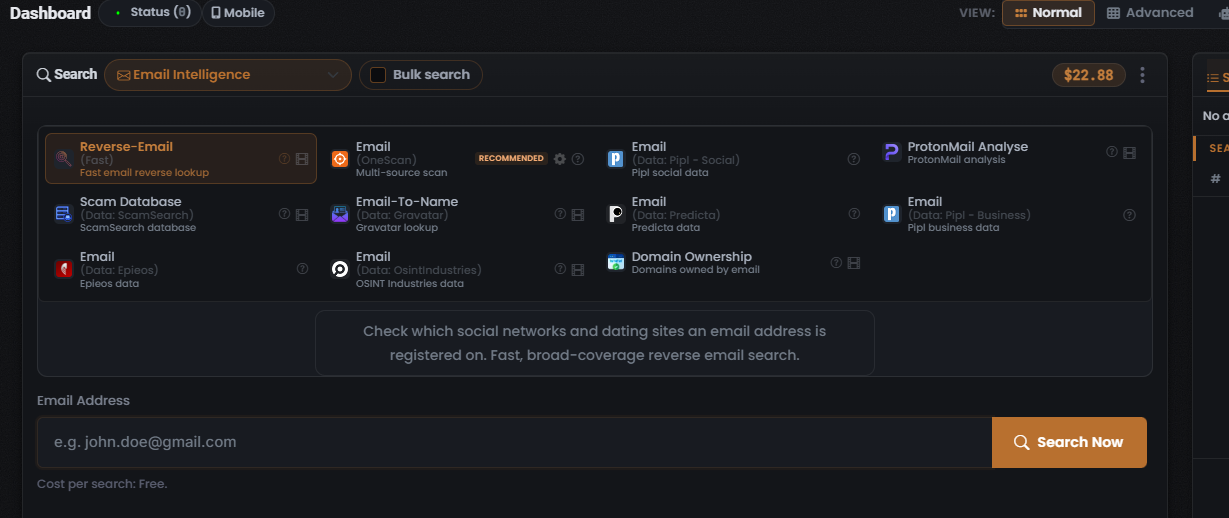
Section titled “Step 1 — Search the email”- Select the Email Intelligence Search type.
- Enter the email address in the search field.
- Choose a Module. A few confirmed options, depending on what you want back:
- Email (OneScan) — marked RECOMMENDED. Fans the single email out across several data sources at once and merges the results, attributing each row to the data source it came from.
- Reverse-Email (Fast) — returns the social networks and dating sites the email is registered on.
- Email-To-Name (Gravatar) — resolves the email to a real name and location (the Gravatar pivot is noted per Lee, 2026-07-08).
- Run the search with Search Now.
Step 2 — Read the results
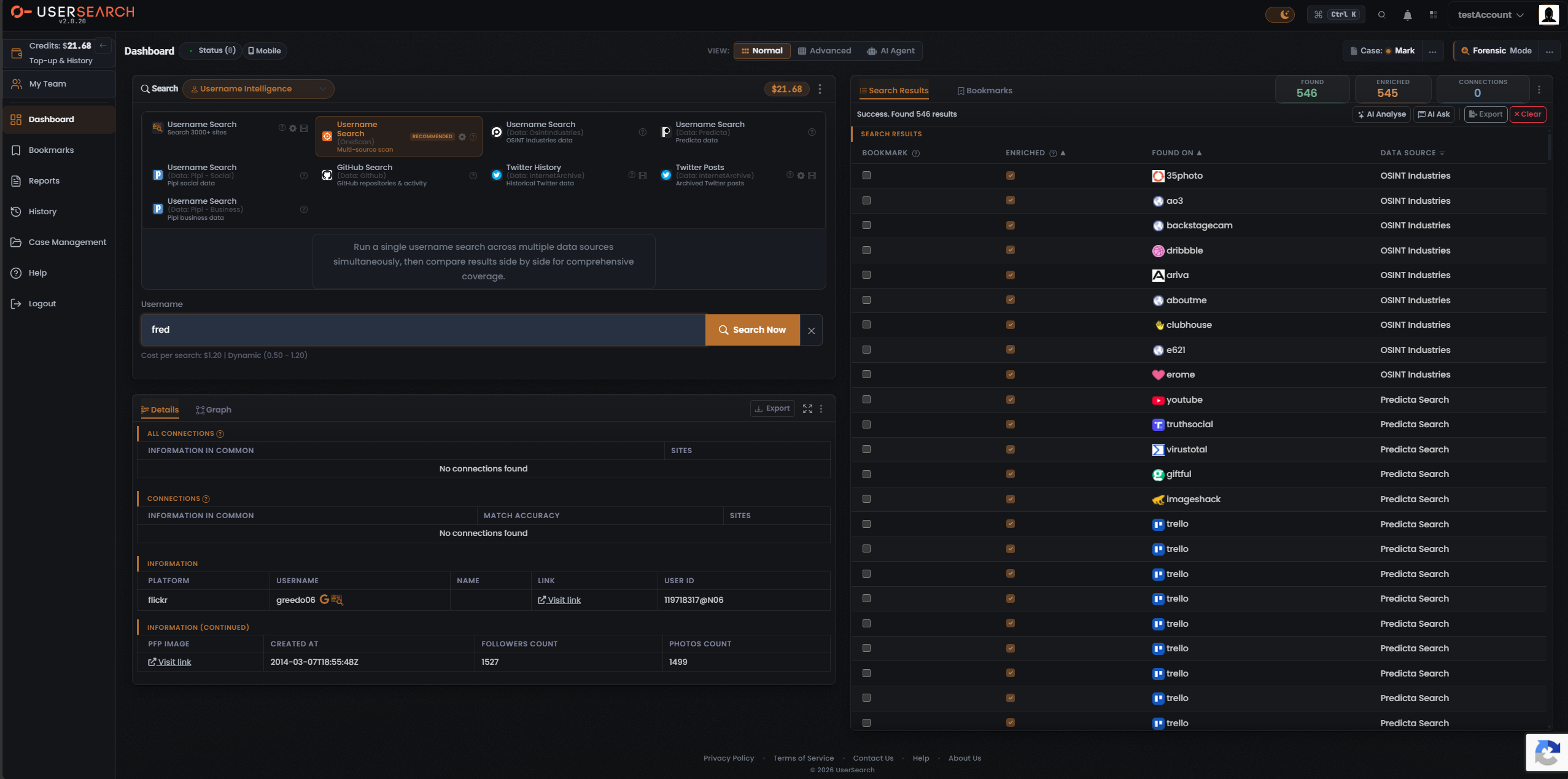
Section titled “Step 2 — Read the results”A populated results header always carries the same trio of counters, in this order. They count three different things — never treat them as interchangeable:
| Counter | What it means |
|---|---|
| Found (green) | The identifier is located on a site — an account exists there. (per Lee, 2026-07-08) |
| Enriched (orange) | UserSearch holds further metadata on that account — e.g. possible names, linked emails. A strict subset of Found. (per Lee, 2026-07-08) |
| Connections (white) | Relationships/links surfaced between entities — linked-account clusters, not raw site hits. |
The Enriched rows matter most for what comes next: enriched fields — a name, a linked email, a phone — are the raw material for a pivot. Each one is a new entity you can feed back into a fresh search.
For a OneScan result, the results table shows Bookmark · Enriched · Found On · Data Source columns — Found On names the platform where the match sits, and Data Source names the data source behind each hit (for example OSINT Industries or Predicta Search). Select a row to open the Details panel beneath the table, where enrichment surfaces as an Information block: platform, username, name, a profile link, user id, and figures such as account creation date and follower/photo counts.
Step 3 — Pivot to the person and their accounts
Section titled “Step 3 — Pivot to the person and their accounts”A pivot is moving from one entity to a related one by following a Connection a search surfaced. The core loop is search → enrich → pivot. From an email, these onward pivots are confirmed (observed) in the platform:
| Pivot | Where it takes you | Via |
|---|---|---|
| Email → Name | A real name and location for the person | Email Intelligence → Email-To-Name (Gravatar) |
| Email → Person | Social & professional profiles, a full person record | Email Intelligence → Email (Pipl-Social / Pipl-Business / Predicta / Epieos / OSINT Industries), or People Intelligence (Email is a form field) |
| Email → Accounts | Social networks and dating sites the email is registered on | Email Intelligence → Reverse-Email (Fast) |
| Email → Domain | Domains the email owns (reverse-WHOIS) | Email Intelligence → Domain Ownership |
| Email → Breaches | Breach/leak appearances and exposed credentials | Email Intelligence → Scam Database; Public Leaks → HaveIBeenPwned / Dehashed / IntelX / OneScan |
How to actually pivot
Section titled “How to actually pivot”There are two confirmed ways to move from a result to the next search:
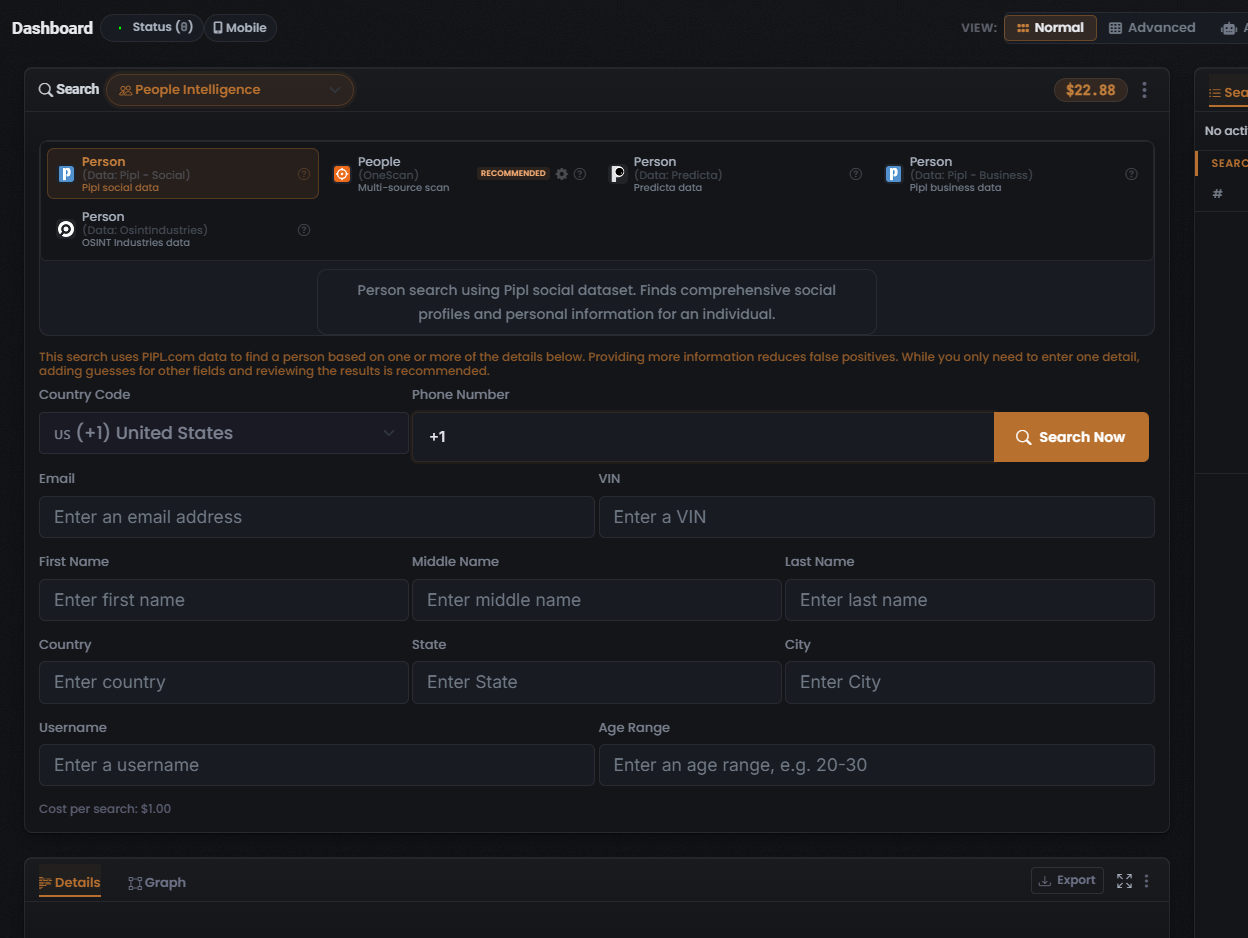
- Re-search across Search types (the manual pivot). Take a value the first search surfaced — a name from the Gravatar lookup, a linked email from enrichment — and enter it as the input to a different Search type/Module. This is the workhorse pivot. To resolve a person, People Intelligence is the convergence hub: its multi-field form accepts phone, email, VIN, first/middle/last name, country/state/city, username, and age range. Only one field is required, but providing more reduces false positives.
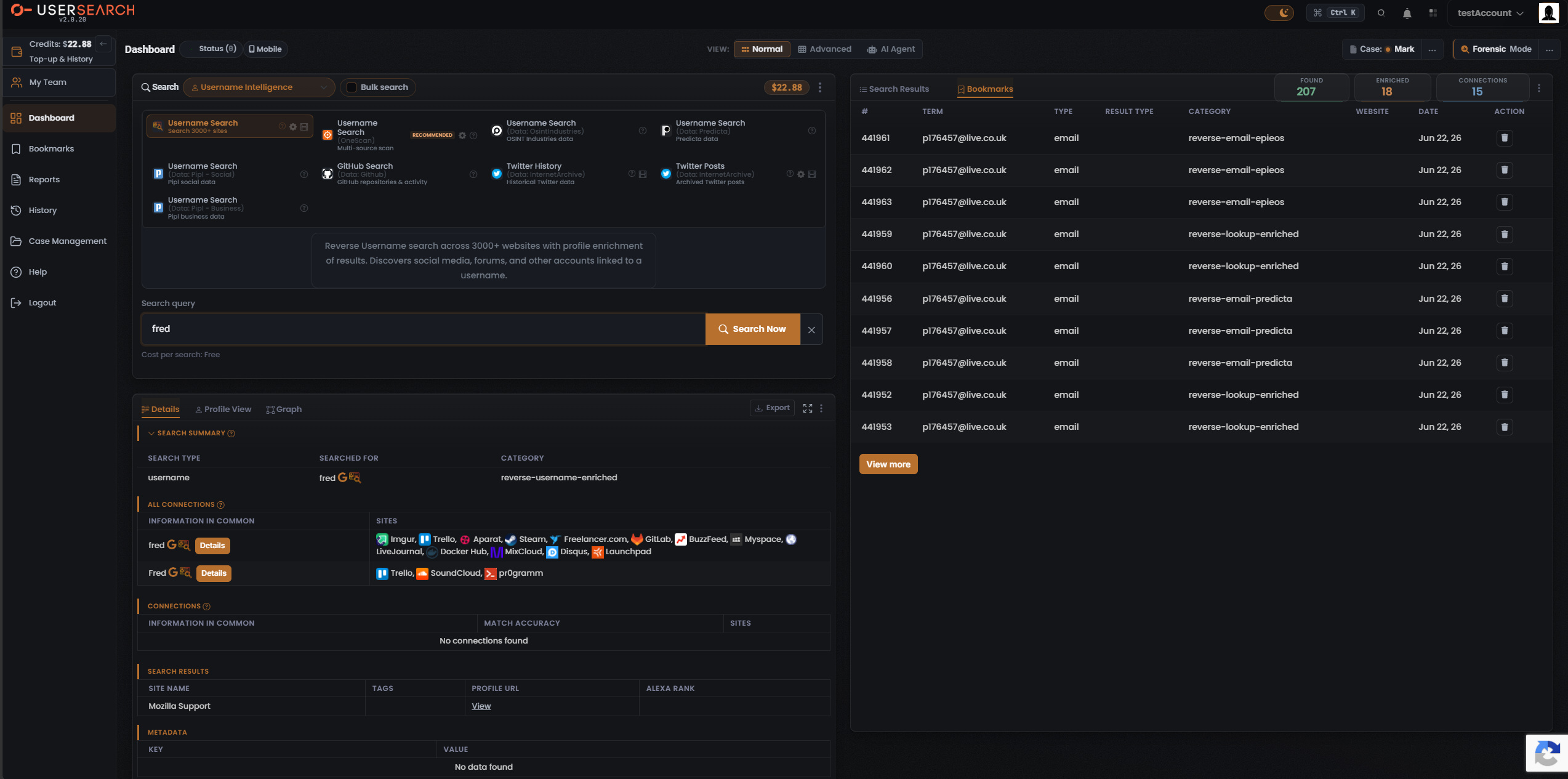
- The Google “G” dork icon. A multicolour Google “G” sits next to a searched term. Clicking it opens Google with a preset dork for that value (per Lee, 2026-07-08) — a pivot out of the platform into an external Google search.
Step 4 — Save your findings into a Case
Section titled “Step 4 — Save your findings into a Case”With a Case that has Forensic Mode ON active, you can retain your work.
- Bookmark individual results. Each result row carries a Bookmark checkbox in its first column — tick it to save that result into the active Case. The right-hand panel’s Bookmarks tab lists what you have saved.
- Review per-Case totals. The Case Summary panel (on the Bookmarks, Reports, and History pages) aggregates each Case’s Number of Bookmarks, Reports Created, and Last Update. Use the Filter by Case dropdown to scope Bookmarks / Reports / History to a single Case.
Managing Cases
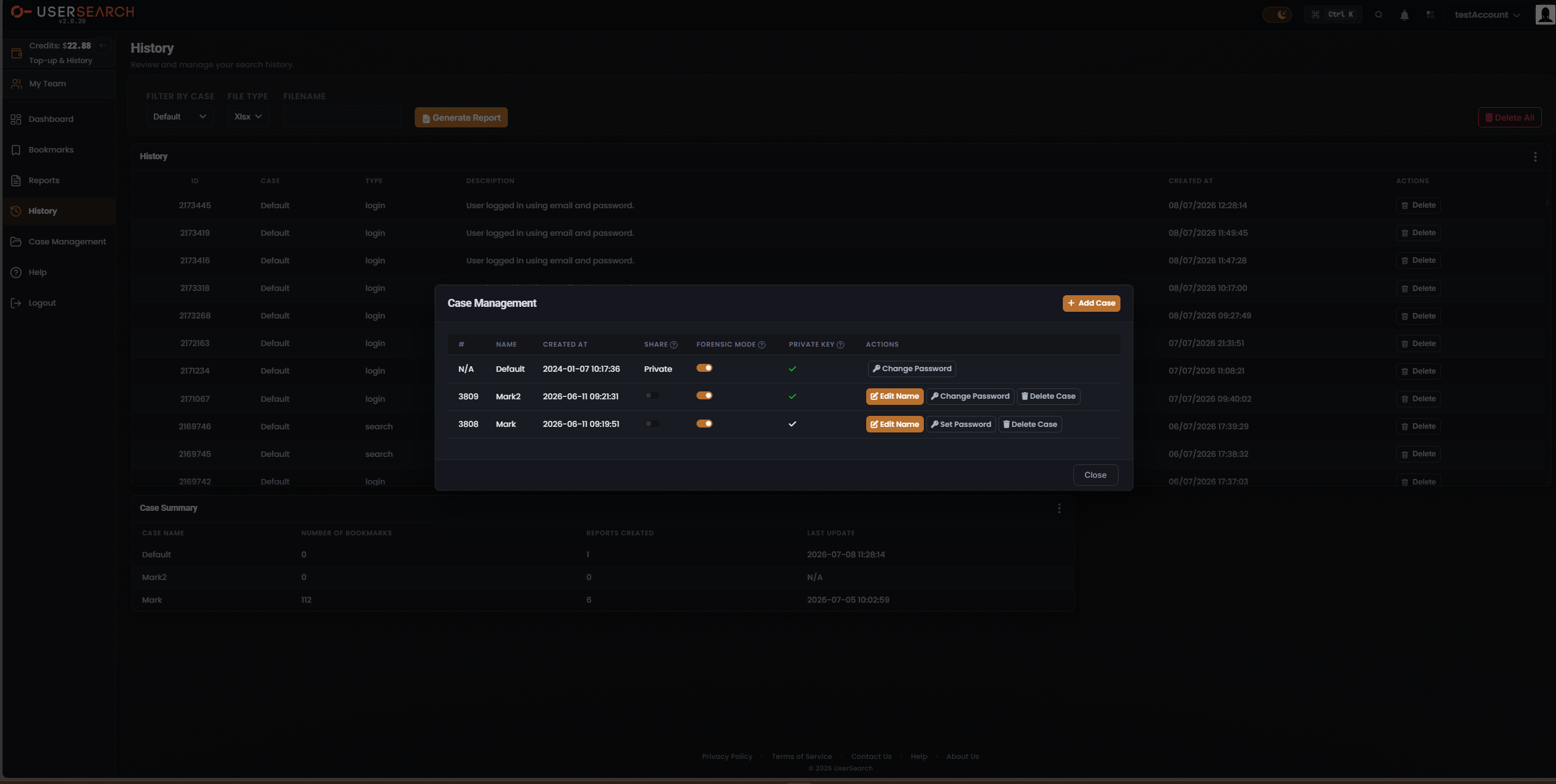
Section titled “Managing Cases”Open the Case Management modal from the left navigation. Its table lists every Case with these columns: # · Name · Created At · Share · Forensic Mode · Private Key · Actions.
- + Add Case (top-right) creates a new Case.
- Per row you can Edit Name, Set Password / Change Password, and Delete Case. The Default Case is constrained: it cannot be renamed or deleted, though its password can still be changed.
- Forensic Mode is toggled per-Case with the switch in this table.
Step 5 — Share the Case with your team
Section titled “Step 5 — Share the Case with your team”Case sharing is a team-account capability.
- Team accounts can share Cases among members, draw on one common pool of credits, and are controlled by a team leader. (per Lee, 2026-07-08)
- Single accounts do not share Cases. (per Lee, 2026-07-08)
To share on a team account, use the Share column in the Case Management table. A Case shows a Share toggle: off (grey) is Private / not shared; toggling it on makes the Case Public / shareable. The Default Case shows a fixed “Private” label rather than a toggle.
What you have done
Section titled “What you have done”Starting from a single email, you searched it, read the Found / Enriched / Connections counters, pivoted through confirmed routes to a name, a person record, and the accounts, domains, and breaches tied to the address, bookmarked the evidence into a Forensic Mode Case, and — on a team account — shared that Case with your colleagues. The same search → enrich → pivot loop and the same Case workflow apply to every other starting entity: a username, a phone number, an image, a domain, and more.
Verified against UserSearch v2.0.20